
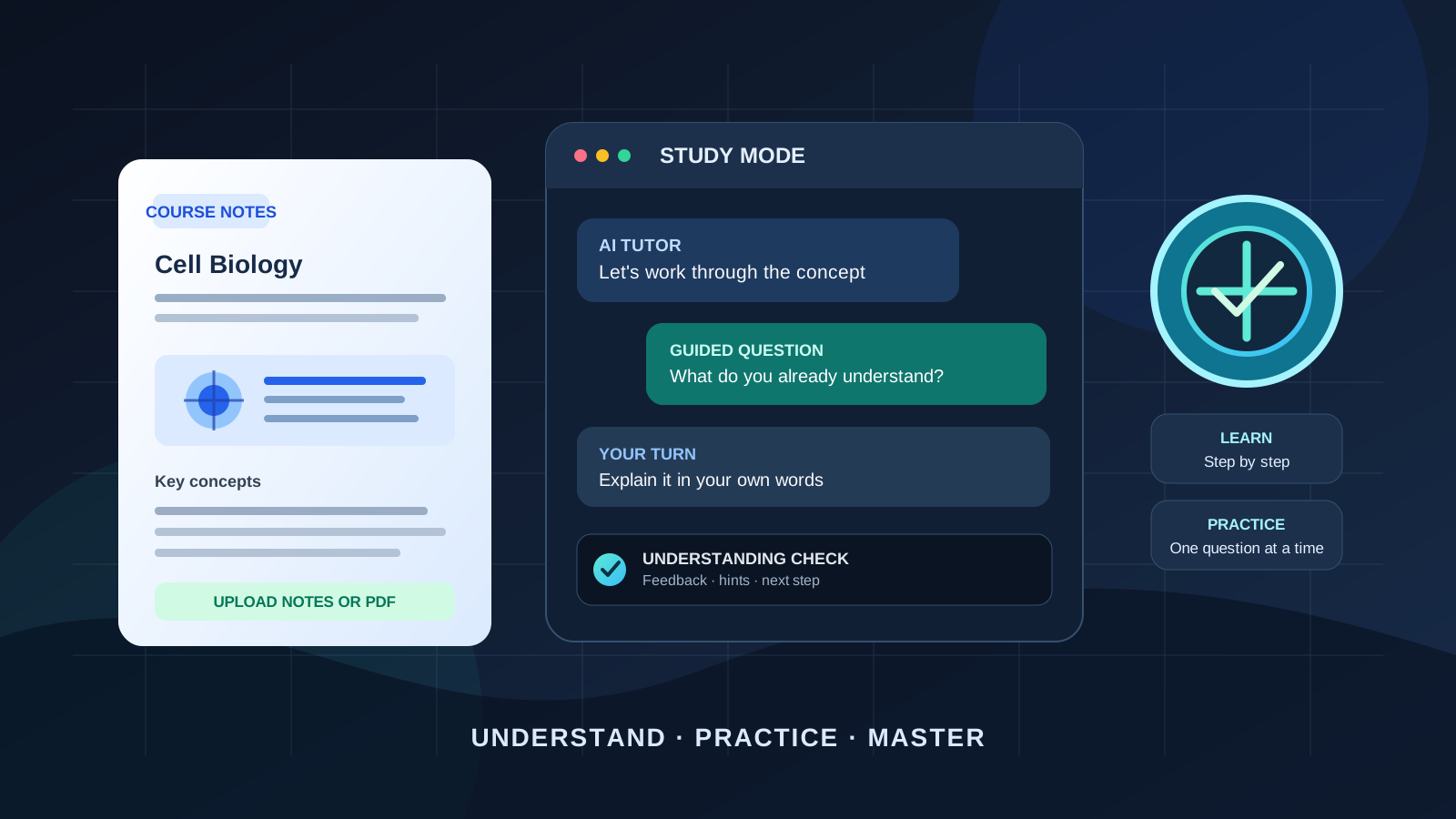
ChatGPT Study Mode is designed to help students understand a subject, not simply collect answers. It can ask guiding questions, break a difficult idea into smaller steps, work with uploaded class materials, and check whether you can explain what you have learned. For university students facing dense textbooks, unfamiliar formulas, complex theories, or demanding exams, that makes it useful as an interactive study partner.
The important distinction is how you use it. If you ask for a finished solution and copy it, you may complete a task without learning the method. If you ask Study Mode to identify what you know, give you a hint, wait for your attempt, and explain the reasoning behind each step, you can use the same tool to build understanding.
This practical guide explains how to turn on ChatGPT Study Mode, use it with university subjects and lecture notes, create a repeatable learning workflow, and prepare for exams without treating AI output as an authority.
What is ChatGPT Study Mode?
Study Mode is a learning experience inside ChatGPT. Instead of responding only with a final answer, it is designed to guide your thinking through questions, layered explanations, hints, and checks for understanding. OpenAI says it can help with learning a concept, working through practice problems, preparing for tests, reviewing class notes or slides, and creating practice questions or flashcard-style review.
Study Mode can also refer to materials you upload to the conversation, including notes, worksheets, slides, syllabus documents, textbook excerpts, images, and PDFs when file uploads are available. This lets you ask questions about the course content you are actually studying rather than relying only on a general explanation.
For the latest supported steps and availability details, consult OpenAI’s official guide to using Study Mode in ChatGPT.
How to turn on ChatGPT Study Mode
You can start Study Mode on the web or in the ChatGPT mobile apps. The exact menu layout may vary by app version.
On the web
- Sign in to ChatGPT and open a regular conversation.
- In the message composer, type
@studyand look for the Study suggestion, or select the + button and search for Study. - Select Study from the suggestions to activate the mode.
- You can also open chatgpt.com/studymode directly.
On iPhone or Android
- Open the ChatGPT app and start a regular chat.
- Tap the + button beside the message field to view available tools.
- Find Study. If it is not immediately visible, search for it in the menu.
- Select Study, then describe the subject and what you want to learn.
Study Mode is available across ChatGPT plans globally on web, iOS, and Android, according to OpenAI’s current Help Center documentation. It works with the models available to your account. However, the Study selector is not available in Temporary Chats, custom GPTs, or Projects. If you cannot find it, try a new regular conversation and check OpenAI’s Study Mode troubleshooting instructions.
How to use Study Mode to learn a difficult university subject
The most effective approach is to divide a course topic into a sequence: diagnose your current understanding, learn one concept, work through an example, attempt a problem yourself, and test your recall. The steps below work for subjects such as biology, economics, mathematics, physics, chemistry, computer science, history, and academic writing.
Step 1: Tell ChatGPT your course level and learning goal
Do not begin with a vague request such as “Teach me biology.” Give Study Mode enough context to choose the right depth and pace. Include your university year, course, exact topic, what you already understand, and the kind of assessment you are preparing for.
Prompt to copy:
I am a second-year university student taking [course name]. I need to understand [specific topic] for an exam on [date]. My current level is [beginner/intermediate/advanced]. First, ask me three short questions to identify what I already understand. Then create a learning sequence from the prerequisites to the difficult parts. Do not give me a long lecture or reveal the final answer before checking my understanding.
This opening helps the session stay focused on your actual course rather than producing a generic overview.
Step 2: Ask for a layered explanation
A difficult university concept often becomes manageable when you learn it in layers. Start with the basic intuition, move to the formal definition, and then study the technical details and exceptions.
Prompt to copy:
Explain [concept] in four layers:
- Give me an intuitive explanation using plain language.
- Define the key terms accurately.
- Explain the university-level theory, including the important assumptions.
- Give me one worked example and explain why each step is necessary.
Pause after each layer and ask me a question before moving on. If my answer shows a misunderstanding, correct that specific point before continuing.
For a subject such as thermodynamics, for example, you might first understand the difference between heat and temperature, then learn the formal definitions, and finally work through the equations and their assumptions. In economics, you could move from an intuitive explanation of elasticity to the formula, interpretation, and a numerical example.
Step 3: Work through problems without skipping the reasoning
For mathematics, physics, chemistry, statistics, and engineering, ask Study Mode to coach you through the method instead of solving everything immediately.
Prompt to copy:
Help me solve this [subject] problem as a tutor. Do not give me the complete solution immediately. First identify the information provided and what the question asks. Ask me which principle, formula, or method might apply. Give one hint at a time, wait for my attempt, and explain any mistake. After I solve it, show a complete solution and identify the reasoning steps I should remember.
This approach is useful because recognizing which method to apply is often harder than carrying out the calculation. It also helps you notice whether a mistake comes from a misunderstood concept, an incorrect formula, algebra, units, or arithmetic.
If you are studying from a photograph of a question, upload a clear image and tell ChatGPT which question or part to focus on. Check that it has read the symbols, diagrams, and numerical values correctly before relying on its explanation.
Step 4: Study from your own lecture notes and PDFs
You can use Study Mode with course materials when uploads are available in your ChatGPT conversation. Relevant materials may include:
- Lecture notes and handouts.
- PDF textbook chapters or selected readings.
- Presentation slides.
- A course syllabus or list of learning objectives.
- Practice worksheets and past questions that you are permitted to use.
- Your own summary of a lecture.
Upload the material, then identify the chapter, page, or topic. Avoid asking for a summary of an entire textbook when you need help with one difficult section.
Prompt to copy:
Use the uploaded lecture notes as the main source for this study session. I am preparing for a university assessment on [topic]. First, list the main learning objectives and the concepts I need to understand. Then teach them in the order used by the course. For every explanation, identify the relevant heading or page when possible. Do not invent information that is not in the uploaded material; clearly label any additional explanation as background context.
If the file is long or the answer seems to overlook a section, point Study Mode to the exact page or paste the relevant passage. Open the original document to confirm important definitions, formulas, quotations, and page references. For a separate workflow focused on document extraction, see How to Use ChatGPT to Analyze a PDF and Extract Key Findings.
Step 5: Turn the topic into active-recall questions
Rereading a chapter can make it feel familiar without proving that you can remember or apply it. Active recall gives you a more useful test: try to retrieve the idea before looking at the explanation.
Ask Study Mode to quiz you one question at a time. Answer from memory, explain your reasoning, and ask for feedback before moving to the next question.
Prompt to copy:
Create a university-level quiz on [topic] based on the material we studied. Ask one question at a time and wait for my answer. Include a mix of definition, explanation, application, and problem-solving questions. After each response, tell me what I got right, what is missing, and what I should review. Do not show the correct answer until I have attempted the question.
For a more demanding review, ask it to include questions that test the difference between similar concepts, common misconceptions, and applications in unfamiliar situations. If your account shows a separate quiz shortcut, you can use it too; OpenAI notes that these shortcuts may vary by account and app.
Step 6: Identify and repair knowledge gaps
A useful study session should finish with a clear picture of what you understand and what still needs work. Ask Study Mode to group your errors by concept rather than simply marking each answer right or wrong.
Prompt to copy:
Review my answers from this session. Create three lists: concepts I understand, concepts I partly understand, and concepts I need to relearn. For each weak area, explain the specific misunderstanding, give me a short corrective lesson, and ask one new question to check whether I have improved. Finish with the three most important topics I should review next.
This turns mistakes into a study plan. Return to the difficult concepts after a break and try a fresh question without looking at the earlier explanation.
A practical Study Mode workflow for exam preparation
You can use the following routine for one university topic. Adjust the timing to the difficulty of the subject and the time available.
| Study stage | Suggested time | What to do |
|---|---|---|
| Diagnostic questions | 5 minutes | Identify what you already know |
| Concept explanation | 15 minutes | Learn definitions, principles, and examples |
| Guided problem-solving | 15 minutes | Attempt problems with hints |
| Active-recall quiz | 10 minutes | Answer questions without notes |
| Error review | 5 minutes | Record gaps and plan the next session |
For a large course, repeat this routine for each major topic. At the end of the week, ask for a cumulative quiz that mixes earlier topics with the latest material. This helps you check whether you can connect ideas rather than remember them only in isolation.
Subject-specific ways to use ChatGPT Study Mode
Mathematics and statistics
Ask it to explain why a formula applies, define every variable, show the intermediate steps, and give you a similar problem to solve independently. Request checks for units, assumptions, and alternative methods where relevant.
Biology, chemistry, and medicine-related coursework
Use it to explain processes, compare related terms, and build questions about mechanisms. For diagrams, upload a clear image and ask it to describe the parts before explaining how they interact. Verify scientific details with your textbook, lecture materials, and authoritative course sources.
Physics and engineering
Ask for a breakdown of known values, unknowns, governing principles, assumptions, units, and the sequence of calculations. Ask it to explain what would change if one condition in the problem were different.
Computer science and programming
Ask it to explain the underlying concept, walk through a small example, and then give you a similar coding exercise. Try to write and test your own solution before requesting a correction. Do not submit code you cannot explain or test.
History, economics, and humanities
Ask it to distinguish key concepts, compare competing interpretations, build timelines, and quiz you on cause, evidence, and consequences. For essays, use it to challenge your argument and identify gaps rather than write an assignment for you.
How to get better results from Study Mode
Small changes in your instructions can make a study session more useful:
- Set the level: Say whether you are in your first year, final year, or postgraduate study.
- Name the exact topic: A specific concept produces a more focused lesson than an entire subject name.
- Ask for one step at a time: This makes it easier to spot where your understanding breaks down.
- Request hints before answers: Try the problem yourself before seeing a complete solution.
- Use your course materials: Upload the relevant notes or identify the exact page or section.
- Ask for a knowledge check: Explain the concept in your own words or solve a new example.
- Request harder questions when ready: Tell it when the basic explanation is too easy.
- Keep a record of mistakes: Use the final review to decide what to study next.
If you want to improve the instructions you give ChatGPT across different tasks, our guide to writing better ChatGPT prompts provides additional examples. You can also read How to Use ChatGPT Effectively for broader workflows.
Common Study Mode problems and how to fix them
Study Mode gives me the answer instead of teaching me
It is designed to guide learning, but it may sometimes provide a direct answer. Tell it: “Do not reveal the final answer yet. Give me one hint, ask me to try, and wait for my response.” You can repeat this instruction whenever the session becomes too answer-focused.
The explanation is too basic
State your course level and ask for the formal theory, technical terminology, assumptions, and more difficult examples. You can say: “I understand the introductory explanation. Move to an advanced university-level treatment and test me on edge cases.”
The explanation is too difficult
Ask it to slow down, define unfamiliar terms, use a simpler example, and check your understanding after each step. If a topic depends on prerequisite knowledge, ask it to identify and teach those prerequisites first.
Study Mode does not use my uploaded notes correctly
Upload a clearer file or image, specify the page or section, or paste the relevant text. Ask ChatGPT to identify the material it can read before asking it to explain the content. Verify important details in the original file.
I cannot find the Study option
Start a regular ChatGPT conversation rather than a Temporary Chat, custom GPT, or Project. On the web, try typing @study or opening the + menu and searching for Study. On mobile, open the + menu and search for Study. Update the app if necessary and consult the official troubleshooting guide if the option remains unavailable.
Is ChatGPT Study Mode free for university students?
OpenAI’s current Help Center says Study Mode is available globally across ChatGPT plans on the web, iOS, and Android. It works with the models available to the user’s account. This does not mean that every model, upload feature, or usage allowance is identical across plans.
Study Mode follows the same plan, model, message, and rate-limit rules as ChatGPT outside Study Mode. It does not add extra messages or bypass usage limits. File and image uploads depend on the features and limits available in the conversation. Check the current OpenAI Study Mode help page for the latest details.
Can ChatGPT Study Mode replace a university tutor?
No. It can provide explanations, questions, practice, and feedback, but it can make mistakes or misunderstand course material. It does not know every instructor’s expectations, grading rubric, or the full context of your course unless you provide relevant information.
Use it as a supplement to lectures, textbooks, office hours, teaching assistants, and academic support services. Check important formulas, definitions, citations, and factual claims against trusted course materials. Follow your university’s rules on AI assistance, especially for graded assignments, exams, and work that must represent your own effort.
Final thoughts
ChatGPT Study Mode is most useful when you treat it as a tutor that asks you to think—not as an answer generator. Give it your course level and a precise learning goal, work through one concept at a time, upload relevant notes when appropriate, and test yourself before moving on. The final measure is not how much text ChatGPT produces; it is whether you can explain the idea, solve a new problem, and remember the reasoning without help.
Official sources
- OpenAI Help Center: Using Study Mode in ChatGPT
- OpenAI Help Center: ChatGPT Release Notes
- ChatGPT Study Mode