
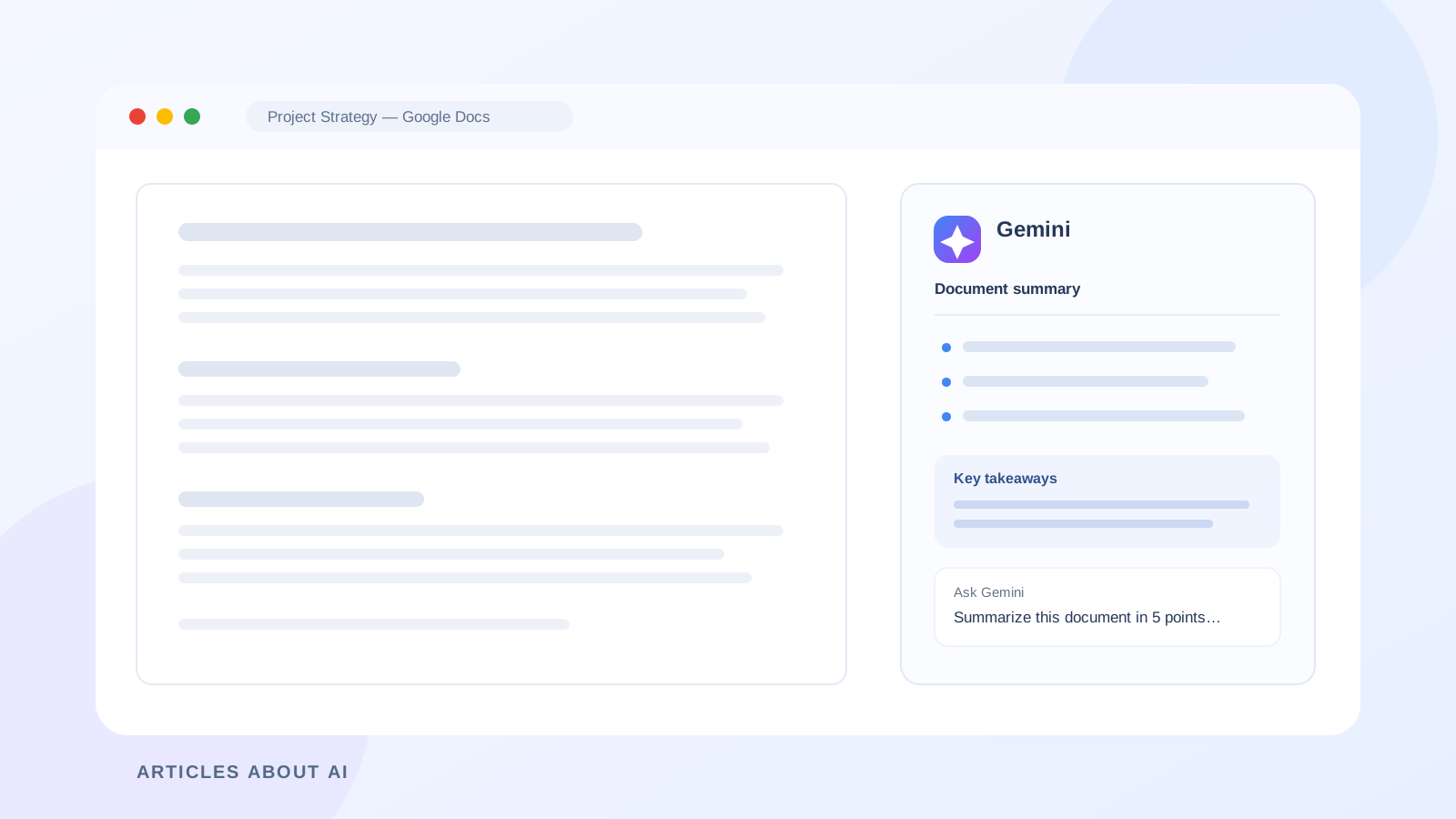
Long Google Docs documents can be difficult to review when you need only the main argument, decisions, deadlines, or action items. A project proposal may contain background, milestones, and risks; meeting notes may mix decisions with discussion; a research document may include methods, findings, and limitations. Gemini can help turn that material into a shorter, more useful overview without requiring you to copy the entire document into a separate chatbot.
Google provides more than one way to summarize content in Docs. You can ask Gemini from the side panel to summarize a document or a selected passage. A separate AI Summary building block can create an in-line summary inside the document, where supported. These experiences have different availability requirements, so it is important to identify which one your Google account can use.
This guide explains how to summarize a Google Docs document with Gemini, write prompts that produce useful results, summarize specific sections, create an executive summary, and check the output against the original text.
Can Gemini summarize a Google Docs document?
Yes. Google’s official Gemini in Google Docs help page explains that Gemini can summarize text in a document through its side panel. When you open a document containing text, the panel may show a summary, and you can also ask Gemini for a specific format, such as three bullet points or a simplified explanation. You can highlight a section and ask Gemini to summarize only that selected text.
Google also documents an in-line AI Summary building block. In supported Workspace Experiments accounts, you can type @Summary in a Google Doc and select AI summary to generate a summary block. Google says this block summarizes all text in the document, including text in different tabs. You can refresh the block after edits, then accept or discard the suggested update. See Google’s AI Summary building block instructions.
These are distinct workflows:
- Gemini side panel: Ask questions, request a summary, or summarize highlighted text while working in the document.
- AI Summary building block: Generate an in-line summary block that can be inserted into the document and refreshed later.
Before you start: check feature availability
Gemini features in Docs are not necessarily available to every Google account. Google’s help documentation says the side-panel experience requires an eligible Google Workspace or Google AI plan, and availability can depend on supported languages and account access. Some features are also made available through Workspace Experiments, Google’s trusted tester program for personal accounts.
The in-line AI Summary building block is specifically documented as a Workspace Experiments feature. Google says it is available in Editing and Suggesting modes. If you do not see the building block after typing @Summary, your account may not have access to that experiment.
The interface and available capabilities can change by plan, administrator settings, language, and rollout. Check the current Gemini in Docs feature guidance rather than assuming that every account has the same buttons.
Method 1: Summarize a document with the Gemini side panel
This is the most flexible method when you want to ask follow-up questions or control the structure and length of the summary.
- Open the document in Google Docs.
- Make sure you are signed in to the Google account that has access to Gemini in Docs.
- Open the Ask Gemini panel using the Gemini icon near the top-right corner.
- Review the suggested summary if one appears when the document contains text.
- Enter a specific instruction in the prompt field, such as: “Summarize this document in five bullet points.”
- Press Enter and review the response.
- If the summary is useful, select the option to insert the generated text into the document, where that option is available.
Google’s help page also gives examples such as “Explain this document like I’m 5 years old.” You can request a different version with the retry option. Remember that the panel’s conversation history may not persist after you refresh or close the document, so insert any output you want to keep.
A prompt for a clear, accurate document summary
A short request can work for a simple document. For a report or proposal, specify what to include and what to leave out.
Prompt 1: Summarize the full document
Summarize this Google Docs document for a reader who has not read it.
Organize the summary into:
- Main purpose and context
- Central argument or objective
- Five to seven key points
- Important facts, dates, figures, and names
- Decisions, recommendations, or conclusions
- Risks, limitations, and unresolved questions
Use only information supported by the document. Preserve important qualifications and distinguish confirmed decisions from suggestions. If a detail is missing, say that it is not stated.
This prompt is useful for project plans, business reports, proposals, research notes, and policy documents. For a short document, reduce the number of requested sections so that the summary does not become almost as long as the source.
Method 2: Create an in-line AI Summary block
If the AI Summary building block is available in your account, you can place a generated summary directly inside the Google Doc. This is useful when the document itself needs a short overview for collaborators or readers.
- Open the Google Doc on a computer.
- Confirm that the document is in Editing or Suggesting mode.
- Type
@Summaryin the document. - Select AI summary from the building-block suggestions.
- Review the generated summary block.
- Choose the checkmark or accept option to insert it, or discard it if it is inaccurate or unnecessary.
Google also describes accessing the block through Insert > Building Blocks > AI Summary. The exact menu presentation may vary as the Docs interface changes.
Refresh the summary after editing
An in-line summary can become outdated when the underlying document changes. Google provides a refresh control for the AI Summary block:
- Click the existing AI Summary block.
- Select Refresh summary beside the block.
- Read the updated summary carefully.
- Accept the changes to update the block, or discard them.
Refreshing is not a substitute for review. If the document has gained a new decision, changed a deadline, or removed an earlier recommendation, confirm that the refreshed summary reflects the change correctly.
Method 3: Summarize only a selected section
Sometimes a full-document summary is unnecessary. You may need only the methodology in a research report, the budget section of a proposal, or the decisions from one part of meeting notes.
To summarize selected text with Gemini:
- Open the document in Google Docs.
- Highlight the paragraph or section you want to summarize.
- Open the Gemini side panel by selecting Ask Gemini.
- Ask Gemini to summarize the selected text.
- Specify the output format and level of detail.
- Compare the result with the highlighted passage before using it.
Try this prompt:
Prompt 2: Summarize a selected section
Summarize only the text I selected. Identify its main point, supporting details, important figures or dates, and any conclusion. Do not use information from other sections of the document. Keep the summary to [number] bullet points and preserve any caveats or uncertainty in the original text.
This is a useful way to create section summaries without allowing background information elsewhere in the document to blur the scope of the answer.
Method 4: Turn a long document into an executive summary
An executive summary should help a decision-maker understand the purpose, evidence, implications, and required action without reading every page. It should not simply be a shortened introduction.
Use this prompt in the Gemini side panel:
Prompt 3: Create an executive summary
Prepare an executive summary of this document for [leadership team / project manager / client / research supervisor].
Include:
- The issue or opportunity being addressed
- The document’s objective and scope
- The most important findings
- Relevant numbers, dates, and evidence
- Key risks and dependencies
- Decisions required
- Recommended next steps that are explicitly stated in the document
Keep the summary under [word count] words. Do not invent recommendations. Clearly label any point that is an interpretation rather than a statement made by the document.
For meeting notes, replace the findings section with decisions, owners, deadlines, and open questions. For a research report, focus on the research question, method, results, limitations, and conclusion.
Useful Gemini prompts for different Google Docs documents
The best prompt depends on what the document contains and what you intend to do with the summary.
Summarize meeting notes and extract action items
Prompt 4: Meeting notes
Summarize these meeting notes. Separate:
- Decisions actually made
- Action items
- The person responsible for each action, if stated
- Deadlines, if stated
- Unresolved questions and follow-up topics
Do not assign an owner or deadline when the notes do not specify one. Mark missing information as “not specified.”
Summarize a research paper or academic document
Prompt 5: Research document
Summarize this research document under these headings: research question, background, methodology, data or sample, main findings, authors’ conclusions, and limitations. Distinguish results from the authors’ interpretation. Do not turn an association into a causal claim, and do not add outside information.
For more detailed research workflows, see our guide on how to use Gemini to analyze a PDF and extract important details.
Summarize a business proposal or project plan
Prompt 6: Business proposal
Summarize this proposal for a project decision-maker. Identify the business objective, proposed solution, scope, budget figures, timeline, dependencies, risks, success measures, and decisions required. Preserve the units and dates exactly as written. Separate confirmed commitments from estimates and proposed targets.
Explain a complex document in plain English
Prompt 7: Simple explanation
Explain this document in plain English for someone who is new to the topic. Define technical terms, explain the main argument, and give a short example only when it helps clarify the document. Do not remove important warnings, exceptions, or limitations.
How to check whether Gemini’s summary is accurate
A well-written summary can still omit an important exception, misstate a deadline, or turn a tentative proposal into a confirmed decision. Treat Gemini’s output as a draft to review, not as an authoritative replacement for the source document.
Use this verification process:
- Check important facts. Compare names, dates, amounts, percentages, and technical terms with the original text.
- Confirm decisions and action items. Make sure a suggestion has not been presented as an approved decision, and verify each owner and deadline.
- Look for missing qualifications. Words such as “may,” “proposed,” “estimated,” and “subject to approval” can materially change the meaning.
- Review sections that carry the main evidence. Check the original methodology, tables, appendices, and limitations if the summary relies on them.
- Ask Gemini what it left out. Request a list of important details that did not fit into the summary, then verify those details yourself.
Google’s guidance on using sources with Gemini in Workspace warns that Gemini can make mistakes even when it displays sources. Google recommends checking the contributing files and verifying information against sources you trust. The same caution applies when summarizing a single Google Doc: the original document remains the reference.
Common problems when summarizing Google Docs with Gemini
The Ask Gemini button is missing
Check whether you are using an eligible Google Workspace or Google AI plan, whether your administrator has enabled the relevant features, and whether the feature is supported in your language and account. Google’s Gemini in Docs help page lists availability information.
The AI Summary building block does not appear
The in-line AI Summary block is documented as a Workspace Experiments feature. It may not be available to every personal or Workspace account. Try typing @Summary in a document and check whether AI summary appears in the suggestions. If it does not, use the Gemini side panel if your account supports it.
The summary is too short or too general
Tell Gemini who will read the summary, what information matters, and how long the answer should be. Ask for separate sections for key findings, figures, risks, decisions, and next steps rather than requesting only “a summary.”
Gemini misses information in a long document
Ask about the relevant heading or selected passage, then compare the response with the source. You can also split the task into section-by-section summaries and ask Gemini to consolidate them. Google notes that Gemini has processing-capacity limits when working with sources, so a large amount of content may not all be used in one response.
The summary becomes outdated after edits
If you inserted an AI Summary building block, select it and use Refresh summary. If you used the side panel, run the summary prompt again after substantial changes and replace the old text only after reviewing the new version.
Frequently asked questions
Can Gemini automatically summarize a Google Doc?
Gemini in Docs can show a summary in its side panel when you open a document containing text, and you can ask it to generate a specific summary. The separate AI Summary building block can create an in-line summary in supported Workspace Experiments accounts.
Can Gemini summarize only part of a Google Docs document?
Yes. Highlight the passage you want to summarize, open the Gemini side panel, and ask it to summarize the selected text. Specify the desired length and format.
Can I insert Gemini’s summary into Google Docs?
Yes. In the side-panel workflow, Google provides an option to insert generated text into the document. The AI Summary building block also lets supported users accept the generated summary into the document.
Does the AI Summary block update automatically?
Google documents a manual Refresh summary control. Select the summary block and refresh it after changing the document; review and accept the updated version.
Is Gemini in Google Docs free?
Availability depends on the Google account, plan, and feature. Google’s documentation lists eligible Google Workspace or Google AI plans for Gemini in Docs, while the AI Summary building block is described as a Workspace Experiments feature. Check the current eligibility details in Google’s official help pages.
Final thoughts
Gemini can make long Google Docs easier to review by generating document summaries, condensing selected passages, and organizing information into executive briefs or action lists. The side panel is the better choice when you want flexible prompts and follow-up questions. The AI Summary building block is useful when you want an in-line summary that can be refreshed as the document changes, provided the feature is available to your account.
For reliable results, define the audience and purpose, request the facts and qualifications that matter, and verify important details against the original document. A concise AI summary is most useful when it preserves the meaning of the source rather than simply reducing its word count.
Official Google sources
- Collaborate with Gemini in Google Docs
- Summarize your document in Docs with Gemini (Workspace Experiments)
- Learn how to use sources with Google Workspace with Gemini
- Google Workspace: Introducing the AI Summary building block
For another document workflow, read our guide to using Gemini to analyze a PDF and extract important details, or learn how to use Google AI Search to find and check sources.