
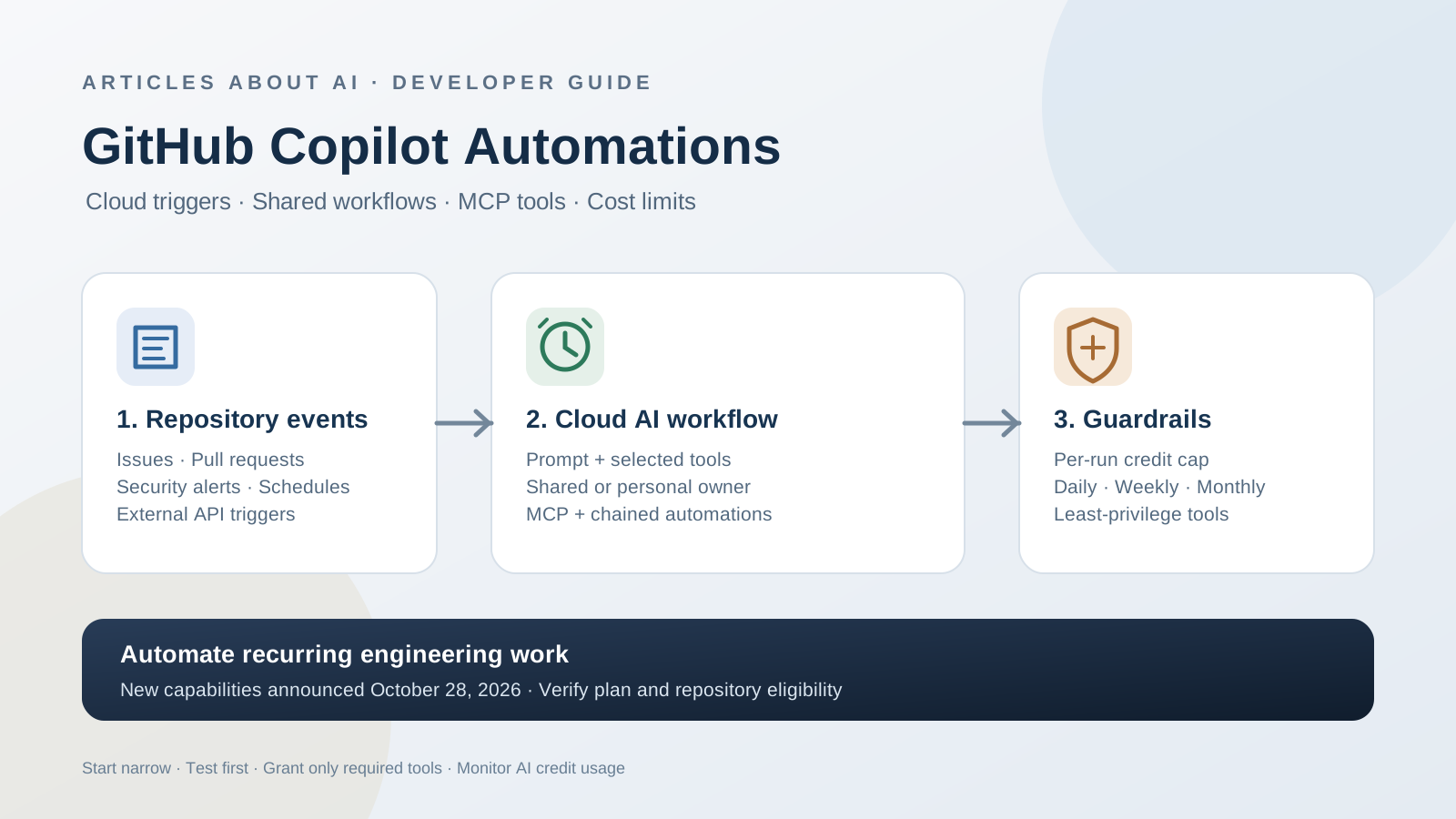
GitHub expanded Copilot Automations on October 28, 2026, adding more event triggers and tools, API-based triggering from external systems, chained workflows, custom Model Context Protocol (MCP) tools, shared team automations, and configurable AI credit limits. The updates make Copilot Automations more useful for repeatable engineering work: teams can define a task once and let Copilot cloud agent run it on a schedule or in response to repository activity.
This guide explains how to plan and configure an automation, choose its trigger and tools, decide whether it should be personal or shared, connect an external system, and control usage. It is based on GitHub’s official changelog and documentation. Some features are rolling out, so the exact controls visible in your account may differ.
Official announcements: New tools, triggers, and cost controls for Copilot Automations, Build shared workflows for your team, and Copilot Automations now learn from outcomes and self-improve.
What Are GitHub Copilot Automations?
Copilot Automations let you save a task prompt, define when it should run, and select the tools Copilot can use. Instead of manually asking an agent to review an issue every time, you can configure a workflow that runs when an issue opens, on a schedule, or when another supported event occurs.
GitHub’s October 28 update expands the original workflow model in several ways:
- More triggers: automations can respond to additional issue, pull request, discussion, and security events.
- External API triggers: external services can call the GitHub REST API to start an automation with relevant context.
- Chained automations: one automation can trigger another, including when a previous run succeeds or fails.
- More GitHub tools: new actions include updating comments, managing pull-request states, handling reactions, reading discussions, and retrying workflow runs.
- Custom MCP tools: administrators can configure MCP servers and let an automation use selected tools from those servers.
- AI credit limits: set limits per run, day, week, or month for cloud automations.
- Shared workflows: teams can maintain automations in a repository instead of tying the workflow only to the person who created it.
- Self-improvement proposals: an automation can analyze outcomes and propose changes to its prompt, tools, or triggers for human review.
These capabilities do not guarantee that an automation can safely perform every task without supervision. The tools you grant determine what actions it can take, and the prompt should define clear boundaries and expected outputs.
What You Need Before Creating an Automation
Before setup, confirm the repository and account meet GitHub’s current requirements.
GitHub’s documentation lists Copilot Pro, Pro+, Max, Business, and Enterprise among the eligible plans. For cloud automations, the repository must be private or internal, Copilot cloud agent must be enabled, and repository or organization policies must allow automations. Cloud automations are not available in public repositories under the current documented requirements. Business and Enterprise users may need an administrator to enable the relevant cloud agent policy.
You also need write access to the repository to create an automation. For shared automations in an organization-owned repository, an administrator must enable the policy allowing organization-billed Copilot cloud agent usage. Feature rollout may vary, so check the current GitHub documentation if a control described here does not appear in your account.
Official setup references: Creating automations with Copilot cloud agent and Using automations in the GitHub Copilot app.
How to Create a GitHub Copilot Cloud Automation
Step 1: Open the Automations Interface
On GitHub, open the repository where you want the automation to operate. Select Agents, open Automations, and choose Create new. You can also create and manage automations through the Automations area in the GitHub Copilot app or supported VS Code experience.
If you use the Copilot app, choose the repository or local folder relevant to the task. Cloud automations run in a cloud environment, so they can continue when your own computer is off. Local automations have different runtime behavior and do not support the same cloud credit-limit controls.
Step 2: Write a Narrow, Testable Prompt
Describe one well-defined job, the information Copilot should inspect, and the result it should produce. For example:
When a new bug issue is opened, summarize the reported behavior, identify missing reproduction details, suggest relevant labels, and draft a concise comment asking for the missing information. Do not close the issue, change code, or expose secrets.
This is a prompt pattern, not a guarantee of specific output. Adapt it to your repository’s issue template, labels, and team policy. Avoid putting API keys, passwords, private customer data, or other secrets directly in the prompt. Cloud session prompts and logs may be visible to people who have read access to the repository.
Step 3: Choose the Trigger
Triggers define when the automation starts. Depending on availability, you can select a schedule, an issue or pull-request event, discussion activity, or security-related events.
GitHub’s October 28 update added 24 more triggers across issues, pull requests, discussions, and security alerts. Examples include a new code-scanning alert, a secret-scanning alert, a Dependabot alert, a review being submitted, a merge conflict, or a discussion comment.
For recurring maintenance, a daily or weekly schedule may be appropriate. For event-driven work, choose the specific event that matches the task. Avoid broad triggers that could start many runs unexpectedly, and use filters where supported to narrow the relevant issues or changed files.
Step 4: Select Only the Required Tools
Tools define what Copilot can do. The October update added 20 GitHub tools, including actions for updating issue and pull-request comments, changing pull-request draft or ready status, retrying workflow runs, managing reactions, and reading discussions.
Select only the actions needed for the task. A workflow that summarizes a security alert may only need read access and permission to draft a comment. It should not automatically receive permission to merge pull requests or push code unless that action is essential and explicitly approved by your team.
For a useful related example, see our guide to GitHub Copilot agentic autofix for code-scanning alerts. That guide covers a separate security workflow; Copilot Automations can provide triggers and tools for broader repository tasks.
Step 5: Set AI Credit Limits
For cloud automations, expand the AI credit limits section when creating or editing the workflow. GitHub now supports optional limits for each run and for daily, weekly, and monthly usage.
- Per-run limit: stops an individual run when it reaches the configured limit.
- Daily limit: prevents new runs after the daily cap is reached.
- Weekly limit: prevents new runs after the weekly cap is reached.
- Monthly limit: prevents new runs after the monthly cap is reached.
GitHub’s current app documentation says daily limits reset at 00:00 UTC, weekly limits on Monday at 00:00 UTC, and monthly limits on the first day of the month at 00:00 UTC. Daily, weekly, and monthly limits do not stop a run already in progress; the per-run limit is the control intended to cap an individual run.
For teams managing multiple AI tools and API budgets, see our related guide on controlling AI agent API usage, budgets, and rate limits.
Step 6: Test the Automation Before Relying on It
Run the automation manually using Run now or the equivalent action available in your interface. Review the session, inspect the result, and verify which actions were taken. Test with a low-risk task before enabling broad triggers or write permissions.
Check whether the prompt produces the expected output, whether the selected tools are sufficient, whether the automation avoids out-of-scope changes, and whether its AI credit consumption is acceptable. If the results are inconsistent, refine the prompt and trigger filters before expanding its permissions.
How to Create a Shared Copilot Automation for a Team
Shared automations are designed for workflows that should belong to a repository rather than to an individual. When creating an automation, choose Shared under Type if the option is available. GitHub says the type cannot be changed after creation, so decide whether the workflow should be personal or shared before saving it.
Shared automations are visible to people with repository read access, while people with write access can edit them. Their AI credits are billed to the repository owner, and actions on GitHub are attributed to Copilot rather than to the individual who created the workflow. Shared automations also remain associated with the repository if their original creator leaves the team.
For an organization-owned repository, the administrator must enable Allow use of Copilot cloud agent billed to the organization. Check your organization’s policy and billing ownership before creating a shared workflow.
Read the official guide: Build shared workflows for your team with Copilot Automations.
How to Trigger Copilot Automations from an External System
GitHub now supports triggering an automation through the GitHub REST API, making it possible to connect external systems such as issue trackers or monitoring platforms. A typical architecture looks like this:
- An external service detects an event, such as a new incident or incoming ticket.
- A webhook handler validates the event and filters out irrelevant or duplicate notifications.
- The handler calls GitHub’s automation-trigger API and passes the context the automation needs.
- Copilot runs the configured prompt using only the tools granted to that automation.
- The team reviews the result in the GitHub session and follows its normal approval process.
For example, a team might triage a Jira ticket, investigate a Sentry issue, or summarize a PagerDuty incident. These are example workflows described by GitHub, not a claim that each third-party integration is configured automatically. You must set up the webhook, authentication, event validation, and any required MCP tools or permissions yourself.
Do not expose a webhook secret or access token in a prompt, commit, or public issue. Validate external payloads and limit the automation to the smallest useful scope.
How to Connect Custom MCP Tools
The October 28 update allows Copilot Automations to use selected tools from custom MCP servers. To configure this, add the MCP server in the repository’s settings, then select the specific tools you want to make available when creating or editing the automation.
MCP tools can extend a workflow beyond GitHub, but they also expand the possible impact of a mistake. Review the server’s source, authentication method, permissions, and data handling. Grant only the tools the task requires, and test with read-only operations before enabling actions that modify external systems.
MCP support does not mean every server is trusted by default or that every tool is available to every account. Availability depends on repository configuration, permissions, server setup, and rollout status.
How to Chain Automations into a Multi-Step Workflow
Automations can now trigger other automations, making it possible to separate a larger task into stages. GitHub documents two relevant mechanisms: a Can be triggered by setting that can allow Copilot-generated events to trigger an automation, and run-completion triggers such as Automation run succeeded and Automation run failed.
A cautious example workflow might be:
- A new security alert triggers an investigation automation.
- If the investigation succeeds, a second automation drafts a summary and suggested next steps.
- If the first run fails, a separate automation creates a diagnostic report for a maintainer.
- A human reviews the findings before any code change is merged or deployed.
Keep each stage narrow and define how repeated events should be handled. Chained automations can multiply runs and AI credit consumption, so use filters and credit limits to reduce loops or runaway costs. Do not grant every stage broad write access merely because the stages are connected.
How Copilot Automations Can Propose Self-Improvements
GitHub also announced a self-improvement capability. An automation can use outcomes from GitHub activity to propose changes to its prompt, tools, or triggers. For example, a triage automation may analyze whether maintainers keep or change its labels, while a code-review automation may look at whether developers accept its comments.
The system can propose an updated prompt or a group of cooperating automations, but the proposed change is sent for human review before it is applied. Treat this as a way to generate improvement proposals, not as permission for the automation to rewrite its production configuration without oversight.
Start with a stable baseline, review the evidence behind each proposal, and compare the resulting behavior in a test run before accepting changes that could affect a team workflow.
Official source: Copilot Automations now learn from outcomes and self-improve.
Security, Visibility, and Billing Considerations
Before using Copilot Automations for important development workflows, confirm these points:
- Repository access: cloud automations require a supported private or internal repository under GitHub’s current documentation.
- Organization policy: Business and Enterprise deployments may require administrator approval and cloud agent policy changes.
- Prompt visibility: cloud sessions, prompts, and logs can be visible to people who have read access to the repository. Never place secrets in the prompt.
- Tool permissions: the selected tools control what Copilot can change. Grant the minimum required set.
- Shared billing: shared automation usage is charged to the repository owner; personal automation usage is charged to the individual.
- MCP boundaries: an MCP server may have access beyond the specific GitHub issue or pull request. Review its credentials and scope separately.
- Cost controls: use a per-run cap for individual runs and period limits to prevent additional runs after a budget threshold is reached.
- Human review: use explicit review for high-impact code, security, deployment, or access-control changes.
For additional context on Copilot’s model selection and repository policies, see our guide to routing GitHub Copilot tasks to the right AI model.
Frequently Asked Questions
Which GitHub Copilot plans support Automations?
GitHub lists Copilot Pro, Pro+, Max, Business, and Enterprise. Feature rollout and administrator policies can affect access. Verify the current plan and repository requirements in GitHub’s documentation.
Can a cloud automation run when my computer is off?
Yes. Cloud automations run in GitHub’s cloud environment and can continue without your local computer running. Local automations have different behavior.
Can I start an automation from Jira, Sentry, or PagerDuty?
GitHub’s October 28 update supports API-based triggering from external systems. You still need to configure the external webhook or event handler, authentication, and the API request.
Can an automation use tools outside GitHub?
Yes, if a custom MCP server is configured in repository settings and the relevant tools are selected for that automation. Access is not automatic; configure and review the server and its permissions.
Do shared automations use my personal AI credits?
GitHub says shared automation credits are billed to the organization or user that owns the repository. Personal automations use the creator’s credits. Check ownership and billing before creating a shared workflow.
Does self-improvement automatically change the automation?
No. The feature proposes changes based on outcomes, and a person reviews and accepts or rejects the proposal before it is applied.
Are AI credit limits available for local automations?
GitHub documents these credit-limit controls for cloud automations, not local automations.
Conclusion
GitHub’s October 28, 2026 Copilot Automations update adds practical capabilities for developers: more repository-event triggers, external API triggering, custom MCP tools, chained workflows, shared team automations, self-improvement proposals, and AI credit limits. Together, they can help teams automate recurring engineering tasks while retaining control over tools, permissions, and cost.
The safest starting point is a narrow, low-risk workflow with a clear prompt, minimal tools, a manual test run, and a per-run credit limit. Add external services, shared ownership, and chained automations only after you understand the permissions and billing implications.
Official Sources
- GitHub Changelog: New tools, triggers, and cost controls for Copilot Automations — October 28, 2026
- GitHub Changelog: Build shared workflows for your team with Copilot Automations — October 28, 2026
- GitHub Changelog: Copilot Automations now learn from outcomes and self-improve — October 28, 2026
- GitHub Docs: Creating automations with Copilot cloud agent
- GitHub Docs: Using automations in the GitHub Copilot app