
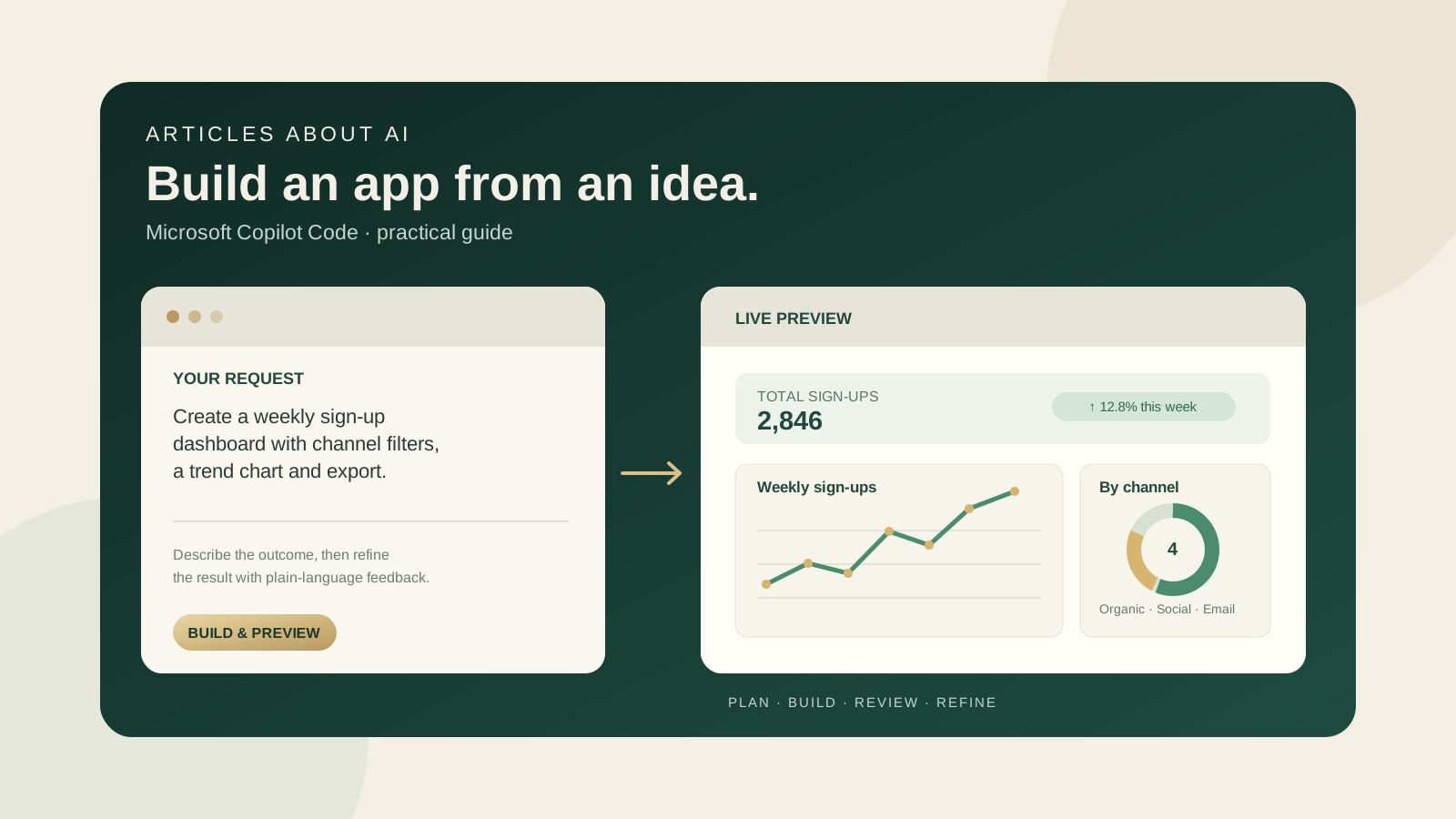
Microsoft Copilot Code is an AI-assisted software-building experience inside Microsoft Copilot. Instead of starting with a blank editor, you describe the outcome you want—such as a dashboard, tracker, internal tool, simple website, data transformation, or script—and Copilot Code generates a project you can inspect, preview, and refine through conversation. It is designed to help people move from an idea to a working prototype without needing to write every line by hand.
There is an important availability detail before you begin: Copilot Code is a preview feature, not a universally available Microsoft Copilot capability. Microsoft’s documentation says early access requires its Frontier preview program, and feature access can depend on your account, organization policies, supported platform, and rollout status. Microsoft introduced the new Copilot experience on September 25, 2026; a Microsoft 365 Message Center notice dated October 21 described the Copilot Code rollout as starting in late October. Treat the steps below as a practical guide to the documented workflow, not a guarantee that the Code tab is already enabled for every account.
What can you build with Microsoft Copilot Code?
Copilot Code is aimed at people who can describe a problem more easily than they can implement a software solution. Examples include:
- Interactive apps: task trackers, forms, calculators, planners, and lightweight team tools.
- Dashboards: visual summaries of sign-ups, sales, project status, or other structured information.
- Static websites and landing pages: a simple page for a product, project, event, or internal resource.
- Data transformations and scripts: repeatable steps for reshaping data or automating a manual workflow.
- Existing code projects: when the relevant access and setup are available, you can work with a local project or connect GitHub to ask questions and make changes.
Copilot Code also offers a canvas for previewing the generated result. You can give feedback in ordinary language, inspect generated code, and iterate rather than accepting the first version as final. That makes it useful for prototyping and routine internal tools, but it does not remove the need to test software, check data handling, or review code before relying on it.
How to get access to Copilot Code
Before trying to build your first app, check these prerequisites:
- Sign in to the supported Microsoft Copilot experience. Use the account and platform your organization supports.
- Check whether your account has access to Frontier. Microsoft identifies Frontier as the early-access route for Copilot Code. A regular Copilot account does not automatically mean the Code feature is available.
- Check organization policies. An administrator may control access to preview features, apps, connectors, and Microsoft 365 data.
- Look for the Code tab. If it is missing, consult Microsoft’s current Copilot Code overview and getting-started guide rather than assuming the service is broken.
- For Windows, confirm the rollout requirements. Microsoft’s getting-started documentation notes that administrators may need to enable the unified Copilot app rollout and set the update target channel to Beta.
If you cannot see the feature, do not install an unofficial extension or enter work credentials into a third-party site claiming to unlock Copilot Code. Check your license, account type, organization settings, and official documentation first.
How to build your first app
A good first project should solve one small problem and have an outcome you can verify. A weekly sign-up dashboard, a personal task tracker, or a simple expense calculator is a better starting point than asking the AI to build a full business platform in one prompt.
Step 1: Describe the outcome, not just the technology
Open the Code tab if it is available, start a new project, and describe what the app should do, who will use it, and what information it needs. Avoid vague instructions such as “make a useful dashboard.” Specify the user, inputs, outputs, and the main interactions.
Example prompt:
Build a weekly sign-up dashboard for a small marketing team. Show total sign-ups, week-over-week change, a line chart by week, and a breakdown by acquisition channel. Include date and channel filters, a clear empty state, and a CSV export button. Use sample data until I provide a real dataset. Keep the layout accessible and readable on a laptop.
This prompt defines the purpose, key components, filters, export behavior, and a safe starting point. You can then ask for one improvement at a time.
Step 2: Add relevant files or context
Copilot Code can work with supplied files and text. Depending on the supported workflow, you can upload or drag in a CSV, spreadsheet, PDF, document, image, or presentation; paste data directly; or open a local project folder. With permission, it can also use relevant Microsoft 365 work context such as documents, emails, meetings, and calendar information.
Provide only the information the project needs. For example, a dashboard prototype may need a small, anonymized CSV with column headings and representative rows—not a complete customer export containing personal information. If you attach business data, confirm that your organization permits that use and review the access request before approving it.
Step 3: Inspect the live preview
As Copilot Code builds the project, use the canvas to inspect what it produces. Check the main user journey, labels, layout, calculations, filters, and empty or error states. If the preview does not behave as expected, describe the observed problem precisely.
Useful follow-up prompts include:
- “Make the date filter apply to every chart and summary card.”
- “Add an empty state when the selected date range has no records.”
- “Explain how the week-over-week percentage is calculated.”
- “Check whether the CSV export includes the active filters.”
- “Improve keyboard navigation and contrast without changing the data model.”
Do not judge the app by appearance alone. Test its inputs and outputs, try unusual values, and compare calculations with a small result you can verify independently.
Step 4: Refine in small, reviewable changes
Treat the first generation as a draft. Ask for focused changes instead of requesting a complete redesign in every turn. After each change, inspect the preview again. Microsoft’s documentation describes iterative refinement and the ability to return to an earlier version when a direction is not working.
For technical projects, inspect the generated files and understand the main dependencies before using the result. A successful preview does not prove that authentication, permissions, error handling, data persistence, or deployment behavior is production-ready.
Local projects vs. cloud projects
Microsoft documents local and cloud workflows for Copilot Code. The right choice depends on where your files are and whether collaboration is required.
| Workflow | When it may fit | What to check |
|---|---|---|
| Local project | Working with a folder on your device, inspecting generated files, or iterating on an existing codebase | Folder scope, commands, dependencies, network access, and local data |
| Cloud project | Building or sharing a project with colleagues in an organization | Organization access, available sharing options, data governance, and deployment controls |
For local projects, Microsoft says Copilot Code can work within a selected project folder and asks for approval before reaching outside that folder, making a network connection, or running a terminal command. Read those requests rather than approving them automatically. For cloud workflows, confirm who can access the project and what sharing scope applies before adding confidential material.
Using GitHub with Copilot Code
A GitHub account is optional for basic building, previewing, saving, and sharing workflows. When you do connect GitHub, Microsoft documents workflows for working with repositories, asking questions about code, and opening branches, commits, or draft pull requests.
A sensible review process is to:
- Connect only the repository you intend to work on.
- Ask for a narrowly scoped change and specify the behavior that must remain unchanged.
- Inspect the diff and generated files before accepting the change.
- Run the project’s tests and relevant security checks.
- Open a pull request for review instead of treating AI-generated code as automatically approved.
If you are comparing AI coding workflows, see our related guides to Claude Code vs. Codex vs. Gemini CLI and Claude vs. ChatGPT for coding. Those tools and workflows are not the same product as Microsoft Copilot Code, but the comparisons can help you decide which environment fits your task.
Publishing and sharing what you build
Microsoft documents publishing lightweight interactive apps to Copilot Managed Runtime for an organization, as well as sharing static apps through organization-scoped links in supported cloud workflows. Availability and controls may vary because these are preview capabilities.
Before sharing an app, verify:
- whether it contains real or sample data;
- who can open the link and whether access is limited to your organization;
- whether the app needs permissions to access Microsoft 365 content or an external service;
- how the app handles user input, errors, and sensitive information;
- whether the organization’s policies permit the intended deployment.
Do not publish an unreviewed prototype as a production system simply because the preview works. Apps that affect business decisions, handle personal information, or perform consequential operations need appropriate testing, access controls, and human review.
Common Copilot Code problems
The Code tab is missing. Check Frontier access, your assigned license, platform support, and organization policies. The rollout may not have reached your account.
The app does not use the attached data correctly. Confirm that the file was attached, the column names and data types are clear, and the prompt explains the intended calculations. Ask Copilot to state its assumptions, then validate the result against known examples.
The preview looks right but an interaction fails. Test the specific control and describe the steps that reproduce the problem. Ask for a fix, then repeat the same test and check for regressions elsewhere.
A local command or network action needs approval. Read what the action will do and why it is needed. Approve only if it is consistent with the project and your organization’s security requirements.
GitHub integration is unavailable. GitHub is optional for many basic workflows. Check your account connection and organizational policies, and consult Microsoft’s official Copilot Code FAQ.
For other Microsoft Copilot issues, our Microsoft Copilot troubleshooting guide covers general access and connectivity problems. For data-analysis tasks that are specifically inside Excel, see how to use Microsoft Copilot in Excel.
Is Microsoft Copilot Code a replacement for a developer?
Not by itself. Copilot Code can shorten the path from a plain-language idea to a prototype and may help teams build small tools or automate routine work. But AI-generated software can still contain logic errors, security weaknesses, inaccessible interfaces, and assumptions that do not match the real business process.
It is best treated as an assistant for building and refining software—not as a substitute for testing, code review, data governance, or engineering judgment. Start with a narrow task, provide only appropriate data, review every important behavior, and expand the project only when the basics are reliable.
What to know before you try it
Microsoft introduced the new Copilot experience, including Code, on September 25, 2026. Microsoft’s documentation identifies Copilot Code as a preview feature and directs users to the Frontier program for early access; the October 21 rollout notice described a late-October start. That makes the current practical question not simply whether Copilot Code exists, but whether it has been enabled for your account and what your organization allows you to do with it.
For the latest eligibility and workflow details, start with Microsoft’s official resources:
- Copilot Code overview and access notes
- Get started with Copilot Code
- Use Copilot Code: preview, refine, publish, and work with GitHub
- Copilot Code FAQ
- Microsoft’s announcement of the new Copilot with Home, Code, and Autopilot
Bottom line: Microsoft Copilot Code is worth exploring if you want to turn a well-defined idea into an app, dashboard, internal tool, or simple website using natural language. Check Frontier availability first, start with a small project, validate the result, and review permissions before connecting work data or sharing an app.