
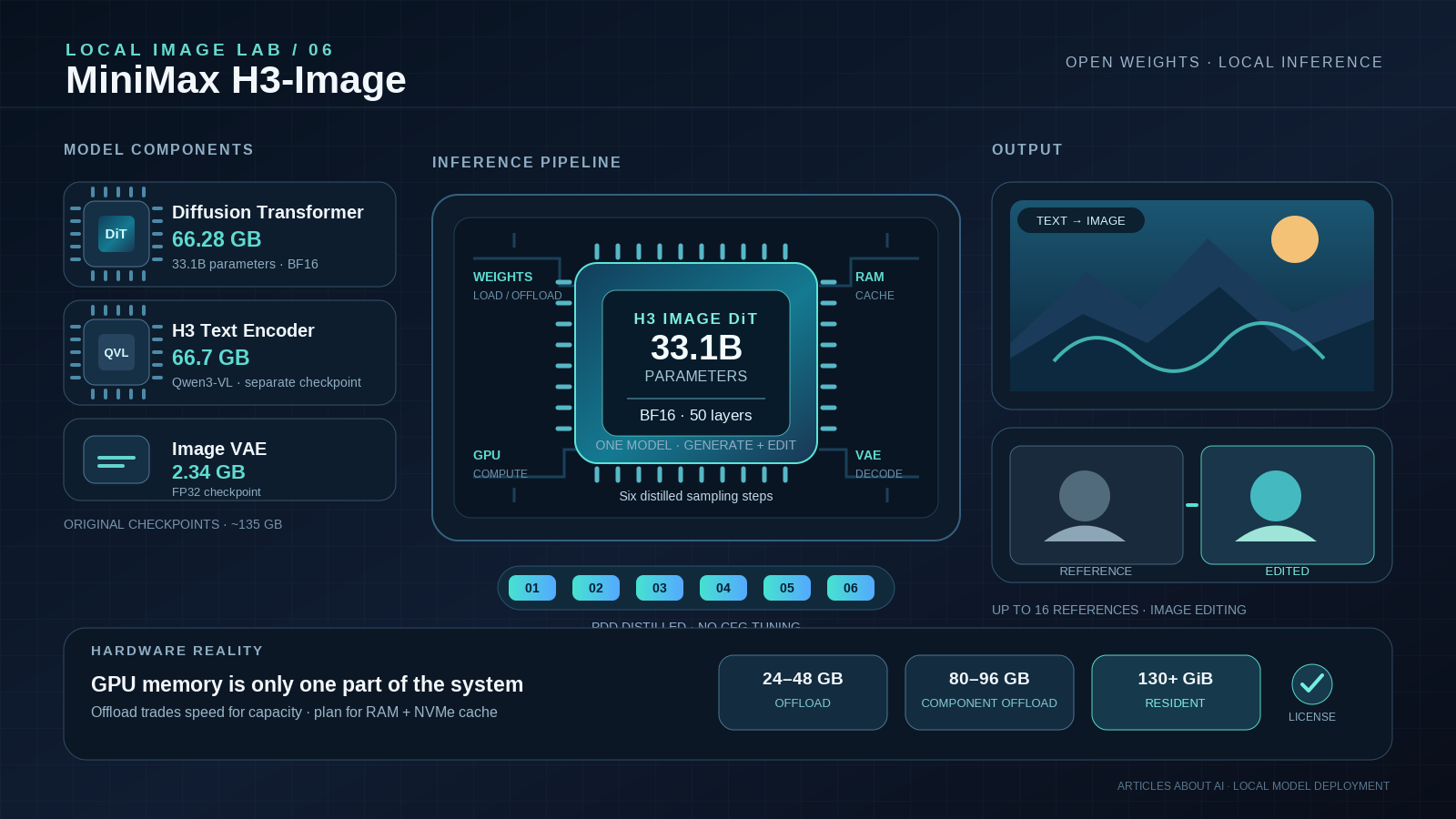
MiniMax H3-Image is an open-weight image-generation and editing model, but downloading its weights is only the first step toward running it on your own computer. The model combines a large diffusion transformer with a separate text encoder, so storage, GPU memory, system RAM, software compatibility, and the license all matter.
You can run MiniMax H3-Image locally through ComfyUI, Diffusers, or an inference server such as SGLang. The easiest route for many users is ComfyUI’s native workflow, which provides model files in more compact converted formats. The original BF16 checkpoints require substantially more storage and memory, while offloading and quantization can make some configurations possible on lower-memory GPUs at the cost of complexity, speed, or potentially output fidelity.
This guide explains the current MiniMax H3-Image model, what hardware is realistic, how to install a local workflow, how to generate and edit images, and what the Community License permits. The information and links were checked on November 23, 2026. This is a source-based setup guide, not an independent benchmark.
What is MiniMax H3-Image?
MiniMax-H3-Image is an image model from MiniMax’s H3 family. It uses one checkpoint for both text-to-image generation and editing with reference images. It is separate from the H3 video-generation model: H3-Image generates still images and edits them, while MiniMax H3 is the multimodal video model.
MiniMax released H3-Image’s public weights and accompanying Community License on November 10, 2026. The model is designed for detailed image generation, instruction following, and multi-reference editing. Its architecture includes a 33.1-billion-parameter diffusion transformer and a separate Qwen3-VL text encoder. The official model documentation describes a six-step distilled sampling process.
MiniMax H3-Image specifications
| Specification | Details |
|---|---|
| Main tasks | Text-to-image generation and reference-image editing |
| Diffusion transformer | Approximately 33.1 billion parameters |
| Text encoder | Qwen3-VL from MiniMax H3, approximately 33.4 billion parameters |
| Original precision | BF16 transformer; FP32 VAE checkpoint |
| Sampling | Six steps; guidance is distilled into the model |
| Recommended image area | About 16 megapixels; documented operating range is roughly 4–20 MP |
| Common 16 MP output | 4096 × 4096 square; 5472 × 3072 landscape 16:9 |
| Reference images | Up to 16 in the model/API workflow |
| Prompt length | Up to 4096 tokens in the local inference documentation |
| Negative prompt / CFG | Not supported by the official local request recipe |
| License | MiniMax-H3-Image Community License Agreement |
The model’s high resolution is native generation, not simply an upscaler applied after a smaller image. Exact image dimensions, memory use, and workflow support depend on the inference stack and selected settings. See the official MiniMax-H3-Image repository and Hugging Face model card for the current specifications.
Can MiniMax H3-Image run on a normal PC?
The answer depends on whether you mean loading the entire model into GPU memory or using a workflow that moves components between GPU and system RAM.
The original checkpoint is large. The official repository lists approximately 66.28 GB for the transformer, 2.34 GB for the VAE, small processor/tokenizer files, and a separate 66.7 GB MiniMax-H3 text encoder. The two major checkpoints plus the VAE require around 135 GB of downloads. The complete Hugging Face repository includes additional Diffusers-format files and is listed at roughly 204 GB.
That does not mean every local workflow needs 135 GB of VRAM. Offloading and converted checkpoints reduce the amount that must be resident on the GPU, but they introduce more system-memory and storage requirements.
Hardware planning guide
| Hardware configuration | Practical assessment |
|---|---|
| B200/B300-class GPU with around 130–135 GiB available | Suitable for resident, high-performance inference in the official serving recipes |
| H200-class GPU | Supported recipes use offloading for the text encoder on one GPU; multi-GPU layouts can improve memory placement and latency |
| 80 GB GPU | Can be viable with component offload. Hugging Face Diffusers documents a 4:3 generation example peaking around 65 GB, but memory varies with resolution and runtime |
| 96 GB workstation GPU | May run resident workflows with limited headroom; official SGLang recipes also offer component offload |
| 24–48 GB consumer GPU | Advanced layerwise offload or quantized workflows may make generation possible. Expect slower transfers, substantial host RAM needs, and careful setup |
| 12 GB GPU | Some advanced SGLang recipes include this GPU class, but this is not a plug-and-play minimum or a guarantee for every image size, operating system, or configuration |
The official SGLang cookbook’s offload recipes for smaller GPUs assume a 256 GB-class host and local NVMe storage. That is a specialized deployment approach, not a claim that the model comfortably fits into 12 GB of VRAM. Read the hardware recipe and its validation notes before downloading the full checkpoint.
For an ordinary desktop, start with the ComfyUI repack described below, use a smaller preview canvas, and verify the workflow’s memory requirements. If your machine has limited RAM as well as limited VRAM, a hosted API may be more practical than local inference.
Storage requirements before downloading
Plan for more space than the checkpoint size. Model downloads, caches, converted weights, temporary files, and generated images can occupy different directories.
There are two main download paths:
Original MiniMax checkpoints
The original repository contains:
- Transformer weights: approximately 66.28 GB.
- VAE: approximately 2.34 GB.
- Tokenizer and processor: approximately 23 MB.
- MiniMax H3 text encoder: approximately 66.7 GB, downloaded from the separate H3 repository.
- Optional MiniMax-H3-Image-PE prompt-expansion model: approximately 17.9 GB in its published NVFP4 format.
The original inference files and text encoder total roughly 135 GB. Reserve additional space for Hugging Face caches, output images, and temporary files. The complete repository may require around 204 GB.
ComfyUI converted checkpoints
ComfyUI’s official workflow template links to converted checkpoints that are smaller than the original BF16 files. The current text-to-image template lists:
| File | Folder | Approximate size |
|---|---|---|
minimax_h3_image_pruned_int8_convrot.safetensors |
models/diffusion_models/ |
21 GB |
qwen3vl_32b_minimax_h3_int8_convrot.safetensors |
models/text_encoders/ |
25.28 GB |
minimax_h3_image_vae_fp16.safetensors |
models/vae/ |
1.17 GB |
qwen3.5_9b_w4a8_gptq.safetensors |
models/text_encoders/ |
6.84 GB, optional prompt-enhancement component in the template |
The three primary files total about 47.5 GB; the optional text-generation component brings the listed set to roughly 54.3 GB. These are converted and quantized files, not identical to the original BF16 release. Quantization can change image details, so compare outputs if quality or reference fidelity is critical.
Official model links are available through the Comfy-Org workflow template. Check the model repository and the license attached to the files before redistributing them.
Method 1: Run MiniMax H3-Image in ComfyUI
ComfyUI is the most approachable local workflow for users who prefer a visual node interface. MiniMax H3-Image is supported natively, with templates for text-to-image and reference-image editing. The same model is used for both tasks; connecting reference images changes the workflow into editing.
Step 1: Update ComfyUI
Update ComfyUI to a current version that includes the MiniMax H3-Image native nodes and templates. If the templates are missing, update ComfyUI and its workflow-template packages, then restart the application.
Use the official ComfyUI installation and update guide. The ComfyUI announcement describes native support and the two workflows.
Step 2: Download the model files
Download the files listed in the ComfyUI template from its linked Hugging Face repositories. Place them in the matching folders inside your ComfyUI installation:
ComfyUI/
└── models/
    ├── diffusion_models/
    │   └── minimax_h3_image_pruned_int8_convrot.safetensors
    ├── text_encoders/
    │   ├── qwen3vl_32b_minimax_h3_int8_convrot.safetensors
    │   └── qwen3.5_9b_w4a8_gptq.safetensors
    └── vae/
        └── minimax_h3_image_vae_fp16.safetensors
The Qwen3.5 prompt-enhancement file is optional if you use a workflow that does not require it. Follow the template’s model links and node configuration rather than renaming files arbitrarily. The template may use a quantized model package to reduce the download and memory footprint.
Step 3: Load the text-to-image template
- Open ComfyUI and choose the Templates panel.
- Navigate to the Image templates and select MiniMax H3 Image — Text to Image.
- Confirm the model-loader nodes resolve to the downloaded files.
- Enter a detailed prompt and choose the width and height.
- Run a small preview before trying a larger output.
The official template starts with a preview-size canvas. Increase the megapixel setting only after the first workflow succeeds and you understand your GPU’s memory use. The model’s six-step schedule is fixed; the workflow does not need a conventional negative prompt or guidance-scale tuning.
Step 4: Use the image-editing template
To edit an existing image:
- Load the MiniMax H3 Image — Image Edit template.
- Connect the image you want to modify to the primary reference input.
- Add additional reference images if the workflow supports the desired number.
- Describe what should change and what should remain the same.
- Connect the VAE as required by the template’s conditioning node.
- Review the output for changes outside the intended area.
The model supports up to 16 reference images in its general workflow. Individual ComfyUI templates or nodes may expose fewer inputs; follow the available graph rather than assuming the full model limit is available in every interface.
A useful editing prompt names each reference’s role and specifies preservation:
Use <Picture 1> as the base image. Keep the camera angle,
composition, lighting, background, and product proportions.
Change only the product's outer casing to matte forest green.
Use <Picture 2> as the color reference. Preserve the logo,
buttons, vents, and all text exactly as shown.
Step 5: Choose a useful image size
MiniMax recommends image sizes around 16 megapixels for its highest-detail workflows. Examples include 4096 × 4096 for square images, 4736 × 3552 for 4:3, and 5472 × 3072 for 16:9. These sizes are large and can increase memory and processing demands.
Start with a 2K or preview-size canvas. Once the workflow works reliably, increase resolution in stages. For smaller requested outputs, some official pipelines still generate on a larger minimum canvas and resize the result, so changing the output dimensions does not always reduce the underlying workload proportionally.
Method 2: Run MiniMax H3-Image with Diffusers
Diffusers is useful for Python scripts, notebooks, and custom applications. The current MiniMax-H3-Image integration is implemented through Modular Diffusers blocks and requires a recent Diffusers version; the main documentation currently directs users to the source installation for this pipeline.
Install the software
Use a clean Python environment with a compatible PyTorch/CUDA stack. The official documentation’s basic installation is:
pip install -U transformers accelerate
pip install -U git+https://github.com/huggingface/diffusers.git
Check the current Hugging Face Diffusers MiniMax-H3-Image documentation for compatibility requirements. The code below uses the modular pipeline and automatic CPU offload.
Generate an image
import torch
from diffusers import ComponentsManager, ModularPipeline

manager = ComponentsManager()
manager.enable_auto_cpu_offload(device="cuda")

pipe = ModularPipeline.from_pretrained(
    "MiniMaxAI/MiniMax-H3-Image",
    components_manager=manager,
)
pipe.load_components(dtype=torch.bfloat16)

prompt = (
    "A photorealistic editorial photograph of a small ceramic "
    "tea cup on a walnut table, soft window light, warm neutral "
    "colors, shallow depth of field, carefully composed."
)

image = pipe(
    prompt=prompt,
    height=2048,
    width=2048,
    output="images",
)[0]

image.save("minimax_h3_image_output.png")
This example follows the official Diffusers loading pattern with automatic CPU offload. It does not guarantee that the pipeline will run on every GPU: available memory, system RAM, driver versions, PyTorch, the model files, and output size affect whether it succeeds.
For reference-image editing, load the source image and pass it through the pipeline’s image argument with a prompt that describes the edit. See the official documentation’s editing example and component requirements before adapting it to a production script.
Method 3: Serve MiniMax H3-Image with SGLang
SGLang is a more advanced option when you want a local HTTP inference server or an application to send image-generation requests to a machine running the model.
The official MiniMax repository recommends SGLang from its main branch with diffusion dependencies. A basic installation is:
git clone https://github.com/sgl-project/sglang.git
cd sglang
python3 -m pip install -e 'python[diffusion]'
Then launch the model server. The repository documents component offloading when less than approximately 130 GiB of free GPU memory is available:
sglang serve \
  --model-path MiniMaxAI/MiniMax-H3-Image \
  --host 127.0.0.1 \
  --port 30000 \
  --warmup-mode off
The server may need to download the image model and the MiniMax-H3 text encoder on first startup. For multi-GPU deployment, the official README shows sequence parallelism using Ulysses, for example:
sglang serve \
  --model-path MiniMaxAI/MiniMax-H3-Image \
  --host 127.0.0.1 \
  --port 30000 \
  --warmup-mode off \
  --num-gpus 4 \
  --ulysses-degree 4
The exact configuration depends on the GPU topology and supported attention backend. Keep the server bound to localhost unless you have configured authentication, a firewall, and a secure network path. A local model endpoint should not be exposed publicly without access controls.
Send a text-to-image request
The official local server exposes an OpenAI-style image-generation endpoint. This example requests a 2048 × 2048 PNG and saves the returned Base64 image:
curl -s http://127.0.0.1:30000/v1/images/generations \
  -H "Content-Type: application/json" \
  -d '{
    "prompt": "A realistic studio photograph of a red bicycle leaning against a pale concrete wall, soft morning light, clean composition, detailed metal frame and tires",
    "size": "2048x2048",
    "seed": 42,
    "response_format": "b64_json"
  }' | python3 -c 'import sys,json,base64; d=json.load(sys.stdin); open("output.png","wb").write(base64.b64decode(d["data"][0]["b64_json"]))'
For image editing, use the server’s /v1/images/edits endpoint and send the prompt and reference image files as multipart form data. See the official SGLang MiniMax-H3-Image cookbook for the full request schema and deployment options.
Prompting MiniMax H3-Image locally
The hosted MiniMax API uses a prompt-expansion stage to turn short requests into detailed image instructions. A local server generally uses the prompt you provide, so write a complete visual description or use the optional prompt-expansion model.
MiniMax’s official prompting guidance recommends:
- Describe the task before the style, and layout before fine details.
- State the purpose and subject of the image.
- Specify composition, materials, colors, lighting, and visible details instead of vague style words.
- Put exact text in quotation marks and specify its position and line breaks.
- If reference images are supplied, assign each image a clear role and explain what should change and what should remain.
- Describe grids by rows and columns rather than ambiguous shorthand.
Example text-to-image prompt
Create a landscape 16:9 product photograph for a premium
outdoor-cooking brand. Show a compact black portable grill
on a stone patio, with the grill centered in the foreground,
a softly blurred garden behind it, and late-afternoon side
lighting. Use realistic brushed metal, matte black surfaces,
natural shadows, and a restrained warm palette. No text,
letters, logos, watermarks, or extra products.
Example multi-reference edit
Use <Picture 1> as the base composition. Use <Picture 2>
only as the reference for the jacket's color and fabric.
Keep the person's face, pose, hair, background, camera,
lighting, and jacket shape from Picture 1. Change the jacket
to a deep navy wool texture with subtle visible fibers.
Do not add accessories or text.
Prompts are limited to the documented context length, and the model does not use a conventional negative-prompt or CFG workflow. Do not copy settings from another diffusion model unless the MiniMax workflow explicitly supports them.
Troubleshooting local MiniMax H3-Image
| Problem | What to check |
|---|---|
| Model files are not detected | Confirm the files are in the correct ComfyUI model folder, names match the template, and ComfyUI has been restarted or refreshed |
| Out-of-memory error | Reduce image dimensions, close other GPU workloads, use an offload workflow, or select a supported quantized checkpoint |
| Download or cache fills the disk | Check both the model directory and Hugging Face cache; remove only files you can safely re-download |
| ComfyUI template is missing | Update ComfyUI and workflow templates, then restart |
| Output looks different from hosted API | Local prompting may omit the API’s prompt-expansion stage; use a detailed prompt or the optional PE model |
| Image-editing result changes unrelated details | State what must be preserved, give each reference a clear role, and review at lower resolution before a final render |
| Generation is unexpectedly slow | Model loading, offloading, host-to-GPU transfers, image size, and first-run compilation can dominate runtime |
| A seed or negative prompt is rejected | Use only the request parameters supported by the local server and current model recipe; do not assume all diffusion-model controls apply |
MiniMax H3-Image license: Is local and commercial use allowed?
The model is distributed under the MiniMax-H3-Image Community License Agreement, not a standard permissive open-source license such as Apache 2.0 or MIT. “Open weights” means the weights are publicly available; it does not mean the model is free of restrictions.
The license was dated November 10, 2026. Its terms include important limitations:
1. Territory restrictions
The Community License defines the applicable territory as worldwide except the United States, European Union, United Kingdom, and Republic of Korea. It states that use, reproduction, modification, distribution, or display of the model works or their outputs outside the applicable territory is not authorized under this agreement.
The territory clause is broader than simply restricting where the weights may be downloaded. It also refers to generated outputs and results. Review the license and applicable law for your own location and customers before deploying.
2. Commercial use and prior written authorization
The agreement requires separate prior written authorization from MiniMax if your annualized revenue and/or your affiliates’ annualized revenue exceeds US$1 million, or if you provide a Hosted Service to third parties. The license directs requests through the MiniMax license application portal.
The agreement also requires the MiniMax-H3-Image name to be prominently displayed on the user interface of a commercial product or service that uses the model or its works. This is a contractual requirement, not a suggestion.
3. Restrictions on model training and outputs
The license prohibits using MiniMax-H3-Image works or outputs/results to improve another AI model, except MiniMax-H3-Image or its model derivatives. It includes additional acceptable-use restrictions and conditions for providing access to third parties.
MiniMax states that it claims no rights over generated outputs, but users remain responsible for the outputs and their subsequent use. That statement does not eliminate third-party copyright, trademark, privacy, or other legal risks.
4. Redistribution requirements
If you redistribute the model works to third parties, the agreement imposes conditions, including providing a copy of the license and a required NOTICE file in certain distributions. Modified files must carry prominent notices stating that they were modified.
Read the complete official MiniMax-H3-Image Community License before using the model in a commercial application, hosted service, or redistributed package. The license and acceptable-use policy may change; this article is not legal advice.
Is local MiniMax H3-Image worth it?
Local deployment is attractive when you need control over the generation environment, a reusable workflow, reference-image editing, or integration with other local tools. It can also avoid per-image API charges when the hardware is already available, although electricity, storage, maintenance, and engineering time still have costs.
For people with limited GPU memory, a hosted API or ComfyUI Partner Node may be easier to use than building an offload stack. The native ComfyUI template is a practical starting point for local users, while Diffusers and SGLang are better suited to scripting and serving.
If you are comparing local image models, see our guides to MOSS-Image and its layout-control approach, Bria Fibo 2.0 for generation and editing, FLUX vs Stable Diffusion open-weight models, and Stable Diffusion vs Midjourney: local hardware and real costs. These models have different architecture, license terms, hardware requirements, and workflows, so evaluate the exact checkpoint rather than relying on a model-family label.
Frequently asked questions
Is MiniMax H3-Image free to run locally?
The weights are publicly downloadable, but local inference is not cost-free. You need storage, compatible hardware, electricity, and time for installation and maintenance. The Community License also imposes territorial, commercial, and other restrictions.
How much VRAM does MiniMax H3-Image need?
There is no single universal minimum. The original model is large, and resident inference requires around 130 GiB or more of available GPU memory in the official high-memory recipes. Offload and quantized workflows can run with less, but they require system RAM, storage, and compatible software. Check the hardware-specific recipe before assuming a GPU is supported.
Can I run MiniMax H3-Image on a 24 GB RTX 4090?
Advanced offload workflows may make it possible, but the model is not a simple 24 GB checkpoint. Official SGLang recipes for smaller GPUs use layerwise offload and assume a large host-memory and NVMe configuration. The actual speed and compatibility of a 4090 depend on the selected workflow, quantization, image size, and software versions.
Does MiniMax H3-Image work in ComfyUI?
Yes. ComfyUI supports native MiniMax H3-Image workflows for text-to-image and image editing. Update ComfyUI, download the files linked in the official template, and load the matching workflow.
Can MiniMax H3-Image generate 4K images?
The model supports native high-resolution generation. The official repository recommends approximately 16 MP sizes, including 4096 × 4096 square and 5472 × 3072 landscape 16:9. Large images require more compute and memory than preview sizes.
Can businesses use MiniMax H3-Image commercially?
The Community License permits use subject to its terms, territory, acceptable-use policy, and commercial conditions. Separate prior written authorization is required when annualized revenue exceeds US$1 million or when a Hosted Service is provided to third parties. The license also requires prominent model-name display on commercial product or service interfaces. Read the full agreement before deployment.
Official sources
- MiniMax-H3-Image GitHub repository — model card, downloads, deployment recipes, prompt guidance, and limitations.
- MiniMax-H3-Image on Hugging Face — original checkpoints and model files.
- MiniMax-H3 text encoder — the separate encoder used by the image model.
- MiniMax-H3-Image Community License — territorial, commercial, redistribution, and acceptable-use terms.
- ComfyUI native support announcement — text-to-image and image-editing templates.
- ComfyUI text-to-image workflow — converted checkpoint links and model placement.
- ComfyUI image-editing workflow — reference-image editing template.
- SGLang MiniMax-H3-Image cookbook — server deployment, hardware recipes, and request examples.
- Hugging Face Diffusers documentation — modular pipeline, offload, generation, and editing code.
Last reviewed: November 23, 2026. Model weights, software support, hardware recipes, and license terms may change. Confirm the current official documentation before deploying.