
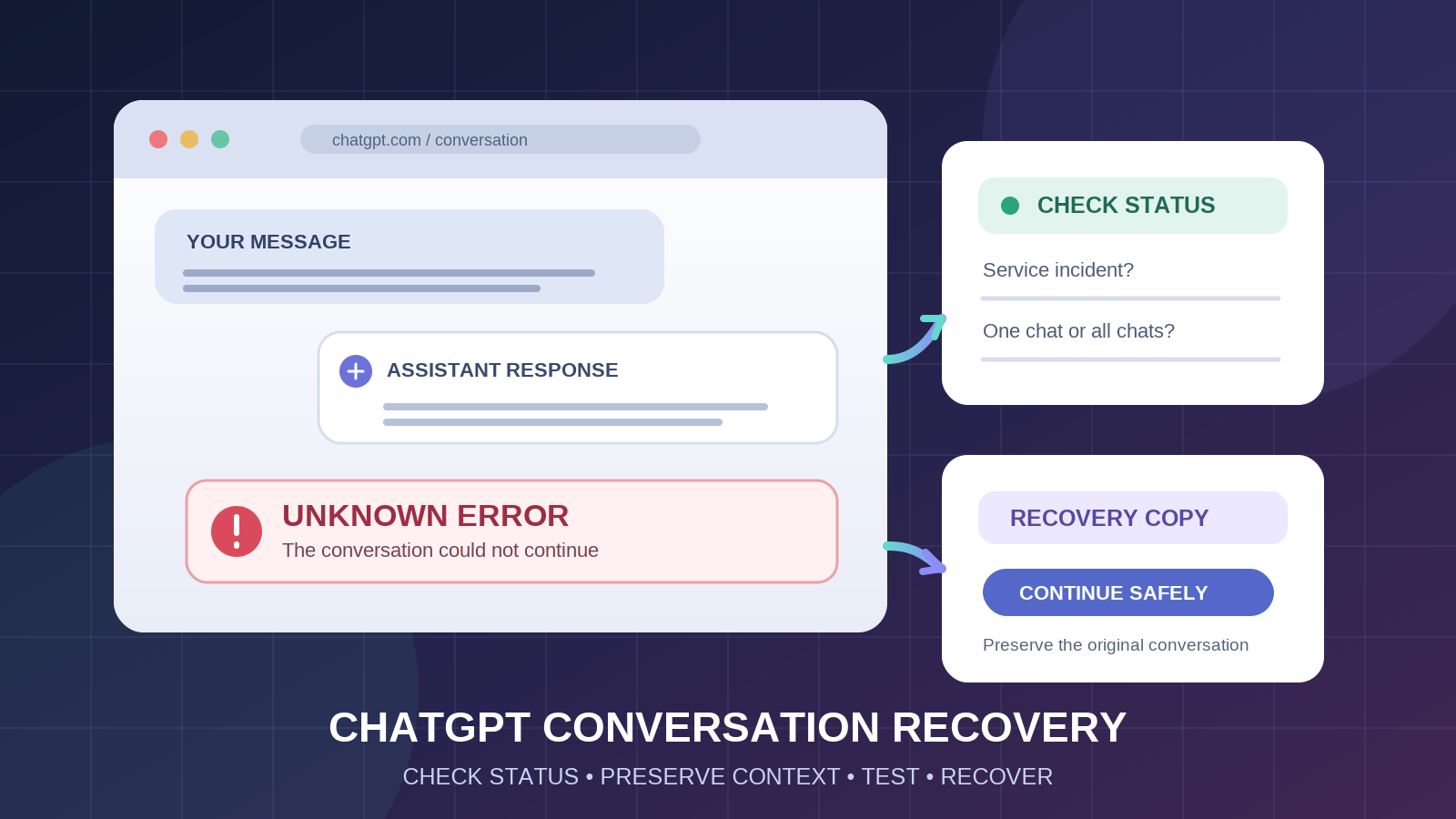
If a ChatGPT conversation suddenly displays “Unknown error” or offers “Start a new chat” after a message fails, the message does not identify a single cause. The failure may be temporary, limited to one conversation, related to the browser or app session, or associated with a request that the service could not process. OpenAI’s general error guidance covers several of these possibilities, but it does not define “Unknown error” as one specific diagnosis.
The safest approach is to check for a service incident, determine whether the problem affects one conversation or ChatGPT more broadly, and preserve the original thread before trying recovery steps. This guide explains what to test, how to continue from a copy when the original chat is unusable, and what information to send Support if the error keeps returning.
Quick checklist
Try these steps in order:
- Check the OpenAI Status page for a current ChatGPT or Conversations incident.
- Save the exact error text, the time it happened, and the prompt you were sending.
- Reload the affected conversation once and wait for it to finish loading.
- Test a short text-only prompt in a new chat.
- If only the original conversation fails, preserve it and try the recovery options below.
- Test a private browser window, another browser, or the official app.
- If the request included many or large attachments, retry with fewer files or smaller batches.
- If the problem persists across environments, contact OpenAI Support with reproducible details.
Do not delete the affected conversation, repeatedly resend the same large prompt, or reset your account as an initial response.
1. Check whether ChatGPT is experiencing a service incident
Open OpenAI Status and look for an incident involving ChatGPT or Conversations. Check the affected component and the latest update rather than relying only on a general status banner.
Recent history illustrates why this matters. OpenAI recorded elevated ChatGPT conversation errors on November 9, 2026, and marked that incident resolved at 2:08 p.m. The status page also recorded elevated conversation errors for Free and Go users on November 18, 2026, which were resolved at 9:13 a.m. These are historical incidents, not evidence that an outage is occurring now.
If an active incident matches your problem, wait for the service update and retry once after recovery. Avoid changing browser settings or repeatedly submitting prompts while the service is affected. If no incident is listed, continue: a status page cannot rule out every account-specific or intermittent failure.
2. Find out whether the error is limited to one conversation
Open a new chat and send a short, ordinary text prompt without files, images, or a long pasted context. Then compare the result with the original thread.
- The new chat works, but the old one fails: The problem may be associated with that conversation or its current state. It does not prove the thread is too long or corrupted.
- Both old and new chats fail: A broader service, account-session, browser, app, or network problem becomes more plausible.
- Only requests with attachments fail: Test a smaller request without the files, then add files in smaller groups.
- The error occurs in one browser but not another: The original browser profile may be involved.
Keep the original conversation open if possible. A successful new chat is a useful workaround, but it is not a repair of the affected thread.
3. Reload the conversation without deleting it
If the error appeared after sending a message:
- Wait briefly in case the request is still processing.
- Reload the page once, or close and reopen the conversation in the app.
- Check whether the last prompt or response is visible.
- If the conversation loads, try one short follow-up—not the entire failed request again.
- If the error returns, stop repeating the same action and move to the recovery steps.
A refresh may restore the interface when a session or page state has failed. It will not necessarily resolve a server-side problem tied to a conversation. For a different symptom—an answer that appears and then disappears—see our guide to fixing ChatGPT responses that disappear after generation.
4. Recover the conversation by creating a copy
When the original thread cannot accept new messages but you can still view it, a shared-link copy may help you continue without deleting the original.
Important privacy warning: Anyone who obtains a ChatGPT shared link may be able to view the conversation. Do not create or use a shared link for chats containing confidential information, private personal data, secrets, or material you are not comfortable exposing through a link.
If the conversation is safe to share:
- Open the affected chat and use its Share control to create a shared link.
- Copy the link and open it in a separate browser tab.
- Confirm that the shared snapshot contains the messages and context you need.
- Reply from the shared conversation, if the interface permits. ChatGPT’s shared-link behavior can create a copy in your conversation history when someone replies to a shared conversation.
- In the new copy, ask for a concise handoff: the goal, important decisions, completed work, unresolved questions, and the next step.
- Continue in that copy and verify that new messages work before relying on it.
OpenAI Support described this as a workaround in a November 2026 Developer Community thread about conversations showing “Unknown error / Start new chat.” Support said some users had recovered conversation history in a new copy this way, while noting that later reports showed the issue could return. It is a workaround—not a guaranteed fix.
If sharing would expose private information, do not create a link. Instead, start a new chat and manually paste a sanitized summary, the latest relevant messages, and the original task or prompt. You can also save the conversation text locally for reference.
5. Check whether the request is too large
An error may occur when a request contains a large amount of text or many attachments. The visible “Unknown error” alone does not confirm that this is the cause.
If the failed prompt included multiple PDFs, large images, spreadsheets, or a long collection of pasted material:
- Retry with a short text-only prompt first.
- Upload fewer files at a time.
- Split a large document into smaller sections or page ranges.
- Ask ChatGPT to process one file or one section before adding more.
- Keep the original prompt and files so you can rebuild the request gradually.
If browser diagnostics show HTTP 413 Content Too Large, that status means the request body exceeded a server-defined limit. Reduce the size of the request and retry in smaller batches. A 413 is a specific diagnostic; do not assume every “Unknown error” is an attachment-size problem.
6. Test the browser, app, and network
If a short new chat also fails, compare environments one at a time:
Browser
Open ChatGPT in a private or incognito window. If it works there, temporarily disable extensions that block scripts, modify pages, or filter network requests in your regular browser—one at a time. Try another supported browser if necessary.
App
If the problem is in the desktop or mobile app, fully close and reopen it, then check for an update from the official app source. Compare with ChatGPT in a browser using the same account.
Network
If it is safe and permitted, compare your usual Wi-Fi with another trusted network, such as mobile data. VPNs, proxies, secure DNS, or network filters can sometimes affect connections. On a managed work or school network, ask the administrator to investigate rather than bypassing security controls.
For explicit connection symptoms, use our separate ChatGPT network-error troubleshooting guide. If the interface is blank or stuck loading rather than showing “Unknown error,” follow the blank-screen and infinite-loading guide.
7. Preserve your conversation data
Do not delete the failed chat while troubleshooting. If you need an additional copy of your account history, eligible accounts can request an export through ChatGPT:
Settings → Data controls → Export data
OpenAI says the export includes chat history and other account data. Export delivery can take up to seven days, and the download link expires after 24 hours. An export is a way to preserve and inspect data; it is not a tool for restoring conversations that have already been deleted.
If the entire conversation is missing from history rather than merely unusable, follow our guide to missing ChatGPT conversation history.
8. Contact Support if the error keeps returning
If the failure persists across a new chat, browser, app, or network—or the same thread repeatedly becomes unusable—contact OpenAI through the chat bubble at help.openai.com.
Include:
- The exact error text and any additional code shown.
- Date, approximate time, and time zone.
- The affected conversation URL, shared only through the private support channel.
- Browser or app version, operating system, and device.
- Whether one conversation, several conversations, or all new chats fail.
- Whether text-only prompts work and whether attachments were involved.
- What happened when you tested a new chat, private window, another browser, or another network.
- A screenshot with private content redacted.
Support may request a HAR file or browser-console details. HAR files can contain sensitive session or conversation information; review and sanitize them before sharing, and never post them publicly.
What the symptoms may indicate
| Symptom | What it may suggest | Next test |
|---|---|---|
| One old conversation fails; new chats work | A thread-specific or state-related problem | Preserve the original and try a safe copy |
| All chats fail in one browser | Browser profile, session, or extension issue | Private window or second browser |
| Several devices fail at once | Service-side or account-specific problem | Status page and Support |
| Requests with many files fail | Request size or attachment processing may be involved | Retry with fewer/smaller files |
| ChatGPT works on another network | Network route or filtering may be involved | Ask the administrator or investigate permitted settings |
These clues are not definitive diagnoses. Multiple causes can produce similar messages.
Frequently asked questions
Does “Unknown error” mean my conversation is deleted?
No. The message alone does not establish that the conversation has been deleted. Keep the original thread, reload it once, and check whether it remains accessible. If the conversation is missing from history, use the account, workspace, archive, and export checks in our missing conversation history guide.
Is the conversation too long?
Not necessarily. Community reports describe this error in conversations of different lengths, including new chats. Length may be a factor in some cases, but the message does not identify the cause.
Should I keep clicking “Start a new chat”?
Use it as a test, not as an endless loop. If a new chat works, preserve the original and transfer only the context needed to continue. If new chats also fail, investigate the broader session or service problem.
Can I fix the error by clearing all browser data?
That is not a good first step. Start with a private window and a second browser. If evidence points to the normal browser profile, clear only ChatGPT’s site data after confirming you can sign back in.
Sources
- OpenAI Help Center: Troubleshooting ChatGPT Error Messages
- OpenAI Status: Elevated ChatGPT Conversation Errors — November 9, 2026
- OpenAI Status: Elevated conversation errors for Free and Go users — November 18, 2026
- OpenAI Developer Community: Unknown Error / Start new chat workaround and Support response
- OpenAI Help Center: ChatGPT Shared Links FAQ
- OpenAI Help Center: Exporting your ChatGPT history and data
- OpenAI Help Center: How can I contact Support?
- MDN: HTTP 413 Content Too Large