
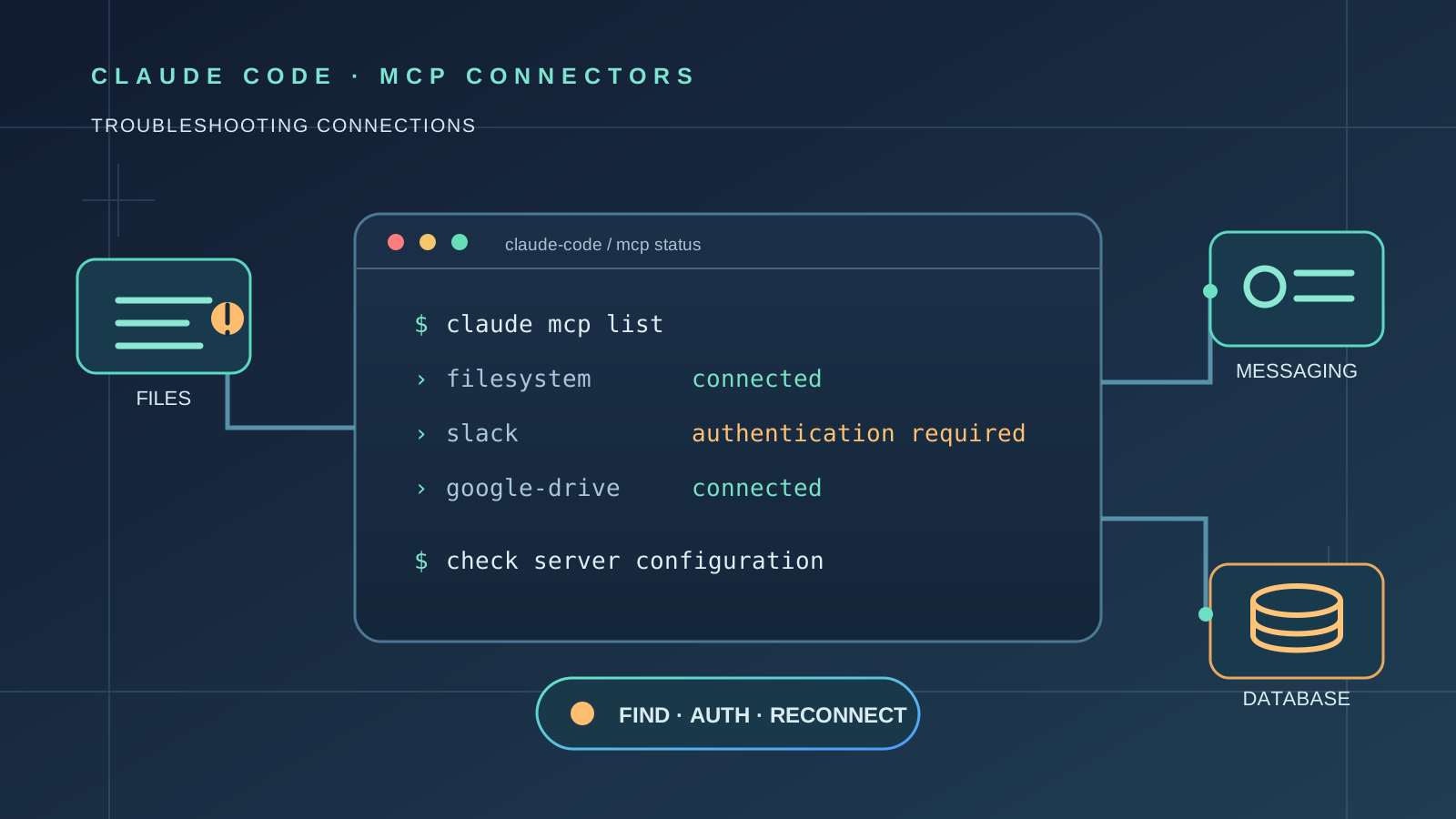
If your Claude Code MCP connectors are missing, the first thing to establish is whether Claude is experiencing a service incident or whether the problem is specific to your login, configuration, or MCP server. These situations can look almost identical: a connector may appear as connected in Claude’s web settings but fail to appear in a new Claude Code session, or an MCP server may be listed but show an authentication or connection error.
There is no single fix for every Claude Code MCP not working problem. Anthropic’s documentation identifies several distinct causes, including an incompatible authentication method, a temporary network failure while Claude Code loads connectors, a rejected session token, and a duplicate server configuration. This guide walks through those checks in the safest order.
Check whether Claude is experiencing an outage
Before changing local settings, open the official Claude Status page. On November 13, 2026, Anthropic reported elevated errors affecting claude.ai, the Claude API, Claude Code, and connectors. In its 14:36 UTC update, Anthropic said claude.ai and the API were recovering, while connectors—including Docs and Sheets—and connector use in Claude Code remained degraded.
That incident is important because a service-side problem can make connectors disappear, fail to reconnect, or stop responding even when your local MCP configuration has not changed. During an active incident:
- Check the incident timeline on the status page.
- Avoid deleting MCP configuration files or removing working connectors.
- Do not repeatedly sign out, revoke permissions, or reinstall Claude Code.
- Wait for Anthropic to report recovery, then open a fresh Claude Code session and check the connector list again.
A status incident confirms a service problem, but it does not prove that every missing-connector report has the same cause. If the status page is operational and the problem continues, follow the checks below.
Step 1: Check the MCP list and the active login method
In the affected Claude Code session, run:
/mcp
This opens the MCP server manager. Check whether the missing integration is absent, hidden under the claude.ai section, or present with an authentication warning.
Next, run:
/status
Confirm which account and authentication method Claude Code is using.
This matters because claude.ai connectors are not loaded under every authentication method. Anthropic’s documentation says they are fetched when the active authentication method is a claude.ai subscription login. They are not loaded when, for example, an active ANTHROPIC_API_KEY, ANTHROPIC_AUTH_TOKEN, or apiKeyHelper supplies credentials; when a third-party provider such as Amazon Bedrock or Google Cloud Agent Platform is active; or when an Anthropic profile or certain OAuth-token configurations are in use.
If you intended to use connectors configured in your claude.ai account but Claude Code is using an API key or another provider, switch to the intended claude.ai login:
- Check the authentication method shown by
/status. - If an environment variable or credential helper is overriding the subscription login, remove or disable that override only if you no longer need it for this environment.
- Run
/loginand sign in with the claude.ai account that owns the connectors. - Run
/mcpagain.
Do not remove an API key from a shared or production environment without checking what depends on it. If you need an API-key workflow, use MCP servers configured for that workflow rather than assuming claude.ai account connectors will be available.
Step 2: Expand the hidden connectors section
A connector can be available but not immediately visible in the MCP manager.
Anthropic documents that connectors provisioned by an organization that you have never signed in to can be collapsed under a Show unused connectors row at the end of the claude.ai section.
In /mcp:
- Find the claude.ai section.
- Look for Show unused connectors near the bottom of that section.
- Expand it and check whether the missing Slack, Google Drive, Gmail, Notion, or other connector appears.
- If it appears but needs authentication, select it and follow the sign-in or reconnect prompt.
Also verify that the connector is still connected in Claude’s connector settings. For Team and Enterprise accounts, an administrator may control which connectors are available.
Step 3: Check for duplicate MCP server configurations
A locally configured MCP server can take precedence over a claude.ai connector that points to the same server URL. In that situation, Claude Code may show the claude.ai connector as hidden rather than presenting two entries for the same service.
Check the output of /mcp for a hidden-connector explanation. If you intentionally configured the same service locally and through claude.ai, decide which configuration you want to keep.
If you want to use the claude.ai connector:
- Identify the local or project-level entry that points to the same service.
- Back up the relevant configuration before changing it.
- Remove only the duplicate entry using the documented
claude mcp remove <name>command, if that local entry is no longer needed. - Confirm the service is connected in claude.ai, then restart Claude Code and check
/mcp.
Do not delete your entire .mcp.json, ~/.claude.json, or settings directory to resolve one duplicate. Those files can contain unrelated MCP servers and project configuration.
Step 4: Retry a connector list that failed to load
A temporary network problem can prevent Claude Code from fetching the connector list when a session starts. Anthropic says Claude Code retries the fetch up to three times in the background. If the list still does not load, restart Claude Code so it can fetch the list again.
Use this sequence:
- Confirm that the status page does not show an active connector incident.
- Check that the computer has a working network connection and that any required VPN or proxy is connected.
- Close the affected Claude Code session normally.
- Start a new session.
- Run
/mcpand check whether the connectors have appeared.
A restart is a documented retry step; it is not a guaranteed fix for an account-side outage, an incompatible login method, or a rejected token. Avoid repeatedly restarting while Anthropic is still reporting a connector incident.
Step 5: Fix a rejected Claude.ai session token
A connector can appear in the MCP manager with a message such as:
session token rejected
Anthropic explains that this means claude.ai rejected the session token associated with the Claude Code login. Re-authorizing the connector itself does not clear this particular state, because the rejected token belongs to the Claude Code login rather than the connector’s own authorization.
The documented recovery sequence is:
- Run
/login. - Sign in again to the correct claude.ai account.
- Open
/mcp. - Reconnect the affected connector.
If the token is still rejected, record the exact message, Claude Code version, and operating system before reporting the problem. Do not share OAuth tokens, API keys, or credential files in a public issue.
Step 6: Understand the difference between claude.ai connectors and local MCP servers
Not every MCP integration is managed in the same way.
- claude.ai connectors are configured in Claude’s web settings and, in supported terminal and IDE sessions, fetched by Claude Code when you use a claude.ai subscription login.
- Local MCP servers are configured directly in Claude Code, for example with
claude mcp addor an.mcp.jsonfile. - Organization-managed MCP servers can be controlled by administrator policies and managed configuration.
- Desktop and cloud sessions can receive connectors differently from ordinary terminal sessions.
This distinction helps avoid applying the wrong fix. If a locally configured server is missing, inspect its local/project configuration and server status. If a claude.ai connector is missing, check the subscription login, connector settings, and service status first.
For a new remote server, follow Anthropic’s MCP installation documentation. The guide covers remote HTTP and SSE servers, local stdio servers, authentication, configuration scopes, and server status.
What recent reports say about missing connectors
Several users reported missing claude.ai connectors in new sessions around November 13, 2026:
- Issue #109591 describes connectors appearing in existing sessions but not in new ones, using Claude Code 2.1.323.
- Issue #109550 reports that connectors appeared connected in Claude settings but were absent from the Claude Code CLI.
- Issue #109611 reports a difference in connector visibility between Claude Code 2.1.321 and versions 2.1.322–2.1.323.
These are user-submitted bug reports, not official confirmations that a specific release caused every case. They are useful evidence that some users encountered a similar symptom, but the reports should not be treated as proof of a universal regression or a confirmed root cause. The November 13 service incident is separately documented on Anthropic’s status page.
If the documented login, visibility, duplicate-server, retry, and token checks do not resolve the problem after the service incident is cleared, add your reproduction details to the closest existing GitHub issue rather than opening several duplicate reports.
Troubleshooting checklist
| Symptom | What to check | Recommended next step |
|---|---|---|
| All connectors suddenly stop working | Anthropic Status | Wait for incident recovery before changing configuration |
claude.ai connectors are absent from /mcp |
/status and active credentials |
Sign in with the intended claude.ai subscription account |
| Connector is not immediately visible | Show unused connectors | Expand the collapsed section |
| Connector appears hidden | Duplicate local/project MCP entry | Review and remove only the duplicate if appropriate |
| Connector list failed during startup | Network and service status | Restart Claude Code after service recovery |
session token rejected appears |
Claude Code login token | Run /login, then reconnect the connector |
| Local server is missing | Local or project MCP configuration | Inspect server configuration and status |
Related Claude Code troubleshooting guides
If your problem is different from missing MCP connectors, these guides cover related but separate failures:
- How to Fix Claude Code No Response from API Errors — for requests that hang or fail before the API responds.
- How to Fix Claude Code Plugin Install Errors: SSH and Host Key Failures — for Git and SSH errors during plugin installation.
- Claude Code Missing Messages on Windows: Transcript Troubleshooting — for missing conversation or transcript messages.
- Claude Desktop High Memory Usage on Mac — for a separate report involving idle sessions and MCP processes.
Frequently asked questions
Why are my Claude Code MCP connectors missing?
Common explanations include an active authentication method that does not load claude.ai connectors, a temporary service or network problem, a collapsed unused-connectors section, a duplicate local server, or a rejected Claude Code session token. Check these causes before reinstalling the application.
Do I need a Claude subscription to use claude.ai connectors in Claude Code?
Anthropic’s documented claude.ai connector flow requires a claude.ai subscription login. MCP servers configured separately in Claude Code are a different setup and should be evaluated according to their own authentication and server requirements.
Why do connectors work in an old session but not a new one?
A new session may be unable to fetch the connector list because of a temporary service or network problem, or it may be using a different authentication/configuration context. Compare /status and /mcp in both sessions, and check the status page before changing settings.
Should I reinstall Claude Code if MCP connectors disappear?
Not as a first step. Reinstallation does not address a service incident, an incompatible authentication method, a hidden connector, a duplicate server, or a rejected session token. Follow the checks in this guide first.
Is the November 13, 2026 connector problem fixed?
Anthropic’s status page reported recovery for claude.ai and the API while connector services and connector use in Claude Code remained degraded in its 14:36 UTC update. Check the live status page for the latest resolution before assuming the incident is over.
The bottom line
When Claude Code MCP connectors disappear, first check whether Anthropic is reporting a service incident. If services are healthy, inspect /mcp and /status, confirm that Claude Code is using the intended claude.ai subscription login, expand unused connectors, check for duplicate local entries, and re-authenticate if the session token was rejected.
The key is to diagnose the connector path before deleting configuration or reinstalling Claude Code. A service outage, login mismatch, hidden connector, duplicate server, and rejected token can produce similar symptoms—but they require different fixes.
Sources
- Anthropic Claude Status: Elevated errors on claude.ai, the Claude API, and Claude Code — incident updates dated November 13, 2026.
- Anthropic Claude Code documentation: Connect Claude Code to tools via MCP — connector setup, authentication requirements, hidden connectors, duplicate precedence, retries, and rejected session tokens.
- Claude Code issue #109591 — missing connectors in new sessions, reported November 13, 2026.
- Claude Code issue #109550 — connectors visible in settings but missing from the CLI, reported November 13, 2026.
- Claude Code issue #109611 — connector visibility difference reported between versions 2.1.321 and 2.1.322+.