
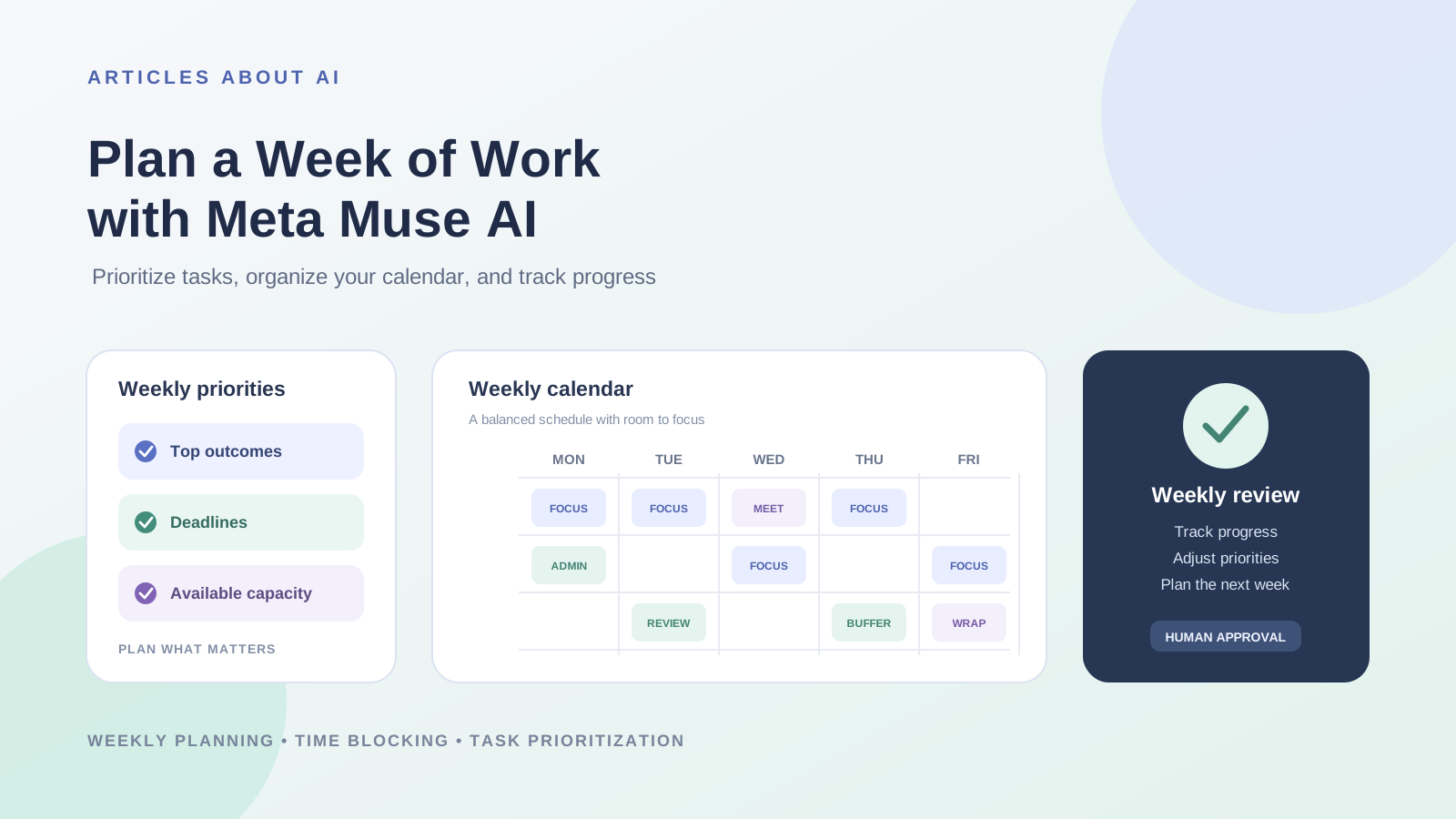
A productive week rarely happens by filling every available hour with tasks. It starts with choosing the work that matters, understanding real deadlines, protecting time for focused tasks, and leaving enough room for unexpected requests. Meta Muse AI can help turn your goals and commitments into a weekly action plan, coordinate work across connected apps, and track progress—but you should review the schedule before allowing it to make changes.
Meta describes Muse as a personal AI agent that can build action plans, track progress, work with connected apps such as email and calendar, and continue working on tasks in the background. Its productivity information also describes calendar coordination, including identifying conflicts and rescheduling meetings. Availability and results depend on the connected services, permissions, and features available to your account. This guide provides a practical planning workflow; it is not a claim that we conducted a live performance test of Muse.
What can Meta Muse AI do for weekly work planning?
A weekly planning workflow can involve several separate activities:
- Collecting tasks, deadlines, and follow-ups from the information you provide
- Grouping work by project, priority, or required effort
- Identifying calendar conflicts and available work periods
- Suggesting time blocks for focused work, meetings, and administration
- Turning large goals into smaller next actions
- Tracking progress and revising the plan when priorities change
- Preparing a short daily overview and an end-of-week review
Muse may assist with these activities when the relevant information and apps are available and connected. It should not be assumed to know every work commitment or deadline automatically. Start by giving it accurate context and explicitly reviewing what it proposes.
For an introduction to the agent, see our guide to what Meta Muse AI is, its features, and how it works. If you are new to its research and task workflows, you may also find how to research a topic with Meta Muse AI and verify every source useful.
Step 1: Define what a successful week looks like
Before listing tasks, decide what must be different by the end of the week. A weekly plan should connect daily activity to a small number of meaningful outcomes.
Write down:
- Top outcomes: the three to five results that would make the week successful.
- Fixed commitments: meetings, appointments, delivery dates, and other immovable events.
- Deadlines: the actual due date and any earlier milestone needed to finish safely.
- Available hours: realistic working hours, breaks, and personal commitments.
- Constraints: dependencies, waiting periods, limited resources, or tasks that require another person.
Avoid turning every small task into a top priority. If everything is urgent, the plan will not help you decide what to do first.
Prompt: define the weekly outcomes
Help me plan my workweek from [start date] to [end date].
My role or main responsibility is [role]. My most important outcomes for this week are [list outcomes]. Fixed commitments are [meetings and appointments]. Deadlines are [tasks and due dates]. My realistic working hours are [hours and time zone]. I also need to protect time for [breaks, focused work, or other commitments].
First, summarize the outcomes and constraints. Identify missing information, dependencies, and deadlines that may be at risk. Do not schedule anything or change my calendar yet. Suggest a realistic weekly plan for me to review.
This first pass should produce a clear picture of the work, not a crowded calendar.
Step 2: Gather tasks from the places you already use
A weekly plan becomes unreliable when tasks are scattered across emails, notes, project tools, and conversations. If you choose to connect relevant services to Muse, review the permissions carefully and provide only the access needed for the task.
Ask it to organize items into categories such as:
- Must finish this week
- Important, but not urgent
- Waiting for someone else
- Quick administrative tasks
- Longer projects that need a milestone
- Tasks that can be postponed or removed
For each task, capture an owner, due date, estimated effort, next action, and dependency where known. If the source does not specify a due date or owner, mark it as unknown rather than inventing one.
Prompt: organize the task backlog
Organize these tasks for my weekly plan: [paste tasks or specify the connected sources I authorize you to review].
For each task, show its project, next action, deadline, estimated effort if known, priority, owner, and dependencies. Keep confirmed information separate from estimates. Flag duplicate tasks and missing details. Do not delete, send, assign, or modify anything in my apps. Return a clean task list for my approval.
Check the list before scheduling. Remove completed items, clarify vague tasks, and make sure the same task has not been imported twice.
Step 3: Prioritize tasks by impact, urgency, and effort
A useful plan balances deadlines with the value of the work. A task due tomorrow may be urgent, but a high-impact project milestone may need protected time several days earlier.
A simple prioritization method is:
| Priority | How to identify it | Planning response |
|---|---|---|
| Critical | A fixed deadline or major consequence if missed | Schedule the next action early and identify dependencies |
| High | Strong impact on a weekly outcome | Reserve focused time during the week |
| Medium | Useful work with some flexibility | Fit around critical and high-priority work |
| Low | Optional, deferrable, or low impact | Move to a later week if capacity is limited |
Ask Muse to explain why it assigns a priority. Do not let an unexplained score determine your week. You remain responsible for deciding which commitments matter most.
Prompt: rank the work
Rank my approved tasks for this week using deadline, impact on my stated outcomes, dependency risk, and estimated effort. Explain the reason for each priority. Identify tasks that can be deferred without creating a serious problem. Do not treat every email or recent request as urgent. Show any assumptions and ask me to resolve conflicting priorities.
Step 4: Check your calendar and real capacity
Before placing tasks into time slots, compare the proposed workload with your actual availability. A calendar may contain meetings, travel time, recurring commitments, and personal blocks that are not visible in a task list.
If you connect a calendar, confirm which calendar Muse can read and whether it has permission to make changes. Meta says Muse can coordinate connected calendars and flag scheduling conflicts, but the exact actions available depend on your setup and permissions.
Ask for a capacity summary that includes:
- Existing meetings and fixed commitments
- Available working blocks
- Breaks and transition time
- Deadlines and preparation time
- A buffer for unexpected work
Do not schedule every free minute. A plan with no buffer is likely to break as soon as a meeting runs late or an urgent task appears.
Prompt: assess weekly capacity
Review my calendar for [date range] using only the calendar access I have authorized. Summarize fixed commitments, available work periods, conflicts, and unusually crowded days. Estimate my remaining work capacity without moving or creating events. Flag any deadline that does not fit the available time. Ask before making any calendar change.
Review the result yourself, especially if you use multiple calendars or have commitments that are not recorded digitally.
Step 5: Build a realistic weekly schedule
Now turn the approved task list into a schedule. Put demanding work into periods when you can concentrate, group similar administrative tasks where practical, and leave space for meetings and interruptions.
A useful weekly structure might look like this:
| Day | Main planning focus | Example work block |
|---|---|---|
| Monday | Set direction and start the most important task | Weekly priorities and focused project work |
| Tuesday | Deep work and deliverables | Drafting, analysis, or implementation |
| Wednesday | Progress check and collaboration | Meetings, reviews, and project dependencies |
| Thursday | Complete major milestones | Focused execution and feedback |
| Friday | Close loops and review | Final checks, follow-ups, and next-week planning |
This is an example, not a universal schedule. Adjust it to your role, time zone, team calendar, and actual deadlines.
Use time blocking without overfilling the day
Time blocking means assigning a specific period to a type of work or a defined task. It can help protect focus, but it should remain flexible.
- Give important tasks a clear start and end time.
- Break large tasks into smaller blocks with visible outcomes.
- Group short administrative work where possible.
- Keep meeting preparation and follow-up time.
- Add realistic breaks and transition periods.
- Leave buffer time for work that cannot be predicted.
Prompt: draft the weekly calendar
Using the priorities and capacity summary I approved, propose a weekly schedule for [date range].
Protect time for the highest-impact tasks first. Respect existing calendar events, working hours, breaks, time zone, and personal commitments. Include preparation and follow-up time for important meetings. Break large tasks into manageable blocks and leave buffer time each day.
Show the proposed schedule in a day-by-day table. Identify trade-offs and any task that does not fit. Do not create, move, or cancel calendar events until I approve the exact changes.
Compare the proposed schedule with your real workload. If it does not fit, reduce scope or move lower-priority tasks rather than compressing every block.
Step 6: Turn each priority into a clear next action
A calendar block is more useful when it describes what you will actually do. “Work on project” is vague. “Review the draft, resolve the three open comments, and send the revised version for approval” gives the block a concrete result.
For each major task, ask Muse to identify:
- The first action
- The expected output
- The person or input required
- The definition of done
- The next milestone
Prompt: make tasks actionable
Convert each approved high-priority task into a short sequence of next actions. For every action, include the expected result and any dependency. Keep the steps small enough to complete in a focused work block. Do not invent owners, deadlines, or approvals. Flag anything that requires information from me.
This step reduces the risk of filling a schedule with broad labels that do not translate into completed work.
Step 7: Review and approve calendar changes
If you want Muse to create or adjust events, review the proposed changes before approving them. Check event titles, dates, time zones, attendees, locations or meeting links, and whether the change affects other people.
Meta says Muse is designed to request permission for certain sensitive actions and provides an activity trail. Still, do not assume every action in every connected service follows the same permission flow. Review the access settings and the specific confirmation shown in your account.
A safe sequence is:
- Ask Muse to present the exact calendar changes.
- Compare them with your approved weekly plan.
- Check for conflicts and incorrect time zones.
- Confirm which events will be created, moved, or changed.
- Approve only the actions you intend to authorize.
- Review the calendar after the changes are complete.
Never approve a broad request if you cannot see what will change.
Step 8: Use a short daily check-in
A weekly plan should adapt when reality changes. At the start of each workday, ask Muse to summarize today’s priorities and identify anything that needs attention.
Prompt: daily work briefing
Give me a short briefing for today based on my approved weekly plan and the calendar information I have authorized you to access.
Show my fixed commitments, the three most important tasks, deadlines approaching, waiting items, and any schedule conflicts. Compare today’s plan with my available time. Suggest adjustments, but do not change my calendar or contact anyone without asking me first.
At the end of the day, record what was completed, what remains, and what changed. Move unfinished work deliberately rather than automatically pushing every task into tomorrow.
Step 9: Replan when priorities change
Unexpected work is normal. The goal is not to preserve the original schedule at all costs; it is to keep the most important outcomes achievable.
When a new request arrives, ask Muse to show its impact before inserting it into the calendar:
- Does it have a real deadline?
- Is it more important than an existing commitment?
- What work would need to move?
- Does it depend on another person?
- Is there enough capacity to complete it properly?
Prompt: assess a new task
A new task has arrived: [describe the task, requester, and known deadline].
Compare it with my current weekly priorities. Explain its urgency and impact, what would need to move if I accept it, and whether the current workload can absorb it. Present at least one realistic adjustment. Do not accept the task, send a reply, or change my calendar until I approve the decision.
This makes trade-offs explicit instead of silently creating an overloaded week.
Step 10: Review the week and prepare the next one
At the end of the week, compare the plan with what actually happened. The purpose is to learn where estimates were inaccurate, which dependencies caused delays, and what should change next week.
Review:
- Which planned outcomes were completed?
- Which tasks remain open, and why?
- Which deadlines were at risk or missed?
- Where did meetings or interruptions reduce focus time?
- Were task estimates realistic?
- Which work should be carried forward, delegated, or removed?
- What are the next week’s most important outcomes?
Prompt: weekly review
Review my approved weekly plan against the progress information I provide and the connected task or calendar data I authorize you to inspect.
Summarize completed outcomes, unfinished tasks, delays, changed priorities, and blockers. Identify patterns that may improve next week’s planning. Separate recorded facts from your interpretation. Propose next week’s top priorities, but do not carry tasks forward, reassign work, or change events without my approval.
Use the review to improve the next plan, not to create a longer list of unfinished work.
Common mistakes when using Meta Muse AI to plan a workweek
Scheduling before collecting all commitments
A plan built from an incomplete calendar or task list can create conflicts. Gather the relevant information first and identify anything that may be missing.
Treating every task as equally important
A long task list is not a priority system. Limit the number of major weekly outcomes and make trade-offs when capacity is tight.
Filling every open calendar slot
Unexpected work, preparation, and transitions need time. Keep a buffer rather than planning at theoretical maximum capacity.
Letting estimated durations look like confirmed facts
If Muse estimates that a task will take two hours, treat that as a planning assumption. Adjust it based on your experience and the task’s complexity.
Allowing changes without reviewing them
Calendar edits, messages, and task assignments can affect other people. Inspect the exact action and approve it deliberately.
Ignoring privacy and app permissions
Connect only the services needed for the workflow. Review whether Muse can read information, create events, send messages, or make other changes. Revoke access you no longer need.
Is Meta Muse AI a replacement for a project manager?
No. Muse can help coordinate tasks, calendars, reminders, and multi-step plans, but it does not replace organizational judgment, team communication, accountability, or a manager’s responsibility for priorities and delivery. It may not have access to every system or piece of context that affects the work.
Treat its schedule as a proposal and its progress summary as an aid. Confirm important deadlines, dependencies, and decisions with the people responsible.
Frequently asked questions
Can Meta Muse AI plan my entire workweek?
Meta describes Muse as an agent that can create action plans, track progress, and work with connected apps such as calendars. You can ask it to propose a weekly plan, but the quality depends on the information and permissions available. Review the schedule before approving changes.
Can Muse add tasks to my calendar?
Meta’s productivity information describes calendar coordination and schedule management for connected calendars. The exact actions available depend on your account, connection, and permissions. Review proposed events and approve changes deliberately.
How do I use AI for weekly planning?
Start with clear outcomes, collect tasks and fixed commitments, prioritize by impact and urgency, assess capacity, schedule focused work, and review progress daily. Use AI to organize and challenge the plan, not to make every decision automatically.
How much time should I leave unscheduled?
There is no single percentage that works for every role. Leave enough space for breaks, preparation, transitions, and unexpected work. If your schedule repeatedly overflows, reduce planned workload or increase the buffer.
Can Meta Muse AI send work emails or reschedule meetings?
Meta says Muse can work with connected email and calendar apps, and certain sensitive actions require user permission. Check the permissions for each connection and review the exact action before approving it.
Sources and further reading
- Meta Muse: Official product overview — Meta’s description of goal planning, progress tracking, connected apps, reminders, and background work.
- Muse for Productivity: Email, Calendar, and Files — Meta’s product information about inbox management and calendar coordination.
- Introducing Muse: Meta’s official launch announcement — Meta’s explanation of action plans, connected apps, background work, and approval controls.
- Meta AI Doesn’t Just Think, It Acts — Meta’s July 2026 description of planning, calendar-connected workflows, and recurring briefings in Meta AI.
- How We Built Safety Into Muse — Meta’s technical explanation of agent safeguards and user oversight.
- How to Create a Research Brief with Meta Muse AI and Check Its Accuracy — related guide to structured, evidence-led work.
Editorial note: Product capabilities in this article are attributed to Meta’s published descriptions. This is a practical planning workflow, not a claim that a live test of every Muse calendar or productivity feature was conducted. Features and permissions may vary by account and connected service.