
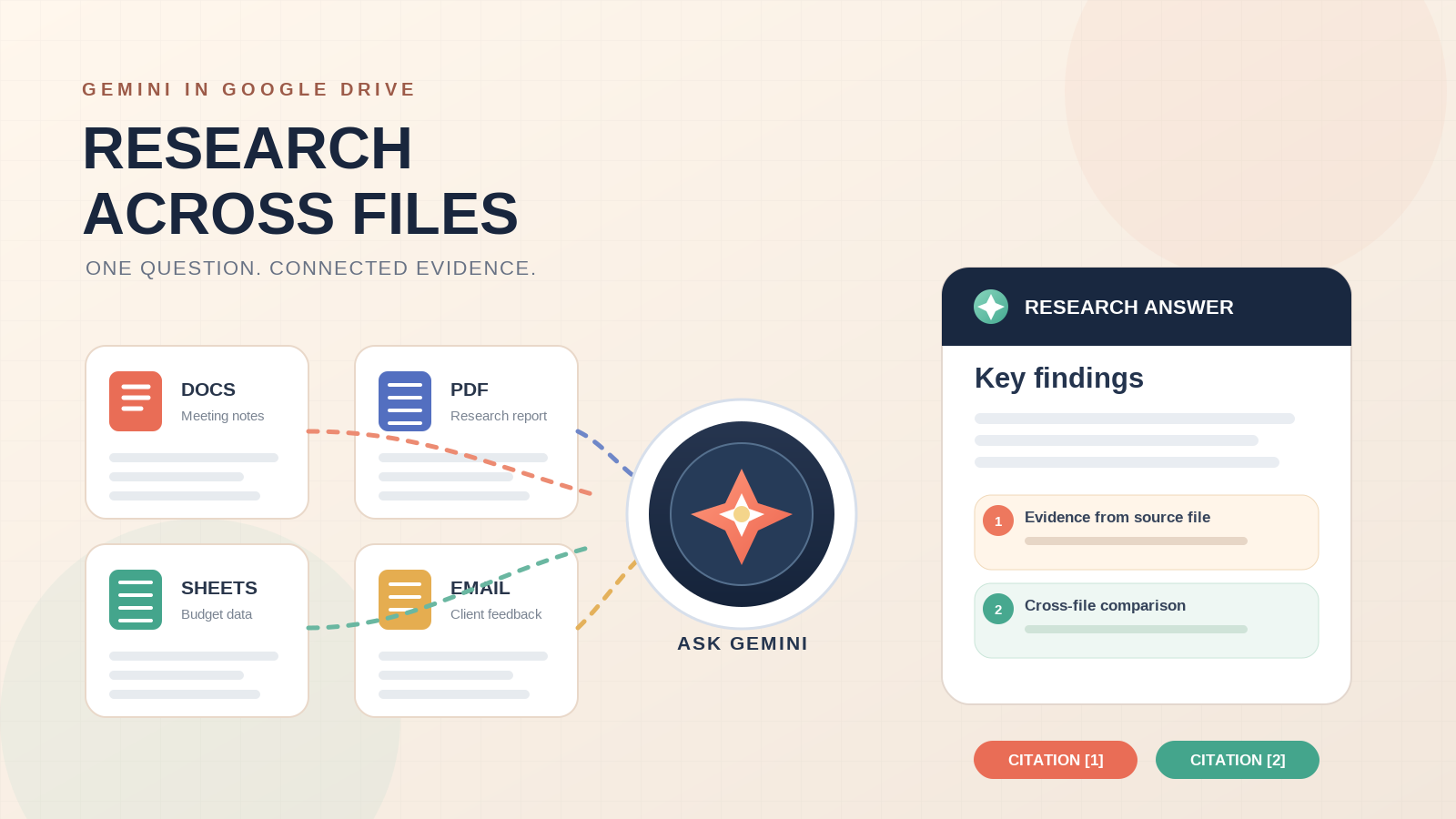
A useful answer is often buried across several files rather than written in one place. A project update may be in a Google Doc, the latest numbers in a Sheet, customer feedback in emails, and a decision in a PDF report. Gemini in Google Drive can research across multiple files, compare information, synthesize findings, and provide citations that help you trace an answer back to its source.
This guide shows how to use Ask Gemini in Drive for multi-file research, how to control which sources it can use, how to write prompts that produce evidence-based answers, and how to verify citations before relying on the result. The workflow is based on Google’s current Drive Help documentation available on November 23, 2026. Features and interface labels can vary by account, plan, administrator settings, and rollout.
What Gemini in Google Drive can do
Gemini in Drive is more than a file summarizer. Google’s documentation describes using it to analyze information across multiple folders, shared drives, Google Docs, Sheets, Slides, PDFs, and other Workspace apps such as Gmail, Google Chat, and Google Calendar. You can ask it to find patterns, compare versions, check information against policies, and connect findings from related material.
For example, you could ask Gemini to:
- Compare a project proposal with meeting notes and a budget spreadsheet.
- Summarize recurring customer complaints across feedback documents and emails.
- Find requirements mentioned in several product specifications.
- Identify differences between two versions of a policy.
- Extract dates, decisions, risks, and action items from a collection of reports.
- Prepare a briefing that combines several files and includes source citations.
The key advantage is that you can ask a question in natural language rather than opening every file and searching manually. The answer is still a generated analysis—not a guaranteed complete review of every source—so citations and source checking are part of the workflow.
Before you start: check access and source permissions
Google says Gemini in Drive requires an eligible Google Workspace or Google AI plan. Availability can depend on the account, region, supported language, and administrator controls.
You should also have permission to view the files you want to analyze. Gemini cannot use a source you are not authorized to access. If the research involves shared drives or organizational documents, confirm that the account you are using has the appropriate access.
For sensitive business or personal information, review your organization’s AI and data-handling rules before using a research workflow. Google’s Workspace generative AI privacy guidance explains the protections and controls for qualifying Workspace editions; consumer Google AI plans may have different terms and settings.
Step 1: Organize the files around one research question
You do not need to reorganize your entire Drive. Start with a small, relevant collection of source files.
For example, create or use a folder for a project and include the documents that actually answer your question:
- The latest project brief or proposal.
- Meeting notes containing decisions.
- A spreadsheet containing metrics or costs.
- A customer-feedback report.
- Relevant PDFs or presentation decks.
- Emails that contain approvals, requirements, or context.
A focused source set is easier to review than a large collection of unrelated documents. If files have ambiguous names, rename them descriptively where appropriate—for example, “Q4 Customer Feedback,” “Product Requirements v3,” or “Launch Budget Forecast.” Clear names make it easier for you to identify sources in Gemini’s citations.
Do not add a file just because it might be relevant. If the research question is about a particular product launch, unrelated HR documents or old drafts can introduce noise.
Step 2: Open Ask Gemini in Drive
On a computer, use the full-screen Drive research workspace:
- Go to Google Drive and sign in to the account with access to your files.
- Open the folder containing the material you want to research.
- In the toolbar, select Ask Gemini, if the option is available for that folder.
- Gemini opens its research workspace with the selected folder’s files listed as sources.
- Review the source list before entering your question.
You can also start from anywhere in Drive by selecting Ask Gemini near the top-right corner. That opens the full-screen workspace where you can add your own sources and configure broader search.
If you are starting from a folder, check that the files shown in the sources panel are the ones you intended to use. A folder-based start is a convenient way to establish the initial research scope.
Step 3: Add and control multiple source files
In the full-screen workspace, look for the sources panel on the left. Under Your sources or Project sources, select Add to choose additional files, folders, or emails.
Google’s source documentation lists Google Docs, Sheets, Slides, and PDFs as file sources that can be added. You can also select emails, folders, and projects in Drive’s source picker, subject to access and availability.
Use these controls to keep the analysis focused:
- Add: Include a file, folder, email, or project that should inform the answer.
- Remove: Remove a source from the active analysis.
- Uncheck: Temporarily exclude a source without removing it from the list.
- Suggested: Review files Gemini recommends based on your current sources or project. Suggested files are not used until you explicitly add them.
The distinction between a selected source and a suggested file matters. If you want a controlled analysis of a particular collection, do not assume every suggested document has already been included.
Broaden research beyond the selected files
If you need Gemini to discover related material across your Workspace rather than use only the files you selected, enable Let Gemini search for sources in the sources panel. Then review Where Gemini can search and choose the locations you want.
Depending on the available settings, you can include broader Drive search, Gmail, Chat, Calendar, or Web. Google documents that, when starting a new Drive conversation from scratch, Drive, Gmail, Chat, and Calendar search settings are on by default, while Web search is off by default. Check the settings in your own workspace rather than assuming the defaults are unchanged.
For a report that must use only a fixed group of documents, leave broader search disabled or turn off the additional locations. For a discovery task—such as finding related emails or locating a missing report—broader search may be useful. Adding Web allows supplemental public information, but it changes the evidence base from your Drive files alone.
Step 4: Ask a research question that defines the evidence
A broad prompt such as “Research this project” does not explain what to find, how to compare the files, or how the answer should be structured. Give Gemini the research objective, scope, and output format.
Try this prompt for an initial synthesis:
Prompt 1: Research across selected files
Analyze the selected sources to answer this research question: [write your question].
First, identify which source files contain relevant information. Then synthesize the findings across the files.
Organize the answer into:
- A concise answer to the research question
- The key findings, with supporting evidence
- Important dates, numbers, names, and decisions
- Areas where the sources agree or disagree
- Unresolved questions or missing evidence
Cite the source file for each important factual claim. Use only information supported by the selected sources. If the files do not answer a question, say so instead of guessing.
This prompt encourages a useful structure: answer first, evidence next, gaps last. It also asks Gemini to identify which documents contribute to the result instead of producing an undifferentiated summary.
Step 5: Compare files and identify conflicting information
Multi-file research is especially useful when documents contain overlapping or inconsistent facts. A report may use one forecast, a later spreadsheet may contain revised numbers, and meeting notes may record a decision that changed the original plan.
Use a comparison prompt:
Prompt 2: Compare documents
Compare the information in the selected files about [topic].
Create a table with these columns:
- Topic or claim
- What Source A says
- What Source B or other files say
- Evidence or citation for each statement
- Whether the sources agree, differ, or leave the question unresolved
Do not assume the newest file is correct solely because of its date. Identify the dates and context of the sources, and explain what needs human verification.
This is a better way to investigate conflicting information than asking Gemini to choose a winner immediately. You can decide whether a difference reflects a revised figure, a different definition, a reporting period, or an actual contradiction.
For a spreadsheet-heavy task, ask Gemini to preserve units and the names of relevant columns. If it calculates a value, request the formula or source figures so you can check the calculation in the original Sheet.
Step 6: Extract evidence, decisions, and action items
When you need a practical outcome rather than a narrative summary, ask for a structured evidence table.
Prompt 3: Extract evidence and actions
From the selected files, extract the evidence relevant to [decision or issue].
For each item, include:
- The finding or statement
- The source file
- The date or section, if available
- The evidence supporting it
- Whether it is a confirmed fact, a proposal, an estimate, or an interpretation
Then list confirmed decisions, action items, owners, and deadlines. Mark any owner or deadline that is not stated as “not specified.” Do not invent missing details.
This format is useful for project reviews, policy audits, contract comparisons, customer research, meeting follow-ups, and internal briefings. It also makes it easier to spot where a conclusion is based on one source rather than several independent files.
Step 7: Review and verify Gemini’s citations
Gemini provides citations when it answers using sources. In the response, look for the numbered citation at the end of a statement. Hover over or select the citation to view the source preview, then open the file chip to inspect the original document.
Use this process:
- Identify the claims that matter most to your question.
- Open the citation attached to each claim.
- Confirm that the source actually supports the statement.
- Check the surrounding text, not just a short preview.
- Verify important numbers, dates, quotations, and exceptions.
- If the citation points to a file that is relevant but does not support the exact claim, revise the answer or ask Gemini to find stronger evidence.
A citation is a traceability aid, not a guarantee of accuracy. Google warns that Gemini can miss sources, cite a document that does not directly support a statement, or even present an incorrect source. For consequential research, the original document—not the generated response—should remain the reference.
Ask for stronger evidence when the answer is vague
If a finding is important but the citation is unclear, use a follow-up prompt:
For each conclusion in your previous answer, show the supporting source file and the exact relevant passage or data. Separate direct evidence from your interpretation. If you cannot locate supporting evidence in the selected sources, mark the claim as unverified and remove it from the conclusions.
Gemini may not always return a precise page or paragraph locator. If it provides only a file-level citation, open the file and search for the relevant wording yourself.
Step 8: Save the research as a Drive Project
If you expect to ask more questions about the same collection of files, save the work as a Project rather than relying only on a conversation in history.
Google documents two ways to create a Drive Project:
Save the current research as a project
- In the full-screen Ask Gemini workspace, select Save as a project near the top-right corner.
- Review the suggested project name and edit it.
- Save the project.
Create a new project from Drive
- Open Drive on the web.
- Select New, then New project.
- Give the project a descriptive name, such as “Product Launch Research.”
- Add files, folders, or emails from the recommendations, or use Add more sources to find the material you need.
- Create the project.
A Project keeps a defined source collection for multiple research conversations. You can ask different questions using the same foundation—for example, first identify the main findings, then compare risks, then prepare a briefing.
Projects can be shared, but sharing the project does not automatically grant collaborators access to the underlying files. Google says collaborators must already have the necessary file permissions. The project’s source list is shared; your conversation history remains private, and collaborators start their own conversations. Review permissions before sharing.
You can access existing projects in the Drive mobile app, but Google currently documents creating new projects and changing their source lists on the web. Mobile project sources are view-only.
Five useful prompts for Gemini Drive research
1. Find a fact across several files
Search the selected files for information about [specific fact]. Give the answer, identify the source file, and cite the supporting evidence. If different files contain different values, show both and explain the context.
2. Summarize a collection for a manager
Prepare a short briefing for [audience] based on the selected documents. Include the main conclusion, five key findings, important figures, risks, decisions required, and next steps. Cite the source files for factual claims and distinguish confirmed information from recommendations.
3. Find contradictions
Review the selected sources for statements that conflict or appear to have changed. List each conflict, quote or summarize the relevant evidence from both sources, cite both files, and explain what additional information would resolve the difference. Do not decide which statement is correct without evidence.
4. Extract a timeline
Build a timeline of events related to [project or topic] from the selected files. Include date, event, source file, and whether the date is explicit or inferred. Do not infer a precise date when the source gives only a month, quarter, or relative time.
5. Identify research gaps
Based on the selected sources, what important questions about [topic] remain unanswered? For each gap, explain why it matters, which sources were checked, and what document or evidence would help answer it. Do not treat absence from the selected files as proof that the information does not exist.
Common problems and how to fix them
Gemini cannot find a file
Check that you have permission to view the file and that it is included in the active sources. If it is in a different folder, add it manually or enable broader Drive search. Suggested files are not active until you add them.
The answer ignores one of the documents
Ask Gemini to compare the files by name and provide a source-by-source summary. Confirm that the file is checked in the sources panel. For a large source collection, narrow the task or divide it into smaller questions.
The answer is too general
Replace a broad prompt with a question about a specific issue, period, metric, decision, or comparison. Ask for a table or evidence list instead of a generic summary.
Citations appear, but the answer is wrong
Open the citation and inspect the original. Check for omitted qualifications, conflicting documents, or an unsupported interpretation. Ask Gemini to correct the answer using the relevant passage, but verify the correction independently.
Gemini does not search the web
Web search is a separate source setting. In Drive’s research workspace, open the source settings and enable Web if it is available and appropriate for the task. If your goal is a source-only internal analysis, keep Web disabled so the answer is grounded in the documents you selected.
The research stops short of covering every file
Google notes that Gemini has processing-capacity limits. If the source collection is too large, the model may use only some of the content. Divide the research into focused groups, ask for separate findings, and then synthesize those findings while retaining their citations. Do not assume that a single prompt has exhaustively read every item in a large folder.
Gemini in Drive vs. NotebookLM for multi-file research
Gemini in Drive is a convenient choice when your files already live in Google Drive and you want to connect them with Workspace context such as emails, chats, or calendar information. It can search selected sources, compare files, and save the source set as a Project.
NotebookLM is another option when you want a dedicated notebook built around a curated collection of source material. The two tools have overlapping research capabilities, but their workflows and source-management features differ.
For related workflows, see our guides to summarizing a Google Docs document with Gemini, analyzing PDFs with Gemini, and analyzing spreadsheet data in Google Sheets with Gemini.
Final checklist before using the answer
- Did you select the files that actually address the research question?
- Did you check the sources panel and broader-search settings?
- Are important statements accompanied by citations?
- Did you open the cited files and verify the evidence?
- Are disagreements and missing information clearly identified?
- Did you preserve dates, units, and qualifications?
- Is the output clearly separated into facts, interpretations, and recommendations?
- If the research will continue, did you save the sources in a Drive Project?
Gemini in Google Drive can reduce the time spent searching and comparing files, but it is most valuable when the research remains auditable. Use focused questions, a deliberate source set, and citation checks to turn a generated answer into a reliable working brief.
Official Google sources
- Use Gemini in Drive for research and analysis
- Get started with Gemini in Google Drive
- Organize, save, and share Gemini sources using Projects in Drive
- Learn how to use sources with Google Workspace with Gemini
- Search and retrieve your files in Drive with Gemini
- Google Workspace generative AI privacy guidance
Google’s feature names, interface, eligibility, and availability may change. Check the official Help Center if your Drive interface differs from these steps.