
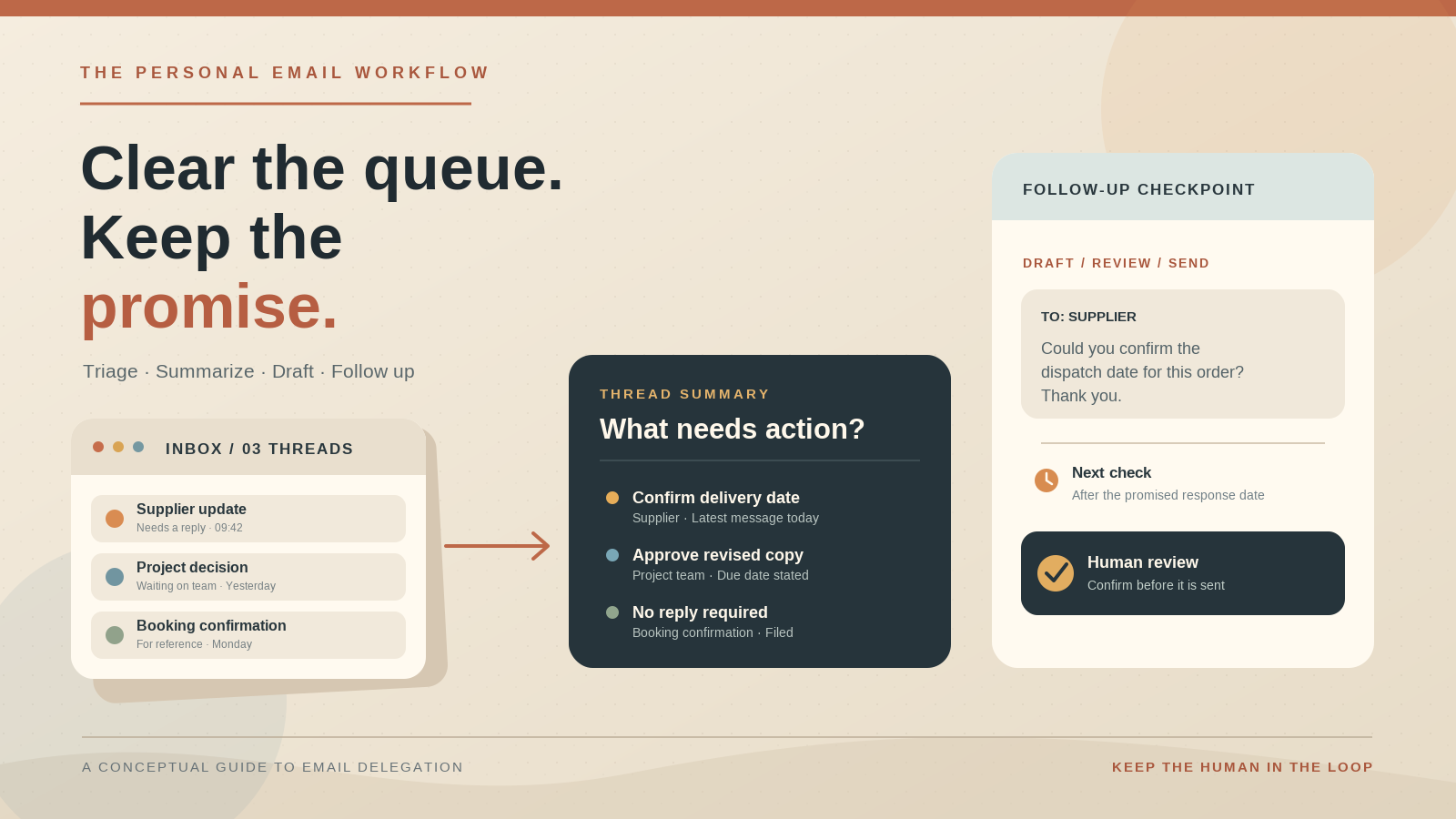
Email is rarely just a matter of writing a sentence and pressing Send. A single conversation can contain a request, several attachments, a deadline, a decision that has not been made, and a promise to follow up later. The time-consuming work is often finding the important detail, understanding the thread, deciding what needs a response, and remembering what should happen next.
Instinct is designed to help with email as part of a wider personal-assistant workflow. Its public documentation describes access to a connected Google Workspace inbox, actions on connected services, and browser-based tasks such as writing an email. The company has also introduced a separate email identity for the agent, which can be used for task-related correspondence. These are related capabilities, but they are not the same thing.
This guide explains how to use Instinct AI to manage emails and follow-ups, how to distinguish your connected inbox from the assistant’s own email address, and how to keep control over messages sent in your name. It reflects public information available on November 25, 2026. The exact channels and permissions shown in an individual account take precedence over a general guide.
What email tasks can Instinct AI help with?
Instinct’s Privacy Policy, revised November 17, 2026, says that the assistant may interact with third-party websites and services to complete user-directed tasks, including writing an email. It also explains that users who link Google Workspace give Instinct access to Google products such as their calendar and email inbox, together with related message and file metadata, event details, and other content shared through Google Workspace APIs.
The company therefore documents several email-related building blocks:
| Email task | What the public documentation supports | What to verify in your account |
|---|---|---|
| Read and understand connected email | A linked Google Workspace account can provide access to the email inbox and related message content | Whether Workspace linking is available and which permissions the connection requests |
| Summarize a conversation | Instinct can process message and communication content made available to it | Whether the specific thread or attachment is accessible and complete |
| Write an email | The Privacy Policy explicitly gives writing an email as an example of browser-based activity | Which account or address will be used and whether the message is a draft or will be sent |
| Contact someone for a task | The Terms allow Instinct to take actions on third-party services when directed by the user | Recipient, purpose, account identity, and any approval step |
| Follow up on a thread | The assistant’s own email identity was introduced for task-related correspondence and follow-ups | Whether that feature is enabled for your account and what replies it can access |
| Work with a forwarded message or group thread | Instinct’s own email workflow has been reported as supporting forwarded messages and participation in group threads | What information will be shared with the assistant and who else can see it |
These capabilities do not mean that every email action is automatically available to every user. Access depends on the connected service, the permissions granted, the task, and the features enabled for the account.
For a broader explanation of the product’s communication model, see our Instinct AI App Guide. The Instinct AI Features Explained guide covers email alongside the assistant’s other tools.
Understand the two different email identities
Before asking Instinct to manage correspondence, distinguish between your own connected inbox and the email address assigned to the assistant.
1. Your connected Google Workspace inbox
Instinct’s Privacy Policy says that, if you choose to link Google Workspace, the service receives access to Google products including your email inbox. It may also receive message metadata, file information, calendar details, and other content supplied through the Workspace APIs. The policy says this information is used to provide and personalize the service, including taking actions on your behalf.
This is the relevant route when you want help with conversations already in your work or personal Workspace account. For example, you might ask Instinct to find the latest message from a supplier, summarize a long project thread, or prepare a reply using the context in the conversation.
The policy specifically refers to Google Workspace. Do not assume that every consumer Gmail account, organization-managed account, or third-party mailbox has identical support. Check the connection options and permission screen presented to your own account.
You can review connected services at app.instinct.com/workspace. Instinct says you can disconnect Google Workspace there or ask the assistant to revoke access. Its Privacy Policy says it will no longer retain or use data collected from that Workspace account after disconnection, except where retention is required by law.
2. Instinct’s own email address
A separate feature gives the assistant an email identity of its own. In a September 9, 2026 report, TechCrunch described the feature and quoted founder Noah Shinn’s explanation that the address can let Instinct create accounts, contact businesses, and follow up on task-related matters without filling the user’s personal inbox.
The report also described forwarding an order confirmation or other relevant message to the assistant, adding its address to a group thread, and asking it to extract decisions or outstanding tasks. The assistant could then contact a business or return with a question when it needed the user’s input. The reported mailbox entry point is mail.instinct.com, which redirects to the Instinct account environment.
This assistant-owned address is not the same as connecting your inbox. It can provide a separate identity for correspondence initiated as part of a delegated task; it does not, by itself, give Instinct access to every message in your personal mailbox. Availability and onboarding may vary, so check the official mailbox page and the features shown in your account rather than assuming that an address is already enabled.
Step 1: Decide what you want the assistant to do
A broad instruction such as “clean up my email” leaves too much room for interpretation. It could mean summarize messages, label them, archive them, unsubscribe from lists, draft replies, or send messages. Those actions have different consequences.
Start by choosing a narrow task:
- Read-only review: Find messages, summarize threads, and identify action items. Do not change the mailbox.
- Drafting: Prepare a reply for you to inspect. Do not send it.
- Follow-up planning: List people or organizations you are waiting to hear from, with the last contact date and the next useful step.
- Delegated correspondence: Contact a named recipient for a specific purpose, using an account or address you have approved.
- Ongoing monitoring: Keep track of a defined thread or task and return when a response or decision is needed, if the relevant email feature is available.
A clear boundary is more useful than a vague request for automation. If you only want a summary, explicitly say that the assistant must not send, forward, delete, archive, or mark messages as read.
Step 2: Connect only the account you need
If the task requires access to an existing inbox, review the Workspace connection in your Instinct account before granting it. Read the permission screen rather than assuming that the assistant will receive only the one message you have in mind. The Privacy Policy describes access to the inbox and related message content through Google Workspace APIs.
If you do not want to connect the whole Workspace account, consider whether you can provide a specific message or forward a particular thread to the assistant’s own address instead. That can reduce the amount of unrelated inbox content involved, although the forwarded message still contains personal information and should be shared deliberately.
Do not send passwords, recovery codes, one-time passcodes, payment details, or confidential attachments simply because an email task would be easier with them. If an account requires authentication, use the service’s supported sign-in and approval process rather than placing secrets in an ordinary email prompt.
Step 3: Triage the inbox before drafting replies
Inbox triage is a good first use because it can produce a useful result without giving the assistant permission to send anything. Ask it to work over a defined date range or with a named sender, project, or subject.
For example:
Review messages in my connected inbox from the last seven days about [project or topic]. Group them into: needs my reply, waiting on someone else, informational, and deadline-sensitive. For each important thread, give me the sender, date of the latest message, a short summary, the requested action, and any deadline you can identify. Do not send, forward, delete, archive, or mark anything as read. If you cannot access a message or attachment, say so.
A useful summary should preserve the distinction between what a sender actually requested and what the assistant infers. Ask it to quote or identify the relevant sentence when a deadline, amount, commitment, or decision is important.
You can then ask for a second pass:
Show only the threads that need a response from me. Sort them by deadline, then by how long they have been waiting. Do not treat a newsletter or automated receipt as a personal request.
This turns a crowded inbox into a manageable queue without changing the underlying messages.
Step 4: Draft replies with enough context
A reply is more likely to be useful when the instruction includes the relationship, purpose, tone, and facts that must remain unchanged. Avoid asking the assistant to “reply politely” without explaining what you are agreeing to or what you still need to ask.
Try:
Draft a reply to [name] about [subject]. Thank them for [specific point], confirm only the facts stated in the thread, and ask [specific question]. Keep it under 120 words and use a professional but natural tone. Do not invent a date, price, promise, or attachment. Save it as a draft for my review; do not send it.
Before sending, check the recipient and every address in the To, CC, and BCC fields. Read the full message, verify quoted facts and attachments, and make sure the wording does not create a commitment you did not intend. A polished draft can still contain a wrong name, outdated figure, or mistaken interpretation of the conversation.
If you want Instinct to send a message after review, make that a separate instruction. The Terms of Service say users must maintain meaningful human oversight, promptly review actions, and use appropriate approval workflows for communications sent on their behalf.
Step 5: Build a reliable follow-up process
Follow-ups are easy to lose because they depend on something that has not happened yet: a supplier’s answer, a meeting confirmation, a refund, a document, or a decision from a colleague. The assistant’s separate email identity can help with task-related correspondence, while a connected inbox can provide context from existing conversations.
A practical follow-up record should contain:
| Field | Example |
|---|---|
| Contact | Supplier or named person |
| Subject | Delivery date for order 4821 |
| Last contact | Date of the most recent message |
| Outstanding item | Written confirmation of dispatch |
| Expected response | Date promised by the sender, if any |
| Next step | Ask for an update or escalate to support |
| Permission | Draft only, or send after explicit approval |
Use a prompt such as:
Review the thread with [person or company] about [subject]. Summarize what we are waiting for, the date of the last response, and any deadline that was actually stated. Suggest a concise follow-up message, but do not send it. If no response deadline was agreed, say that rather than inventing one.
For correspondence that the assistant itself is handling, you can give it a similarly narrow instruction:
Use your Instinct email address, if it is enabled, to ask [business] whether [specific item or service] is available by [date]. Identify yourself as an AI assistant acting on my request. Share only the details needed to ask the question. Bring the response back to me and ask before agreeing to a price, booking, or commitment.
That instruction makes the assistant’s identity and authority clear. It also separates asking a question from accepting an offer.
Practical prompts for common email jobs
The following examples are templates, not claims that every action is enabled for every account.
Summarize a long thread
Summarize this conversation in five bullets. Separate confirmed facts, open questions, decisions already made, and actions still outstanding. Identify who owns each action and any date explicitly mentioned.
Find unanswered messages
Find recent threads where I asked someone a question and have not received a clear answer. Show the last message date and suggest whether a follow-up is appropriate. Do not send anything.
Prepare a customer-service request
Use the relevant order information I provide to draft a message to the seller asking for [refund, replacement, or delivery update]. Include the order number only if it is necessary. Do not claim that a return has been approved or send the message without my review.
Turn an email into a task list
Extract the actions requested in this thread. For each one, list the owner, the exact deliverable, the stated due date, and what information is missing. Do not infer a deadline if none was given.
Check a reply before it goes out
Review this draft against the conversation. Flag unsupported claims, missing answers, accidental commitments, incorrect names or dates, and unnecessary personal information. Do not rewrite or send it until you show me the issues.
Privacy: what happens when Instinct can access email?
Email can contain much more than correspondence. It may include invoices, personal identifiers, employment information, medical details, account notifications, attachments, and information about people who never agreed to use an AI assistant.
Instinct’s Privacy Policy says that Google Workspace data is used to provide the service and is not used to evaluate, fine-tune, train, or improve AI models. It also says Workspace data is not transferred, sold, or used for advertising, and that third-party providers processing it on Instinct’s behalf may do so only to help provide the service or for specified lawful purposes.
That statement is specific to information received directly from Google Workspace APIs. It should not automatically be extended to every email you paste into a prompt, upload as a file, or forward to the assistant’s separate address. Instinct’s Terms say that user-provided Materials may be used to develop and improve the service, including model training, subject to opt-out rights and the special treatment of content placed in its Vault. Review the current Privacy Policy and Terms of Service for the channel you intend to use.
The policy also explains how to disconnect Google Workspace and request deletion of data collected through that connection. You can review the Google API Services User Data Policy for the broader Limited Use framework that Instinct says it follows.
A sensible operating rule is to grant only the access needed, keep sensitive threads out of broad summaries, and review outgoing messages before they leave your account. If you add Instinct to a group conversation, make sure participants understand that an AI assistant is receiving and processing the messages. The Terms place responsibility on the user to have the necessary permissions for group participation.
Is Instinct email available to everyone?
Instinct’s public status page lists Email among its service components, but a service-level listing does not guarantee that every email channel, connected inbox, or assistant-owned address is enabled for every account. The official website describes a message- and call-based assistant, while the account workspace is where connected services can be reviewed.
The safest way to check is to look at the channels and integrations shown after signing in. If Google Workspace is not offered, do not assume that a consumer Gmail account can be connected in the same way. If the assistant’s own mailbox is not available, use only the email workflow that the account explicitly supports.
For more context on delegating routine work, see How to Use Instinct AI to Manage Everyday Tasks and How Instinct AI Works: Understanding Personal AI Agents.
Frequently asked questions
Can Instinct AI read my Gmail inbox?
Instinct’s Privacy Policy specifically documents access to an email inbox when a user links Google Workspace. It does not establish that every consumer Gmail account or every mailbox provider is supported. Check the connection options and requested permissions in your account.
Can Instinct AI write and send email replies?
The policy gives writing an email as an example of a browser-based task, and the Terms allow user-directed actions on connected and third-party services. Whether a particular message can be sent depends on the available account access and workflow. Review the recipient, content, and attachments before authorizing a send.
Does Instinct have its own email address?
TechCrunch reported on September 9, 2026 that Instinct was rolling out an email address for the assistant, intended for task-related sign-ups, business contact, forwarded messages, and follow-ups. Check mail.instinct.com for the current account experience; the feature should not be assumed to be available to every user.
Can Instinct follow up with a business for me?
The assistant’s own email feature was described as supporting task-related contact and follow-ups. You should specify the recipient, purpose, information it may share, and what it must not agree to. Ask it to return the response rather than accepting a quote, booking, or contract automatically.
How do I stop Instinct from accessing my Workspace email?
Instinct says you can disconnect Google Workspace through app.instinct.com/workspace or ask the assistant to revoke access. Its Privacy Policy says it will no longer retain or use data collected from that Workspace account after disconnection, except where required by law.
The best way to delegate email is to keep the boundaries explicit
Instinct can help turn email from a stream of unread messages into a sequence of summaries, drafts, decisions, and follow-up tasks. Its connected Workspace access and its separate email identity offer different ways to work with correspondence: one brings the user’s existing inbox into a delegated workflow, while the other can give the assistant an address for task-specific communication.
Start with read-only triage, move to drafts, and authorize sending only when the recipient, wording, and purpose are clear. That approach captures the productivity benefit of an AI email assistant without treating access to an inbox as permission to make every decision inside it.