
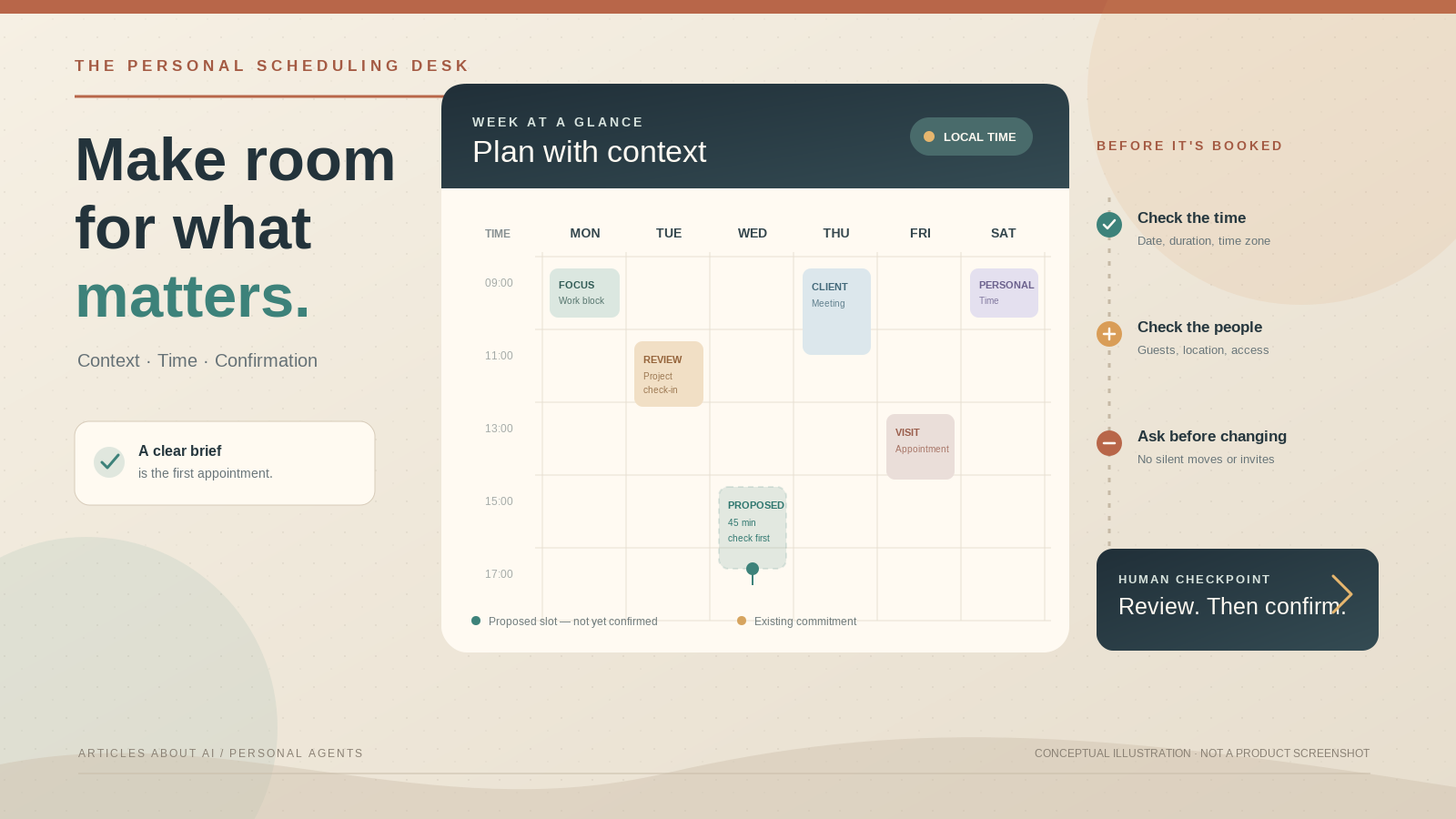
A useful calendar assistant does more than place another event in an empty time slot. It needs to understand what is already scheduled, distinguish a fixed commitment from a flexible one, account for time zones, and avoid sending invitations or changing appointments before the details are right. Instinct is designed as a personal AI assistant that can use connected services and act on a user’s instructions. Its public documentation specifically identifies Google Calendar as a source of information when a person connects Google Workspace.
That is a meaningful foundation for calendar organization, but it is important to separate what Instinct documents from what a user should verify in their own account. The current Privacy Policy says that linked Google Workspace data can include calendar event details and that Instinct uses Workspace information to provide its services, including taking actions on a user’s behalf. The public documents do not provide a permanent, account-by-account list of calendar permissions or guarantee that every user can create, edit, move, or delete every type of event.
This guide explains how to use Instinct AI to organize a calendar and appointments, how to write precise scheduling requests, and how to verify that a change really happened.
Can Instinct AI access Google Calendar?
Instinct’s Privacy Policy, last revised November 17, 2026, says that a user who chooses to link Google Workspace may give Instinct access to Google products such as the calendar and email inbox. It also identifies calendar event details and related metadata as information that may be shared through Google Workspace APIs. The policy says this information is used to provide and personalize the service, including to let Instinct take actions on the user’s behalf.
The Terms of Service describe a broader action model: when a user connects a service or directs Instinct to interact with a third-party platform, the assistant may access information, exchange data, and take actions on that platform. The same Terms require meaningful human oversight and warn that actions can be incorrect or difficult to reverse.
There is an important qualification. Instinct’s public policy confirms Google Calendar access, but it does not publish a detailed matrix showing which read and write permissions are granted in every account or rollout. Calendar access should therefore not be treated as proof that every user can ask Instinct to create, move, or delete any event. Check the actual Google authorization screen and the capabilities available in your account before delegating a change.
For an overview of the assistant’s wider capabilities, see Instinct AI Features Explained. If you are new to its message- and call-based interface, our Instinct AI App Guide explains how to give it instructions and follow up.
What calendar tasks can you delegate?
The most defensible starting point is to use Instinct for tasks that rely on calendar context, then authorize changes only when the connected account and requested action support them.
| Calendar task | How to use the assistant | What to verify |
|---|---|---|
| Daily agenda | Ask for a summary of today’s events, locations, and preparation notes | Event times, time zone, and whether the calendar is complete |
| Availability check | Ask which periods appear free before proposing a meeting | Other calendars, working hours, travel time, and tentative events |
| Event preparation | Ask it to collect the relevant email or document context for an event | Whether the source material is current and belongs to the right meeting |
| New event | Give the title, date, start, end, time zone, and location; ask for a draft or creation only if enabled | The correct calendar, exact times, guests, and saved event |
| Rescheduling | Identify the event and the permitted alternatives | Whether the old event was changed and invitees were notified |
| Appointment research | Ask it to find a provider and compare appointment options | Provider identity, availability, fees, and a provider-side confirmation |
| Follow-up | Ask it to identify an unanswered invitation or pending appointment | Whether the other person accepted, declined, or has not responded |
A free period in one calendar is not necessarily a genuinely available period. You may have a second work calendar, a family calendar, a personal commitment that was never entered, or time needed to travel between locations. Tell Instinct which calendars and constraints matter, and do not assume it can see a calendar that you have not connected.
Step 1: Connect only the calendar access you need
If you want Instinct to use your existing schedule, review the Google Workspace connection offered in your account. Read the consent screen carefully and check which Google services and permissions it requests. Do not assume that connecting a calendar grants only read access—or that it grants write access. The permissions shown at authorization time are more specific than a general product description.
Instinct says that connected services can be disconnected through its Workspace settings. Its Privacy Policy states that if you disconnect Google Workspace, it will no longer retain or use data collected from that account, except where retention is required by law. The policy also explains that Google Workspace API data is not used to evaluate, fine-tune, train, or improve AI models, and is not used for advertising.
If you only need help planning one event, consider whether sharing the relevant details in a message is sufficient. Connecting a full Workspace account can expose a wider range of calendar and email context than a single scheduling task requires.
Step 2: Give the assistant a clear scheduling brief
A request such as “find time for a meeting next week” is underspecified. A good scheduling brief makes the constraints explicit and distinguishes hard requirements from preferences.
Include:
- Purpose: State what the meeting or appointment is for.
- People: Name the participants and identify who must attend.
- Date range: Give the exact dates, not just “next week” if the request may be read later.
- Duration: Specify the meeting length and whether setup or travel time is needed.
- Time window: Provide acceptable hours and days.
- Time zone: Name the relevant city or IANA time-zone identifier when participants are in different regions.
- Location or meeting link: State whether the event is in person, by phone, or online.
- Flexibility: Explain which details may change and which must not.
- Action boundary: Say whether Instinct should only report options, prepare a draft, or make a change after approval.
For example:
Review my connected calendar for next week. Find two or three possible 30-minute slots for a project meeting with Maya. Use my working hours of 9:00 a.m. to 5:00 p.m. in America/New_York, leave at least 15 minutes between meetings, and avoid Wednesday. Do not create an event or contact anyone yet. Show the date, start time, end time, and any calendar conflicts you can see.
This prompt gives the assistant a bounded search task. It also makes clear that a suggested time is not permission to send an invitation.
Step 3: Organize the day before changing events
A daily calendar review is a relatively low-risk way to test whether the assistant has the context you expect. Ask for a structured summary rather than a vague description of your day.
Try:
Summarize today’s events from my connected calendar in chronological order. For each event, show the start and end time, location or meeting link, attendees if available, and any preparation I should complete. Flag overlaps and events with missing details. Do not edit the calendar or send messages.
Review the result against Google Calendar. If an event is missing, determine whether it is on another calendar, hidden by a permission setting, or simply outside the connected account. Do not let the assistant infer that an empty period is free when the relevant calendar may not be connected.
For a weekly review, ask it to separate fixed commitments, flexible work blocks, appointments, and events that need a response. You can then decide which items should move without allowing the assistant to reorganize the week on its own.
Step 4: Add a new event only after checking the details
If your account supports the required calendar write action, provide every field that matters. A useful event request includes:
- event title and purpose;
- date;
- start and end time;
- time zone;
- location or video-call details;
- attendee names and email addresses;
- description or agenda;
- reminder preference;
- recurrence rule, if applicable.
Use a prompt such as:
Prepare a calendar event titled “Quarterly planning review” for April 14, from 10:00 to 10:45 a.m. America/Chicago. Add the office meeting room as the location and include the agenda I supplied. Do not invite anyone or save the event until you show me the complete details and I approve them.
If Instinct can create the event in your connected calendar, inspect the saved entry afterward. Confirm that it appears on the intended calendar and that the date, start, end, time zone, and location are correct.
Google’s Calendar API guide to creating events illustrates why these fields matter. Google requires start and end information for an event; timed events can specify a time zone, and adding attendees can trigger invitation notifications depending on the request. This is documentation about Google Calendar’s own event model, not proof that Instinct uses a particular API method or has every corresponding permission.
Step 5: Coordinate a meeting without confusing an invitation with acceptance
Scheduling with other people has two separate outcomes: an invitation can be sent, and the recipient can accept, decline, or leave it unanswered. Those are not the same thing.
Ask Instinct to prepare candidate times first. If it is authorized to send an invitation, review the attendee list and event details before approving. After the invitation goes out, check the event’s response status. Do not tell other participants that a time is confirmed merely because an invitation was sent.
A useful instruction is:
Find a time for a 45-minute meeting with the three people named in this email thread. Use only the availability visible in the connected calendars, between 10:00 a.m. and 4:00 p.m. London time. Show me the options and identify any participant whose availability you cannot check. Do not send an invitation. If I approve a slot later, report each attendee’s response separately.
This also exposes a common limitation: the assistant cannot reliably coordinate calendars it cannot access. If a participant’s calendar is private or not connected, ask them for availability rather than treating an unknown slot as free.
Step 6: Use Instinct for appointments outside your calendar
A personal appointment often involves more than adding an event. A dentist, repair service, clinic, or local business may have to confirm availability through a booking page, email, or phone call. Instinct’s Privacy Policy explicitly lists scheduling appointments among the everyday tasks for which it may process information. It also describes browser interactions with third-party services, such as making a restaurant reservation or writing an email.
For an appointment search, start with research:
Find providers near [area] that offer [service]. I prefer [days and time window]. Compare the earliest available appointments, location, stated price, and cancellation terms. Do not book or share my personal details yet.
After choosing a provider, give a separate instruction to request or book a specific slot, if the feature is available. Ask the assistant to return the provider’s name, address, date, time, price, cancellation policy, and confirmation reference.
A calendar entry is not proof that the provider has accepted the appointment. Look for a confirmation email, text, booking number, portal record, or direct confirmation from the business. If the appointment is important, verify it with the provider.
For related delegated tasks, see How to Use Instinct AI to Book Restaurants and Make Reservations and How to Use Instinct AI to Plan Trips and Organize Travel.
Step 7: Handle recurring events and schedule changes carefully
Recurring events deserve extra attention because a small change can affect many future dates. Before asking for a series to be created or modified, specify:
- the first date;
- start and end time;
- time zone;
- recurrence pattern;
- final date or number of occurrences;
- exceptions such as holidays;
- whether the change applies to one occurrence or the entire series.
For example:
Review the weekly team check-in on my calendar. I am considering moving the next occurrence from Tuesday to Thursday, but I do not want to change the recurring series. Show me the current event and the proposed change. Do not save anything yet.
When a meeting is moved, check both the new event and the old slot. Confirm whether guests received an updated invitation and whether the change applies to one occurrence or every future occurrence. If the assistant cannot clearly identify the scope, make the change manually.
Time zones, travel buffers, and calendar conflicts
Time-zone errors can turn an otherwise correct schedule into a missed appointment. For meetings across regions, include the city or time-zone identifier, not just a clock time. When travel is involved, distinguish departure time, arrival time, local appointment time, and the time zone in which each event occurs.
Google Calendar’s event reference documents time-zone fields for event start and end values. Use the same discipline in prompts to Instinct. For example, “3:00 p.m. Dubai time” is clearer than “3:00 p.m.” when participants are in multiple countries.
Also leave room for travel, security checks, parking, and preparation. A calendar that shows no overlap can still be unrealistic if two in-person appointments are on opposite sides of a city. Ask Instinct to flag travel gaps, but verify routes and journey times with a current mapping service.
Privacy and human oversight
Calendar data can reveal more than meeting titles. It may show a person’s location, work patterns, medical appointments, family commitments, travel plans, and professional relationships. Connect only the account you intend to use and be careful when asking the assistant to share event details with other people.
Instinct’s Privacy Policy says that data received directly through Google Workspace APIs is not used to train or improve its AI models. That protection is specific to Workspace API information; it should not automatically be extended to every file, message, or detail that you separately paste into a prompt. The policy also explains how to revoke Workspace access.
The Terms require meaningful human oversight of actions and warn that the assistant can make mistakes, including actions that may not be reversible. This matters especially when changing a meeting with several attendees, deleting a recurring event, or booking an appointment with a cancellation fee.
A sensible rule is to let Instinct summarize and propose first. Approve a change only after checking the event, the people affected, the time zone, and any external commitment. Then verify the result in the calendar and with the provider or participants where appropriate.
Frequently asked questions
Does Instinct AI integrate with Google Calendar?
Yes. Instinct’s Privacy Policy says that users who link Google Workspace may provide access to Google products such as Google Calendar, including calendar event details. The exact permissions available should be checked in the authorization screen for your account.
Can Instinct AI create or edit calendar events?
Instinct’s public documents describe Google Workspace access and a general ability to take actions through connected services. They do not publish a complete calendar-specific permission matrix for every account. Confirm that the required write action is available and authorized before relying on it.
Can Instinct schedule meetings with other people?
It can use connected-service context to support tasks on a user’s behalf, but it cannot establish availability for calendars it cannot access. Review proposed times and attendees, and check whether invitees actually accepted.
Can Instinct book a dentist or other appointment?
Instinct’s Privacy Policy lists scheduling appointments as an example of an everyday task. A specific booking may still depend on the provider’s website or phone process, feature availability, and the information the provider requires. Always obtain provider-side confirmation.
Does Instinct use Google Calendar data to train AI models?
Instinct says it does not use information received directly from Google Workspace APIs to evaluate, fine-tune, train, or improve AI models. Review the current Privacy Policy for the exact scope of that commitment and the treatment of information shared through other channels.
How do I disconnect my calendar?
Because Calendar access is part of Google Workspace, use Instinct’s Workspace settings to disconnect the account or ask Instinct to revoke access. The Privacy Policy explains the related data-retention treatment.
Use the calendar as a source of context, not as an unquestioned authority
Instinct’s documented Google Workspace access gives it a useful source of calendar context for daily planning, meeting preparation, and appointment-related tasks. The most reliable workflow is to connect the intended account, describe dates and constraints precisely, request options before authorizing changes, and verify every consequential update afterward.
The distinction between calendar access and unrestricted calendar control matters. A well-written prompt can reduce ambiguity, but it cannot create a permission that the account does not have or guarantee that another person or business has accepted an appointment. Keep the final check with the calendar and the people involved.