
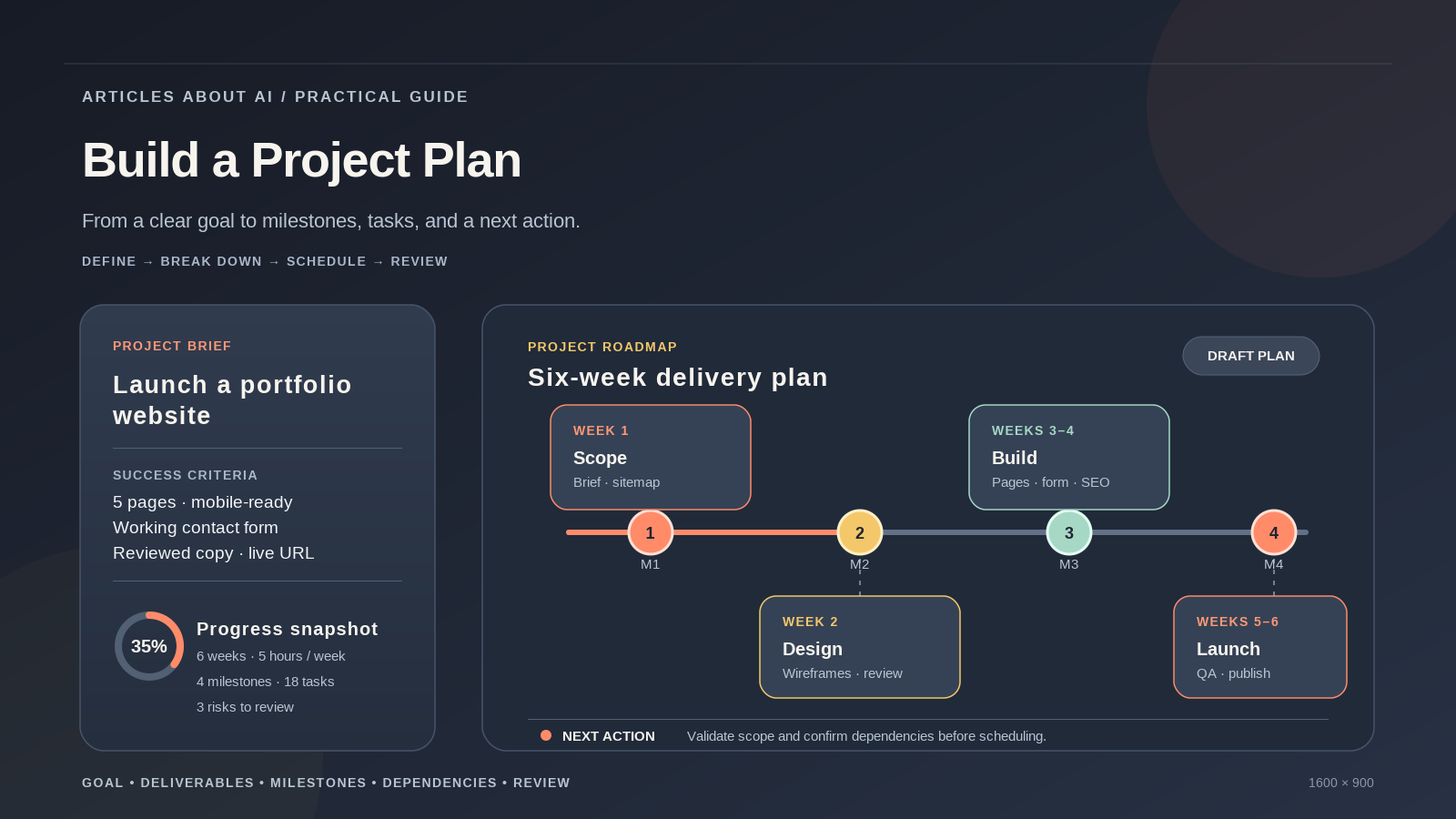
A personal project can be anything from launching a portfolio website to preparing for a certification, organizing a home renovation, building a side business, or completing a creative project. The challenge is turning an idea into a realistic plan that fits your available time, budget, skills, and other commitments.
Meta Muse AI can help turn a goal into an action plan, track progress, and coordinate work around your priorities. Meta describes Muse as a personal AI agent that can help develop personalized plans, coordinate time and resources, and advance work across multiple steps under your direction. This guide explains how to use that planning approach to create a practical project plan you can review and adjust. It is a workflow guide based on Meta’s published product information, not a claim that we conducted a live project-planning test.
What is a personal project plan?
A personal project plan is a structured description of what you want to achieve, why it matters, what work is required, when each part should happen, and how you will know the project is complete.
A useful plan contains:
- Project objective: the outcome you want to achieve.
- Scope: what the project includes and excludes.
- Deliverables: the specific results or items you must produce.
- Milestones: the major stages between the starting point and the outcome.
- Tasks: the actions needed to complete each milestone.
- Timeline: target dates, duration estimates, and review points.
- Resources: available time, budget, tools, and people.
- Risks and dependencies: what could delay the work or prevent progress.
- Success criteria: evidence that the project has achieved its objective.
Meta’s official introduction to Muse says that people can share a goal, develop a personalized plan with Muse, coordinate time and resources, and let it advance work while retaining control. The Muse product page also describes action plans, progress tracking, connected apps, and ongoing work on goals. For background on the product, see what Meta Muse AI is, its features, availability, and how it works.
Before you start: give Muse enough context
A project plan is only as useful as the information behind it. Before asking Muse to build one, collect a short project brief.
Include:
- The idea: What do you want to do?
- The reason: Why is this project important now?
- The result: What should exist or be true when it is finished?
- The deadline: Is there a fixed date or a preferred target?
- Your availability: How many hours can you realistically spend each week?
- Your resources: What budget, tools, skills, or support do you have?
- Your constraints: What must not change, and what could limit the work?
Prompt: create a project brief
I want to plan this personal project: [describe the idea].
My reason for doing it is [reason]. The result I want is [specific outcome]. My preferred completion date is [date, or no fixed deadline].
I can spend approximately [number] hours per week. My available budget is [amount or range]. The tools, skills, and resources I already have are [list]. My constraints are [list].
First, turn this information into a concise project brief. Identify missing information, assumptions, and decisions I need to make. Ask questions before creating a detailed schedule. Do not commit me to purchases, bookings, messages, or other external actions.
This first conversation should clarify the project rather than immediately produce an elaborate schedule. If the goal is still vague, ask Muse to help define a measurable outcome.
Step 1: Define a specific project outcome
Start with the result, not the task list. “Learn design” is a broad aspiration. “Complete a beginner UI design course and publish three portfolio projects by the end of March” is a project outcome that can be planned and reviewed.
Use an outcome statement with four elements:
- What: the deliverable or change you want.
- Who it is for: yourself, a client, a team, or another audience.
- When: the target completion date.
- How success is measured: the evidence that proves the result is achieved.
Ask Muse to identify whether your proposed outcome is realistic given your time and resources.
Prompt: make the goal measurable
Review this project goal: [goal].
Rewrite it as a clear outcome with measurable success criteria. Separate the final result from the activities required to achieve it. Tell me what is unclear, what can be measured, and whether the target date appears realistic based on [hours available] and [resources]. Do not invent facts about my skills, budget, or availability.
For more general goal-setting and progress workflows, see how to track a multi-step task with Meta Muse AI.
Step 2: Set the project scope and deliverables
Scope defines the boundaries of your project. Without it, a personal project can expand until it becomes difficult to finish.
Ask Muse to organize the scope into three groups:
| Scope group | What it means | Example: portfolio website |
|---|---|---|
| Must include | Essential for the outcome | Home, About, Projects, Contact pages |
| Could include | Useful if time permits | Blog, animation, extra case study |
| Out of scope | Deliberately excluded | Custom membership system |
Then identify the deliverables. A deliverable is a result you can inspect, such as an approved design, completed course, working website, finished document, or published portfolio.
Prompt: define scope and deliverables
Based on this project brief: [paste brief], create a scope statement.
Divide potential work into Must include, Could include, and Out of scope. List each deliverable and explain how I can verify that it is finished. Identify features or activities that could cause scope creep. Keep the plan focused on the original outcome and ask me to approve the scope.
This step gives you a boundary for later decisions. If a new idea appears, you can decide whether it belongs in the current project or a future one.
Step 3: Break the project into milestones and tasks
Milestones represent major stages or results. Tasks are the actions needed to reach them. A good personal project plan uses enough detail to make the work actionable without creating an exhausting list of tiny activities.
For example, a six-week portfolio website project might use this structure:
| Milestone | Example tasks | Evidence of completion |
|---|---|---|
| 1. Define | Confirm audience, goals, pages, and content | Approved project brief and sitemap |
| 2. Design | Select layout, prepare wireframes, review design | Final design files |
| 3. Build | Create pages, add content, configure contact form | Working website draft |
| 4. Validate | Test mobile layout, links, form, and accessibility basics | Completed test checklist |
| 5. Launch | Publish the site and check the live pages | Working public URL |
Prompt: build the work breakdown
Break my approved project scope into 3–7 major milestones. Under each milestone, list the tasks in a sensible order.
For every task, include:
- A clear action
- The expected output
- An estimated effort, labeled as an estimate
- Any prerequisite or dependency
- A suggested target week
- A completion check
Identify tasks that can happen in parallel and tasks that must happen in sequence. Keep the plan suitable for one person working [hours] hours per week. Show me the proposed structure for review before treating it as final.
If the plan is too detailed, ask Muse to combine minor tasks. If a milestone is too broad to act on, ask it to split that milestone into smaller deliverables.
Step 4: Build a realistic timeline around your life
A personal project competes with work, study, family responsibilities, rest, and other commitments. A schedule that assumes unlimited availability is unlikely to survive the first week.
Ask Muse to plan around your actual capacity rather than filling every available hour. Include:
- Weekly hours you can protect for the project.
- Fixed commitments that cannot move.
- A realistic start and finish date.
- Buffer time for delays and revisions.
- A regular review session.
- A lighter workload during unusually busy weeks.
If you use a connected calendar, confirm which calendar Muse can access and what it is allowed to change. Meta says Muse can connect with apps such as email and calendar, but the exact integrations and permissions available to an individual account can vary.
Prompt: create a workable schedule
Turn the approved milestones and tasks into a weekly project timeline.
My available project time is [days and hours]. These commitments are fixed: [list]. My target completion date is [date].
Estimate the effort for each task, identify overloaded weeks, include reasonable buffer time, and show the critical dependencies. Do not schedule work during my fixed commitments. If calendar access is available, show me the proposed calendar changes and request approval before adding, moving, or deleting events.
For a more detailed calendar routine, read how to plan a week of work with Meta Muse AI step by step.
Step 5: Plan your resources and budget
Personal projects often fail because the plan accounts for tasks but ignores the resources needed to complete them.
Ask Muse to prepare a resource checklist covering:
- Time: hours required and hours available.
- Money: expected costs, optional spending, and a contingency allowance.
- Tools: software, equipment, subscriptions, or materials.
- Skills: what you can do now and what you need to learn.
- Support: people whose input, review, or approval you may need.
Separate confirmed costs from estimates. Ask for sources and current prices when the plan depends on purchases, subscriptions, or services. Do not treat an AI-generated estimate as a quote.
Prompt: prepare a resource plan
Review this project plan: [paste plan].
Create a resource checklist covering time, budget, tools, skills, materials, and outside support. Separate resources I already have from resources I may need to obtain. Mark all cost and duration figures as estimates unless supported by a current source. Identify the most important resource constraints and suggest lower-cost alternatives. Do not purchase or subscribe to anything.
Step 6: Identify risks, dependencies, and decisions
A project risk is something that may happen and affect the result. A dependency is something that must happen before another task can proceed.
Common personal project risks include:
- Underestimating how long a task will take.
- Losing access to a required tool or service.
- Discovering that a key skill needs more development.
- Waiting for feedback or approval.
- Spending more than the available budget.
- Taking on too many tasks alongside existing commitments.
Ask Muse to create a simple risk register:
| Risk | Potential impact | Prevention or response |
|---|---|---|
| Work takes longer than estimated | Launch date slips | Add buffer time and review estimates |
| Required feedback is delayed | Design approval is blocked | Set a follow-up date and backup reviewer |
| Budget is exceeded | Some deliverables become unaffordable | Set a spending limit and prioritize essentials |
| Weekly availability changes | Planned tasks are missed | Rebalance the schedule at the next review |
Prompt: review project risks
Analyze the current project plan for risks, dependencies, and decisions that could delay completion.
For each risk, show its likelihood as a qualitative estimate, its potential impact, an early warning sign, and a response. Identify tasks that depend on external people, services, or information. Recommend practical mitigations, but do not change my scope, budget, or schedule without approval.
For projects involving research, use how to create a research brief with Meta Muse AI and check its accuracy and how to fact-check a news story with Meta Muse AI.
Step 7: Create a project dashboard or planning space
A project plan is easier to use when the important information is visible in one place. Ask Muse to organize the project into a compact dashboard with:
- Project objective and target date.
- Current milestone.
- Next three actions.
- Task status.
- Upcoming deadlines.
- Waiting items and blockers.
- Budget or time remaining, if tracked.
- Decisions that need your attention.
Meta announced Spaces in the Muse app on November 6, 2026. Its announcement describes Spaces as custom experiences users can create by describing an idea, including practical examples such as a planning board for a DIY project. You can explore whether a project-planning Space suits your workflow, depending on the features available to your account. See Meta’s announcement about customizing the Muse app with Spaces.
Prompt: design a project planning space
Help me design a personal project-planning Space for [project name].
I want it to show the project objective, milestones, task list, weekly schedule, upcoming deadlines, blockers, budget notes, and next actions. Suggest a simple layout that I can understand at a glance. Explain which information would need to be updated manually and which parts may be supported by available Muse features or connected apps. Do not claim that a feature is available unless it is supported in my account.
A dashboard is a view of the plan, not a substitute for the plan itself. Keep the full scope, assumptions, and completion criteria available for reference.
Step 8: Review progress and adjust the plan
Set a review rhythm that fits the length of the project. A short personal project may need a weekly review; a longer one may benefit from a brief check-in after each milestone.
At each review, ask:
- What was completed since the last review?
- What evidence confirms completion?
- What is still in progress or waiting?
- Have time, budget, or priorities changed?
- Which upcoming tasks are now at risk?
- What are the next three actions?
Prompt: run a weekly project review
Review my personal project using these updates: [paste updates].
Compare actual progress with the approved plan. Show completed deliverables, active tasks, waiting items, blockers, and the next three actions. Identify changes to time, budget, scope, and deadlines. Distinguish verified results from my estimates or reports. Recommend adjustments, explain the trade-offs, and wait for my approval before changing the plan or taking external actions.
Muse’s official product information describes ongoing goal tracking and work across connected apps. The actual degree of automation depends on the task, account, connected services, and permissions. For detailed status tracking, see how to track a multi-step task with Meta Muse AI.
Step 9: Protect your control over external actions
A personal project may involve sending emails, booking appointments, buying materials, publishing content, or changing calendar events. These actions can have real consequences.
Before allowing Muse to act:
- Connect only the apps needed for the project.
- Review the permissions requested by each connection.
- Ask Muse to show the intended action before it happens.
- Require approval for purchases, messages, bookings, and important changes.
- Review the activity or audit information available in the product.
- Keep copies of important confirmations and final deliverables.
Meta says users remain in control of Muse, can set access, and may review and approve critical actions such as sending emails or making purchases. Read Meta’s Muse introduction and its official getting-started guidance before connecting services or handing over tasks.
Step 10: Use a reusable personal project plan template
You can ask Muse to create and maintain a project plan using this compact template.
| Planning field | Your project |
|---|---|
| Project name | [Name] |
| Objective | [Measurable outcome] |
| Target date | [Date] |
| Scope | [Included work] |
| Out of scope | [Excluded work] |
| Available time | [Hours per week] |
| Budget | [Amount or limit] |
| Key deliverables | [List] |
| Milestones | [Stages] |
| Main risks | [Risks and responses] |
| Review cadence | [Weekly / milestone-based] |
| Next action | [Specific action] |
For the task-level tracker, use:
| Task | Milestone | Estimated effort | Target date | Status | Completion evidence |
|---|---|---|---|---|---|
| [Action 1] | [Stage] | [Estimate] | [Date] | Not started | [Evidence] |
| [Action 2] | [Stage] | [Estimate] | [Date] | Not started | [Evidence] |
| [Action 3] | [Stage] | [Estimate] | [Date] | Not started | [Evidence] |
One prompt to generate the complete plan
Build a personal project plan from this brief: [paste project brief].
Include a measurable objective, scope boundaries, deliverables, milestones, ordered tasks, estimated effort, a realistic weekly timeline, resource and budget checklist, dependencies, risks, success criteria, and review schedule.
Adapt the plan to my actual availability and constraints. Label assumptions and estimates clearly. Show the plan in tables, identify the next three actions, and ask me to approve the plan before making changes to connected apps or taking external actions.
Common mistakes to avoid
Starting with a long task list
A long list can look productive without explaining what success means. Define the outcome and deliverables first, then create tasks.
Planning for an ideal week
Do not schedule every available hour. Leave room for existing commitments, unexpected work, and rest.
Treating estimates as facts
Time and cost estimates are planning assumptions. Review them as you learn more about the work.
Expanding the scope every time you get a new idea
Keep optional ideas in a separate backlog. Add them to the current project only if they support the agreed outcome and fit the available resources.
Automating before checking permissions
A connected agent may be able to take actions, not just suggest them. Review access and require approval for consequential changes.
Measuring activity instead of results
A project is not complete because many tasks were checked off. Verify that the required deliverables meet the success criteria.
Frequently asked questions
Can Meta Muse AI create a personal project plan?
Meta says Muse can turn goals into action plans, help coordinate time and resources, and track progress. You can provide your project brief and ask it to propose milestones, tasks, and a schedule. Review the result for realistic estimates and missing assumptions.
Can Muse manage my project timeline?
Muse’s published features include goal tracking, reminders, connected apps, and work that can continue in the background. Whether it can read or update a particular calendar or project tool depends on the available connector and permissions. Confirm the exact integration before relying on it.
Can I use Meta Muse AI for personal goals and side projects?
The planning workflow can be applied to personal goals, learning plans, creative work, home projects, and side businesses. Keep the objective, scope, time commitment, and completion criteria specific to the project.
Does Muse automatically create a project dashboard?
Meta’s November 2026 Spaces announcement describes custom experiences, including a planning board example. The exact setup and capabilities may vary. Ask Muse what it can create in your account and verify the available features rather than assuming a particular dashboard function.
How often should I update a personal project plan?
A weekly review is a useful starting point for many projects. Review more often when deadlines are close or dependencies change, and less often when the project is long-term and stable.
Should I let Muse make project decisions for me?
Use Muse to analyze options, identify trade-offs, and recommend next steps. Keep final control over scope, budget, deadlines, purchases, communications, and other consequential decisions.
Final thoughts
Meta Muse AI can help make personal project planning more structured by turning a goal into an actionable plan, organizing milestones, coordinating resources, and helping you review progress. The quality of the result still depends on the context you provide and the decisions you make.
Start with a measurable outcome, agree on the scope, build a manageable roadmap, and schedule work around your real availability. Then use regular reviews to adapt the plan without losing sight of the original goal. The best personal project plan is not the most complicated one—it is the one you can realistically follow and verify. For a project that involves travel arrangements, see how to organize a trip with Meta Muse AI and verify travel details.