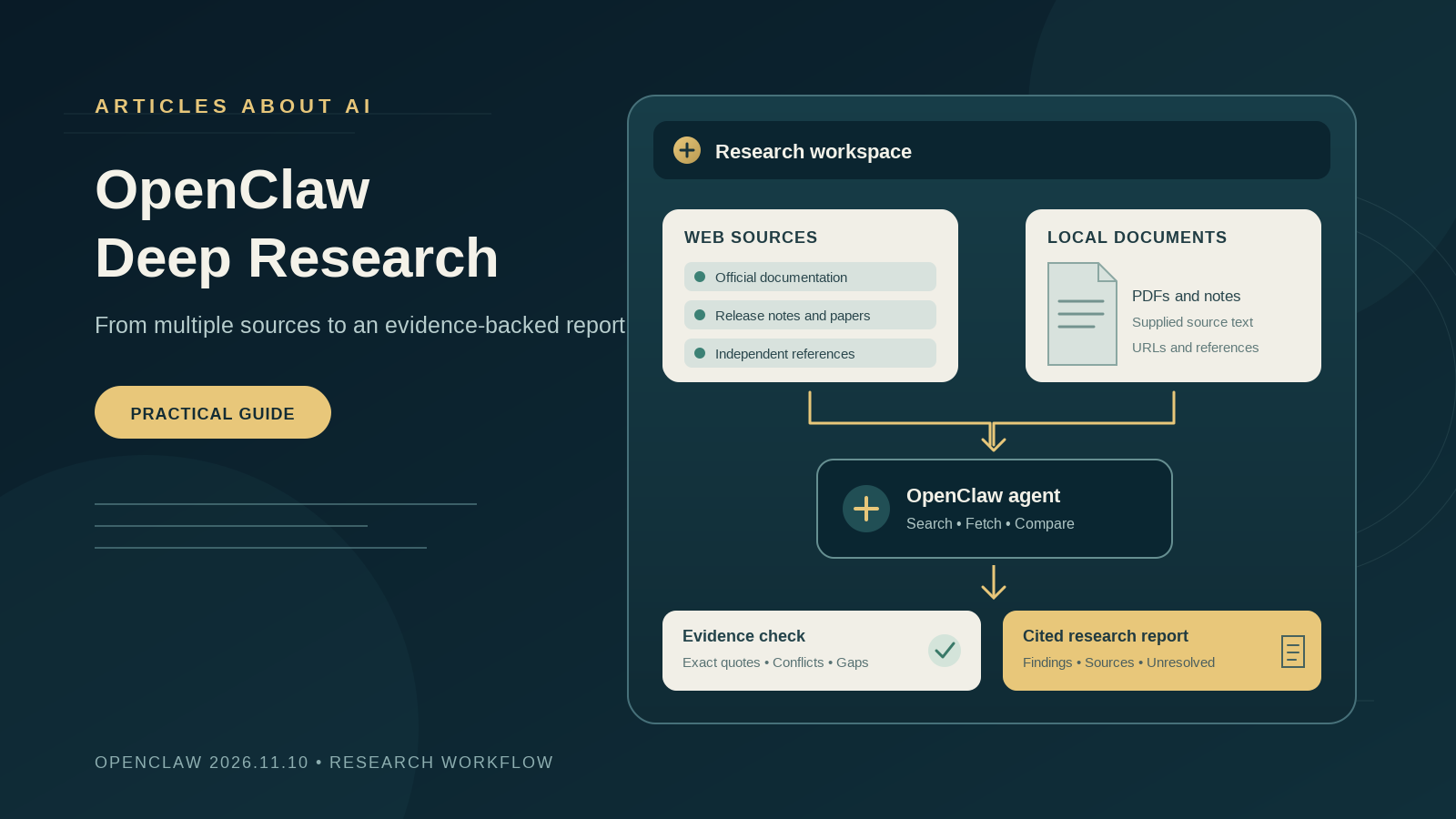
OpenClaw’s Deep Research feature is designed for questions that need a traceable investigation rather than a quick answer. It can plan sub-questions, search and fetch multiple web sources, read documents you provide, compare evidence, and return a structured Markdown report with citations, exact supporting quotations, and an explicit account of what remains unresolved.
The feature arrived as a bundled plugin in OpenClaw 2026.11.10. It is enabled by default and uses the portable research engine out of the box, so an existing OpenClaw setup can start a research job through chat without configuring a separate research provider. A Google-managed engine is also available as an opt-in route, but it has different source, configuration, billing, and data-handling characteristics.
This guide walks through the practical workflow: check your setup, choose the right engine, write a useful research brief, add local documents or web sources, inspect the resulting evidence, and manage a job if it is still running. It also explains the limits that matter before you rely on a report.
What Is OpenClaw Deep Research?
OpenClaw Deep Research is a research capability built into OpenClaw’s agent environment. Instead of asking the model to answer from one search result or from its existing knowledge, the feature coordinates a bounded investigation.
A typical research job can:
- Break a broad question into smaller research questions.
- Search for relevant sources using the web-search tools already configured for the agent.
- Fetch source pages and inspect their contents.
- Read local text documents that you explicitly supply.
- Check whether findings are supported by exact passages in the retained source material.
- compare competing statements and show quoted passages side by side when sources disagree.
- Identify missing evidence, inaccessible sources, or unanswered questions.
- Produce a structured report with citations and an Unresolved section where evidence is incomplete.
The result is not a guarantee that every conclusion is true. OpenClaw’s documentation explains that the portable engine checks quotations and runs a separate model-based support and contradiction review, but those checks do not establish the truth or completeness of the underlying sources. You should still open important references and verify claims that could affect a decision.
If you are new to multi-source AI research, our practical guide to Deep Research in ChatGPT explains a related workflow in a different product. OpenClaw’s version is especially relevant when you want to run research through a self-hosted agent and its existing tools.
What You Need Before Starting
Before launching a job, confirm that the OpenClaw Gateway is running and that the agent you plan to use can access the tools required for your research.
Check these items:
- OpenClaw 2026.11.10 or a later compatible release. Deep Research is included in this release as a bundled plugin.
- A configured model. The portable engine uses the model and normal credential resolution already configured for the originating agent.
- Working search and fetch tools. Web research depends on the search and page-fetch capabilities available to that agent. The feature does not silently add a new search subscription.
- Permission to use the relevant tools. Existing plugin allowlists and agent tool policies still apply.
- A clear research question. Decide what the report must answer, which sources are acceptable, and what format will be useful.
The plugin is enabled by default. If an administrator or local configuration has disabled it, check the plugin setting:
plugins.entries.deep-research.enabled
Set it to false to disable the plugin; do not change a managed workspace policy without authorization. The plugin is bundled, and its credentials or network requests are not resolved merely because OpenClaw starts. Research activity begins when you actually use the feature.
For installation and general setup, start with the official OpenClaw documentation. For this feature’s supported actions and configuration details, use the official Deep Research guide.
Portable vs. Google Managed Research: Which Engine Should You Choose?
OpenClaw provides two research engines. They are not interchangeable: the portable engine gives you more control over supplied material and source restrictions, while the Google option delegates the investigation to Google’s managed Deep Research service.
| Capability | Portable engine | Google managed engine |
|---|---|---|
| Default status | Enabled by default | Opt-in |
| Model and credentials | Uses the originating agent’s configured model and normal credential resolution | Uses a configured Google API-key profile |
| Web research | Uses the agent’s configured search and fetch tools | Uses Google’s managed Deep Research service |
| Local documents | Supported | Not accepted |
| Explicit source URLs | Supported | Not accepted |
| Domain allow/deny filters | Supported | Not accepted |
| Local call and time budgets | Supported | Not supported as local controls |
| Billing | Uses the configured model and search/fetch providers | Google API billing applies |
| Provider-side storage | Uses OpenClaw’s local plugin state for job and report retention | Google managed interaction storage is enabled |
Use Portable when you need control over sources
The portable engine is the default and the best starting point for most workflows. It uses the model and web tools already configured for your OpenClaw agent. You can provide local documents, specify URLs, and restrict accepted evidence to selected domains.
Choose portable when you need to:
- Compare a set of supplied documents.
- Research a topic using a mixture of local files and web pages.
- Keep the evidence set within approved domains.
- Use your existing model and search configuration.
- Set explicit local limits for research calls and duration.
Use Google managed research when you want Google’s hosted research route
The optional google engine uses Google’s managed Deep Research Interactions service with the model identifier deep-research-preview-04-2026. It requires an existing Google API-key authentication profile and explicit enablement in OpenClaw.
The official configuration example is:
{
  plugins: {
    entries: {
      google: {
        config: {
          research: {
            enabled: true,
            profileId: "google:research"
          }
        }
      }
    }
  }
}
The profile ID in this example must correspond to an API-key profile that you have actually configured. Do not copy the example and assume that it creates credentials for you.
After enabling the provider, select the Google engine when starting a research request. Google-managed runs use provider-side web search and URL context, and API billing and provider storage apply. This route does not accept supplied documents or explicit source URLs, local domain restrictions, or the portable engine’s local call and duration budgets.
Practical choice: use portable for document-led research, controlled source lists, and repeatable local workflows. Consider Google managed research only when you deliberately want the hosted provider route and have reviewed its billing and storage implications.
How to Run Your First OpenClaw Deep Research Job
You can start by asking your OpenClaw agent in chat to perform a deep research task. The bundled plugin exposes a deep_research tool, and the Control UI also provides a Deep research option in the Explore panels.
A useful first request is specific enough to guide the investigation but broad enough to require more than one source.
Step 1: Write a research question with a defined outcome
Avoid prompts such as:
Research AI agents.
That request leaves the agent to guess which agents, which time period, and what counts as useful evidence.
Instead, define the decision or question:
Run deep research comparing three open-source AI coding agents for a small TypeScript team. Use official documentation and release notes first, then add independent technical evaluations. Compare setup requirements, repository access, tool permissions, workflow persistence, and current licensing. Separate verified features from roadmap statements, cite the source for each important claim, and list unresolved gaps. Return an executive summary, a comparison table, and a short recommendation.
This brief identifies the audience, scope, source preferences, comparison criteria, and deliverable. It also asks the agent to distinguish verified facts from claims that cannot yet be confirmed.
Step 2: Start Deep Research from chat or the Control UI
With the portable engine enabled, ask the agent to run deep research directly. You do not need to create a separate Google research profile for the default route.
You can also open the Control UI, enter the chat Explore panels, and select Deep research. The panel lets you launch a job and monitor its progress.
The feature can be invoked through the deep_research tool. Its actions include:
start— submit a new research request.status— inspect the job’s current state.result— retrieve the available report.resume— explicitly resume an eligible job.cancel— request cancellation.
A start request uses an idempotency key so the same logical request is not accidentally submitted twice. Keep the returned job ID if you need to inspect or manage the job later. When retrying a request, reuse the same idempotency key for the same intended operation rather than creating a new key blindly.
Step 3: Supply local documents or specific URLs
One of the most useful differences from a general web-only research prompt is the ability to include material you already have.
For example, you might supply:
- Two vendor proposals that need a side-by-side comparison.
- A PDF policy and a spreadsheet of implementation costs.
- Several research papers.
- A set of product documentation pages.
- A contract excerpt and a list of questions for review.
For local text documents, the request can include a document title and its text. You can also provide explicit URLs for the portable engine to fetch.
There is an important source behavior to understand: when you supply documents, public web search is disabled by default. This helps keep a document-only task focused on the material you provided. If you want the agent to combine local documents with public web research, explicitly enable web sources in the request.
Explicit URLs can still be fetched when supplied. If you need a mixed investigation, say so directly:
Use the attached proposals as the primary evidence. Also search the public web for the vendors’ current official pricing and product documentation. Keep the proposal findings separate from information found online, and identify any conflicts between them.
This makes the intended evidence boundary clear. For a separate workflow focused on fixed collections of source material, see our NotebookLM research guide. If your documents are stored in ChatGPT rather than OpenClaw, our guide to uploading files to ChatGPT and analyzing them covers that alternative.
Step 4: Restrict sources when the task requires it
The portable engine supports source allowlists and denylists through sources.allowDomains and sources.denyDomains. Denied domains take precedence.
For example, a policy research task might prioritize government and standards-body sources. A software feature comparison might restrict evidence to official product documentation and public source repositories.
A domain filter is an evidence-selection control, not a network firewall. Search and redirect transports still have their own network policies. Do not use an allowlist as a substitute for access controls, private-network protections, or safe browsing configuration.
A practical instruction might be:
Prefer official documentation, release notes, standards bodies, and source repositories. Exclude affiliate review sites and anonymous forum posts. If an official source does not answer a question, mark the point as unresolved instead of filling the gap with an unsupported claim.
For additional techniques on evaluating source quality, see our guide to researching with Meta Muse AI and verifying sources and our tutorial on finding primary sources with Perplexity.
How to Read the Research Report and Verify Its Evidence
A useful Deep Research report should make it possible to trace important conclusions back to evidence. Do not judge it by length, confidence, or the number of citations alone.
OpenClaw’s portable engine is designed to retain substantive exact quotations from source text, perform a separate model-based support and contradiction review, and flag gaps. When sources disagree, the report can display their passages side by side instead of blending them into one unqualified statement.
Use this checklist before relying on the report:
- Open the original source. Confirm that the page is genuine, accessible, and relevant to the claim.
- Read the supporting passage. A citation may point to a page that mentions the subject without supporting the specific conclusion.
- Check dates and versions. A release note from an older version may no longer describe current behavior.
- Inspect conflicting evidence. Compare the quoted passages and determine whether the sources refer to different versions, regions, definitions, or time periods.
- Review the Unresolved section. Treat missing or inaccessible evidence as a real limitation, not as a minor footnote.
- Recheck calculations. The portable engine can mechanically verify derived arithmetic against cited inputs, units, and dates, but you should still inspect the source values.
- Separate evidence from interpretation. A source can establish that a feature exists without proving that it is reliable, secure, or suitable for your use case.
The support audit is a quality-control step, not an independent guarantee of truth. A source can be wrong, outdated, incomplete, or misleading. For high-impact decisions, verify the critical evidence yourself and seek an authoritative source or qualified reviewer.
Use Research Budgets to Keep Jobs Bounded
The portable engine uses shared budgets across its research branches. The documented defaults are:
| Resource | Default | Maximum |
|---|---|---|
| Model calls | 8 | 30 |
| Searches | 6 | 20 |
| Fetches | 12 | 40 |
| Parallel fetches | 2 | 4 |
| Global execution deadline | 180 seconds | 900 seconds |
These are execution limits, not a hard token or dollar cap. Token usage is observed, but the documentation does not describe the call budget as a guaranteed spending ceiling.
For a narrow question, the defaults may be sufficient. A broad investigation with many sources may need a larger budget, but increasing the limits does not automatically improve research quality. A smaller, well-defined question with high-quality sources is often easier to verify than a sprawling request.
The portable engine also limits each model response to at most 4,096 output tokens and the retained source corpus to 60,000 UTF-8 bytes. If material is omitted, unreadable, or inaccessible, the report should identify the resulting evidence gap.
Monitor, Resume, and Cancel Research Jobs
Deep Research can run as a background job, so you do not have to keep the chat open and watch every step. The Control UI can show progress, and the tool supports status and result actions for inspecting a job.
The plugin stores job state and operation receipts. Eligible jobs can recover after a Gateway restart, and saved reports remain available for seven days. A conversation can retain up to 32 research jobs.
A sensible operating routine is:
- Start a job with a stable idempotency key.
- Save its job ID.
- Check status when you need progress information.
- Retrieve the result after completion.
- Resume only when the job is eligible and you intend to continue it.
- Cancel through the supported action if the investigation is no longer needed.
Do not assume that a network timeout means a job was never submitted. The official documentation describes cases where an interrupted provider request can leave the submission state indeterminate. In that situation, inspect the original provider account or job state rather than starting a duplicate request with a new key.
Cancellation is also not instantaneous proof that a remote provider stopped working. For Google-managed research, cancellation is confirmed only when the provider returns a terminal response. Treat a pending cancellation as pending until the job state confirms the outcome.
Privacy and Security Considerations
OpenClaw is self-hosted, but that does not mean every research request stays on your machine.
With the portable engine, the configured model provider receives the model inputs it needs, and configured search or fetch providers may receive queries and URLs. If you provide private documents, their text can be included in the research context sent to the configured model. Choose providers and agent permissions that are appropriate for the material.
The Google-managed engine has different data handling: it uses Google’s managed Interactions service with storage enabled, and API billing applies. Review Google’s current terms and data policies before using it with confidential information.
Follow these safeguards:
- Do not submit secrets, passwords, access tokens, or unnecessary personal data.
- Use only documents you are authorized to process.
- Restrict the agent’s tools and source domains where appropriate.
- Review the configured model and search providers before submitting confidential material.
- Avoid enabling optional managed research without understanding its billing and storage behavior.
- Treat reports as working research, not as a substitute for legal, medical, financial, or security review.
Common OpenClaw Deep Research Problems
Deep Research does not appear in chat
Confirm that you are running a release that includes the bundled plugin and that the plugin has not been disabled. Also check the originating agent’s plugin allowlist and tool policy. Existing access controls still apply.
The research job returns only local-document findings
When documents are supplied, public web search is off by default unless the request explicitly enables web sources. For a mixed investigation, request web research and set the appropriate source option.
The Google engine rejects my files or source restrictions
This is an engine limitation, not necessarily a setup failure. Google-managed research does not accept supplied documents, explicit source URLs, local domain restrictions, or the portable engine’s local budgets. Switch to portable when those controls are required.
The report contains an unresolved claim
Open the cited sources and inspect the missing evidence. You can narrow the question, add a reliable source URL, or supply a relevant document, then run a focused follow-up. Do not ask the model to remove the Unresolved section merely to make the report look complete.
A job appears stuck after a Gateway restart
Check the job status and the Gateway’s plugin state. Eligible jobs recover through persisted state and scheduled reconciliation, but recovery still depends on valid conversation authority, provider availability, and readable plugin storage. A restart does not guarantee that every remote operation can be recovered.
The report is too broad or shallow
Reduce the scope and specify a small set of sub-questions. Name the required sources, comparison criteria, time period, and output format. If the source budget is exhausted, prioritize the evidence that matters most rather than increasing every limit without a plan.
Research Prompt Templates You Can Reuse
The following prompts are starting points. Adapt the scope, sources, and output to the actual decision you need to make.
Compare competing product claims
Run Deep Research using the portable engine. Compare [Product A] and [Product B] for [specific use case]. Prioritize current official documentation, release notes, and pricing pages. Compare only features that can be verified in the sources. Quote conflicting claims, separate confirmed facts from vendor statements, and list unresolved points. Return a comparison table and a concise recommendation for [audience].
Analyze local documents with web verification
Research the attached documents first. Extract the claims, dates, prices, and assumptions relevant to [question]. Then use public web sources to verify current information, prioritizing official sources. Keep document-derived findings separate from web-derived findings. Identify contradictions and missing evidence. Do not infer a missing value.
Investigate a technical incident
Investigate [incident or error] for [product and version]. Prioritize official issue trackers, release notes, documentation, and reproducible reports. Separate confirmed symptoms, proposed causes, workarounds, and verified fixes. Include exact version numbers and dates. Do not present a workaround as an official fix unless the source confirms it.
Prepare a decision brief
Research [decision] for [team or audience]. Compare [options] using [criteria]. Use sources published or updated within [time period] where possible. Include an executive summary, evidence table, risks, assumptions, unresolved questions, and links to primary sources. State where evidence is insufficient to make a recommendation.
OpenClaw Deep Research vs. Other AI Research Tools
OpenClaw is not simply another hosted research website. Its main distinction is that Deep Research runs within a self-hosted agent environment and can use the model and tools already configured for that agent.
| Tool or workflow | Useful when |
|---|---|
| OpenClaw Deep Research | You want research jobs inside a self-hosted agent, with local documents, configurable tools, and a portable engine |
| ChatGPT Deep Research | You want a guided research workflow within ChatGPT, with its own source controls and report interface |
| NotebookLM | You want to work from a defined collection of source documents and ask questions grounded in that collection |
| Perplexity | You want a search-led workflow for discovering sources and following references |
| Meta Muse | You want conversational research and source verification within Meta’s agent experience |
These tools have different access models, source controls, and data-handling policies. Choose based on where your sources live, which providers you trust, and how much control you need over the research process.
For related workflows, read our guides to NotebookLM research, Claude research paper comparisons, and Meta Muse research briefs.
The Bottom Line
OpenClaw Deep Research turns a chat request into a bounded, evidence-oriented investigation. The portable engine is the most flexible starting point because it uses your existing model and search tools, accepts local documents and explicit URLs, and supports domain filters. Google managed research is a separate opt-in route with provider-side execution, billing, and storage.
The most reliable workflow is straightforward: define a decision-quality question, choose the engine deliberately, provide only authorized sources, inspect the exact evidence behind important claims, and treat unresolved questions as useful warnings rather than defects to hide. A cited report is a stronger starting point for research, but human verification remains essential.
Official Sources
- OpenClaw 2026.11.10 Release Notes — Deep Research release overview, engine behavior, and bundled plugin details.
- OpenClaw Deep Research Documentation — Supported engines, prompts, job actions, budgets, evidence handling, recovery, and cancellation.
- OpenClaw Official Documentation — Installation, Gateway setup, configuration, and operational guidance.
- OpenClaw GitHub Repository — Source code and release history.